My Project
    • ๐Ÿถ Walk through Apidog
    • J2X
      • auth
        • login
        • signup
        • forgot password
      • media
        • create media
        • get all media
      • posts
        • get all posts
        • create post
        • Post a Comment
        • get post of a day
        • get Comments
        • post like
        • post filter
        • Post a Comment reply
        • comment like
        • get post
        • get post Copy
        • get latest posts
        • delete post
        • update post
        • get companyspecific post
        • get industrycoverage post
        • saved posts
        • unsave_post
        • get saved posts
        • unsaved all
        • get likes posts
        • delete comments
        • search posts
      • companies
        • companies
        • fetch company by id
        • live deal companies
        • patch
        • create
        • get companies minimal
      • sectors
        • get sectors
      • yoomoney
        • create payload
        • capture payload
        • get payment
        • create payload with token
      • contacts
        • contacts
        • fetch
        • patch
        • create
      • orders
        • orders
      • users
        • me
        • get
      • notifications
        • post sectors
        • get sectors
        • get companies outbound
        • post companies outbound
        • get sectors outbound
        • post sectors outbound
        • post location
        • post deal-category
        • post vertical-industry
        • post investment-stage
        • get location
        • get deal-category
        • get vertical-industry
        • get investment-stage
        • post companies
        • get companies
      • contacts
        • get contact by id
        • patch
      • admin
        • email
        • email Copy
        • share email
      • signup
        POST
      • sectors
        GET
      • j2x update financial data
        GET
      • local apevue
        GET
      • send contact us
        POST
    • shc
      • auth
        • Admin
          • Login
        • User
          • set password
          • Login
          • Register
          • Validate Session
          • Forgot Password
          • Reset Password
          • Logout
          • Verify Email
          • Resend Verification
      • users
        • Upload Profile Picture
      • documents
        • get user documents
        • delete document
        • Upload documents
      • admin
        • caregivers
          • fetch caregivers
          • Update a Caregiver
        • seniors
          • Update a Senior
          • Fetch Caregivers of Senior
          • Add Caregiver of Senior
          • Delete Caregiver of Senior
          • Upload documents for Senior
          • Delete a document of senior
          • Apply Caseworker for a Senior
          • add a Senior
        • users
          • Delete a User
        • fetch senior documents
        • fetch seniors
        • fetch companies
        • create company
        • fetch senior by id
        • delete company
        • get company
        • updatecompany
        • approve/disapprove caseworker
      • senior - caregiver management
        • Add Caregiver
        • Fetch My Caregivers
        • Edit Caregiver
        • Delete Caregiver
        • Apply for Caseworker
      • notifications
        • Fetch Notifications
        • Mark a notification as Read
      • caregiver - senior management
        • Fetch My Seniors
        • Accept Caregiving Request
        • Accept Caregiving Request Copy
        • Upload document of Senior
        • Fetch Documents of Senior
      • caregiver - chat
        • Fetch My Chat Rooms
        • Fetch Messages in a Room
      • senior - chat
        • Fetch My Chat Rooms
        • Fetch Messages in a Room
      • chat
        • Connect to Socket Server
        • Send a Message
    • Medicine Plants
      • Unused
        • fetch all
        • fetch
        • Home
        • Add Chemical Constituents
        • Add Banner
        • Get Banners
        • Delete Banner
      • Public
        • Fetch with pagination
        • Plant Autocomplete Search
        • Fetch Families
        • Fetch Plant
      • Admin
        • Auth
          • Login
          • Logout
        • Family
          • Create Family
          • Fetch Families
          • Fetch Family
          • Update Family
          • Delete Family
        • Plants
          • Upload Image
          • Delete Image
          • Create Plant
          • Fetch Plant
          • Plant Autocomplete Search
          • Fetch with pagination
          • Update Plant
          • Delete Plant
          • Update Chemical Constituents
          • Update Pharmacognosy & Phytochemistry
          • Update Analysis
          • Update Pharmacological and Toxicological studies
          • Fetch Countries
          • Update Graphs
    • Linknleap
      • Auth
        • Validate Session Copy
        • Client Login
        • Admin Login
        • Employee Login
        • New Request
      • Organization
        • Get Organization Detail
        • Organization Detail Update
      • Project
        • Get Project Detail by Admin
        • Get Project Detail By Client
        • Get Project Detail by Employee
        • Create Project
        • Get All projects
      • Employees
        • Fetch All Employee Clients
        • Get all admin Employees
        • Fetch single Employee
        • New Request
      • Chat
        • New Request
        • get Messages
      • Clients
        • Fetch all Clients
        • uploadDocument
      • Admin
        • New Request
        • UploadDocument
      • Deliverable
        • Admin Deliverable
          • Create Deliverable
          • getDeliverables
          • Edit Deliverable
          • Delete Deliverable
          • Remove File
          • Get Details of a Deliverable
          • Add Feedback
          • New Request
        • Employee Deliverable
          • Create Deliverable
          • get Deliverables
          • Edit Deliverable
          • Delete Deliverable
          • Remove File
          • Get Details of a Deliverable
        • Client Deliverable
          • get Deliverable
          • Get Details of a Deliverable
          • Approve Deliverable
          • Reject Deliverable
          • Add FeedBack
          • Add Feed
          • Edit Feed Back
          • Delete Feed Back
          • Delete Feed back File
      • Content Calendar
        • Admin
          • Create Content Calendar
          • Get Content Calendars
          • Edit Content Calendar
          • Delete Content Calendar
          • Add To Review
        • Employee
          • Create Content Calendar
          • Get Content Calendar
          • Edit Content Calendar
          • Delete Content Calendar
          • Add To Review
        • Client
          • Get Content Calendar
          • Approve Content Calendar
          • Reject Content Calendars
    • fridm
      • Signup
      • login
      • google login
      • forgot password
      • reset password
    • digital dope
      • Auth
        • register
        • forgot-password
        • reset-password
        • login
        • get user
      • Ai Generator
        • ai-generate text
        • ai-generate highlight
        • ai-generate logo
        • ai-generate card
        • get user images
        • delete user image
        • ai-generate video
        • get user image by id
        • Create Task - Nano Banana Pro
        • Get Task Result
        • NA Callback url
        • get user image by id Copy
      • stripe
        • buySubscription
        • cancelSubscription
      • Credit
        • Credit Consume
    • Magspark-api
      • Auth
        • Register
        • Login
        • Logout
        • Session Validate
        • Forgot Password
        • Update Password Via Email
      • Admin
        • Get All User
        • Get
        • Create
        • Patch
        • Reset Password
        • Delete
      • Admin Projects
        • Get All
        • Get
        • Create
        • Patch
        • Update Members
        • Remove Members Project
        • Delete Project
      • User Projects
        • Get Specific Project
        • Get All
        • RemoveProjectMember
        • AddMember
        • Create Projects
        • Update the Project
        • Delete Project
      • ldap
        • ldap
        • Save Ldap Configration
        • test Configration
        • sync
      • flows
        • Get All Flows of Project
        • Get
        • create
        • put
        • lock
        • unlock
        • delete
        • Get PySpark Code
        • Import the flow from the Json File
        • Spark Code validation
        • Spark Code validation Auto Fix
      • dashboard
        • admin
          • Get Admin Dashboard
        • User
          • Get User Dashboard
      • Connections
        • Admin Route
          • Create Connection
          • Update Connection
          • Get the List
          • Get Connection By Id
          • Add Member To Connection
          • Delete Member
          • Delete Connection
          • Activate or Dactivate
          • Make Connection Public or Private
          • Get the List of Connection
          • Test Connection
        • User
          • Get Connection By Id
          • Get the List of User Connection
      • General Users
        • Gel All General User
      • Health Check
    • CDW
      • Users
        • Get active courses for authenticated user
      • Subscriptions
        • Subscribe a user to the service
        • Process Google Play subscription
        • Retrieve all available subscription types
        • Cancel user's active subscription
      • Programs
        • Get list of programs
        • Delete a program
        • Create a new program
        • Get the active program for the authenticated user
        • Update an existing program
        • Update program completion status
        • Mark program sessions as completed
        • Swap an exercise in a program session
      • Devices
        • Add a device
        • Delete a device
        • Check if a device token exists for the current user
      • Exercises
        • Get list of exercise categories
        • Get specific exercise category
        • Get list of exercises
        • Get exercise details
        • Get list of training minutes options
        • Get list of exercise items
        • Get specific exercise item by ID
        • Mark exercises as completed and potentially earn coins
      • Dashboard
        • Get course and program statistics
      • Courses
        • Get course activity details
        • Start a course activity
        • Complete a course activity
        • Get list of courses
        • Get course details
        • Retrieve courses grouped by categories
        • Start a course
        • Complete a course
        • Purchase a course with in-app payment
        • Retrieve top courses
        • Retrieve course of the week
        • Get all featured courses
        • Get courses by tag
        • Restore user purchases
      • Clips (Top Picks)
        • Get a list of clips
      • Banners (Promotions)
        • Get all active banners
        • Get a specific banner by ID
        • Get banners for dashboard display
      • Verification
        • Verify user email or phone number
        • Resend verification code via email or phone
      • Authentication
        • Authenticate user
        • Initiate password reset process
        • Register a new user with phone number
        • Update user profile information
        • Resend OTP verification code to phone number
        • Validate phone registration OTP
        • Reset user password
        • Verify password reset token
        • Get account verification status
        • Social Authentication
        • Register a new user
      • Profile
        • Upload new user avatar
        • Get current user profile
        • Update current user profile
      • Public APIs
        • clips
        • courses
        • exercises/categories
      • Test google iap
      • Test google subscription
      • Test restore purchase
    • TMS
      • Authentication
        • Register a new user
        • Login user
        • Logout user
        • Get current user
        • Request password reset
        • Change password
      • Zoho Integration
        • Get users from Zoho
        • Get projects from Zoho
      • Projects
        • Get all projects
        • Import projects from Excel
        • Sync projects from Zoho
      • Users
        • Get all users
        • Create user
        • Update user
        • Delete user
        • Switch admin role
      • Travel Requests
        • Get travel requests
        • Create travel request
        • Get travel request by ID
        • Approve travel request
        • Reject travel request
        • Complete travel request
      • Bookings
        • Get bookings
        • Create booking
      • Budget Tracking
        • Get budget tracking data
        • Get user budget summary
        • Get project budget summary
      • Dashboard
        • Get dashboard statistics
      • Employee Documents
        • Get employee documents
        • Create employee document
        • Update employee document
        • Delete employee document
        • Get all passports
        • Create passport
        • Get all visas
        • Create visa
      • Admin
        • Delete travel request (Admin only)
        • Delete booking (Admin only)
        • Test email notification (Admin only)
        • Cleanup test data (Admin only)
      • Health
        • Health check
    • TMS-New
      • Authentication
        • Register a new user
        • Login user
        • Logout user
        • Get current user
        • Request password reset
        • update password
      • Users
        • Get me
        • Upload DP
        • Get all users
        • Create user
        • Get user by ID
        • Update user
        • Delete user
      • Projects
        • Get all projects without pagination
        • Get all projects
        • Create project
        • Get project by ID
        • Update project
      • Travel Requests
        • Update travel request
        • Get travel requests
        • Create travel request
        • Get travel request by ID
        • Delete travel-requests
        • Update TR decision
      • Bookings
        • Get bookings
        • Create booking
        • Get booking by ID
        • Update booking
        • Delete booking
      • Employee Document
        • Get Employee Passports List
        • Get Employee Visas List
        • Get User Visas
        • Get Employee Document
        • Create Employee Document
        • Get Employee Document by ID
        • Update booking
        • Delete Employee Document
      • Airports
        • Get airports
        • Create airport
        • Get booking by ID
        • Update airport
        • Delete airport
      • Health
        • Health check
      • Roles
        • Get all roles
        • Create a new role
        • Get role by ID
        • Update role
        • Delete role
      • Passports
        • Get User passport by User ID
        • Get all passports
        • Create a new passport
        • Get passport by ID
        • Update passport
        • Delete passport
        • Delete passport image
      • Visas
        • Get all visas
        • Create a new visa
        • Get visa by ID
        • Delete visa
        • Delete visa image
        • update a visa
      • Visas Process
        • Create a new visa process
        • upload related docs
        • upload supporting documents
        • Get all VR
        • Get VR by ID
        • Delete visa
        • Update VP decision
        • Update VP ticket
        • Update VR
        • Delete doc
      • Countries
        • Get all countries
        • Create a new country
        • Get country by ID
        • Update country
        • Delete country
      • Visa process activites
        • Get activites by VR id
        • create activity by VR id
        • get assignee list
      • Visa Type
        • Get Visa Types
        • create visa types
        • Delete VT
        • Get by id
        • Uodate VT
        • get using slug
      • Dcoument Type
        • Get Document Types
        • create document types
        • Delete DT
        • Update DT
        • Get by id
      • Visa Statues
        • Get VS
        • create VS
        • Delete VS
        • Update VS
        • Get by id
      • Visa Status workflow
        • create
        • get work flow by visa type id
        • Get All Visa Statues flows
        • get by id
        • Delete workflow
        • update
    • ree-clip-casa
      • Start your Apidog journey
      • Admin
        • Dashboard
          • Summary
          • User
          • Engagement
          • Moderation
          • Video
          • Moderation Export for Dashboard
        • Auth
          • login with email
          • Forgot password
          • Reset password
          • Logout
        • Hashtags
          • Get All
        • admin
          • Get admin users
          • Get admin user by id
          • get user activity logs
          • update admin
          • Create
          • delete admin user
        • users
          • Remove users profile picture
          • Get Users
          • Get User by id
          • Upload users profile picture
          • update user profile
          • Get Users Export
          • Delete User by id
          • Moderation Users List
        • Posts
          • PostsList
          • get post by id
          • update post by id
          • Moderation Posts List
        • system variables
          • get system variables
          • update system variables
      • hashtags
        • search hashtags
        • Get popular hashtags
      • User
        • Auth
          • Signup with email
          • Email Verification
          • Login with email and password
          • Forgot password
          • Verify reset password token
          • Reset password
          • Login with Google
          • Resend Verification email
          • Logout
        • Post
          • Update
          • Delete
          • create
          • Like
          • Bookmark
          • Share
          • Report
          • Flag
          • view
          • Find All
          • Find All After login
          • Find post by Id
          • search without login
          • search with login
          • post preview
          • Shareable
        • User
          • User posts
          • User like posts
          • User bookmarked posts
          • block user
          • Get settings
          • my searches
          • delete my searches
          • Get User
          • flag user
          • Delete my account
          • send feedback and support email
          • update user
          • add/edit profile picture
          • update user settings
          • My notifications
          • Mark notification Read
          • Delete notification
          • follow/unfollow
          • get follower/follwee
        • Push Notification
          • register-token
          • unregister-token
          • test push notification
    • Zawwed
      • Auth
        • userAuth
          • Login
          • Register User
          • Log In User
          • Session Validate
          • Forgot Password
          • Change Password
          • Logout User
          • Verifiy Code For Login
          • Send The Verification Code to Phone Number
          • Update Password Via Phone Verification
      • user
        • Upload DP
        • Delete DP
        • Update User Settings
        • Update User
        • Get User Detail
        • Send Phone Verification Code
        • Update Phone Number along with verification
      • Countries
        • Get Countries
    • Schemas
      • Sample Schemas
        • Pet
        • User
        • Post
        • Media
      • Magspark Connection
        • ConnectionResponse
        • Data Source
      • Schemas
        • Caregiver Input
        • Caregiver
        • Notification
        • Senior
        • Caseworker Application
        • Chat Room
        • Chat Message
        • Standard Response
        • PharmacologicalAndToxicologicalStudy
        • Flow Create Schema
        • Response Flow Schema
        • User-Input
        • Session
        • Login-Input
        • Profile-Input
        • Post-Input
        • Comment-Input
        • Comment
        • Timestamps
        • Pagination
        • Conversation
        • Notification-Settings
        • Notification-Settings-Input
        • Country
      • Medicine Plants
        • Public
          • Plant Public
          • PlantBasicInfo Public
          • PlantStudy Public
          • ChemicalConstituents Public
          • PlantAnalysis Public
          • PlantShort Public
          • ShortInfo Public
          • Family Public
          • Country Public
          • Banner Public
        • Admin
          • Family
            • Family
          • Inputs
            • PlantBasicInfoInput
            • ShortInfoInput
            • DisectionItemInput
            • UVStudyInput
            • PartStudyInput
            • ChemicalConstituentsInput
            • ActivityTableWithText
            • LineChartInput
            • GraphInput
          • Plant
            • Plant
            • ChemicalConstituents
            • PlantBasicInfo
            • PlantStudy
            • PlantAnalysis
            • DisectionItem
            • Position
            • IntestinalFluidItem
            • UAELocation
            • ActivityTableWithTextResponse
            • Graph
          • PageInfo
          • ShortInfo
          • Country
          • Text
          • Image
          • Banner
          • PlantShort
          • BannerInput
      • Zawwed
        • User Schema
        • User Request Schema
        • User With Token
        • Empty Data Response
        • Change Password Request
        • Update Password
      • Generic Response
      • General Pagination Schema
      • Connection Configuration Schema
      • ConutryInput
      • Country
      • Status
      • Passport
      • createPassport
      • Visa
      • ExerciseItemResource
      • Error
      • ErrorResponse
      • Role
      • Category Resource
      • SubscribeGoogleRequest
      • RegisterRequest
      • RoleInput
      • Tag
      • SubscribeRequest
      • CreateUser
      • LoginRequest
      • BannerResource
      • UpdateUser
      • ForgotPasswordRequest
      • ZohoUser
      • ChangePasswordRequest
      • Clip Resource
      • Project
      • UserResponse
      • Course Activity Resource
      • TravelRequest
      • Course
      • TravelRequestWithDetails
      • CreateUserRequest
      • Equipment Resource
      • CreateTravelRequest
      • UpdateUserRequest
      • ExerciseCategoryResource
      • Booking
      • ExerciseCollection
      • CreateBooking
      • ProjectResponse
      • ExerciseItemUsedResource
      • BudgetTracking
      • CreateProjectRequest
      • Exercise Resource
      • UserBudgetSummary
      • UpdateProjectRequest
      • Level Resource
      • ProjectBudgetSummary
      • MediaResource
      • EmployeeDocument
      • Program Resource
      • CreateEmployeeDocument
      • CreateTravelRequestRequest
      • Program Session Exercise
      • CreatePassport
      • ApproveTravelRequestRequest
      • Program Session Resource
      • CreateVisa
      • RejectTravelRequestRequest
      • CompleteTravelRequestRequest
      • TrainingMinutesResource
      • CreateBookingRequest
      • VideoResource
      • UpdateBookingRequest
      • User Resource

    ๐Ÿถ Walk through Apidog

    ๐Ÿ“„ Contents#

    What is Apidog
    Why Apidog
    API Designers: Specify APls
    Back-end Developers: API Developing & Debugging
    Front-end Developers: API Mocking
    QA Engineers: APl Testing
    API Designers & API Consumers: APl Documentations
    Best Practice

    What is Apidog#

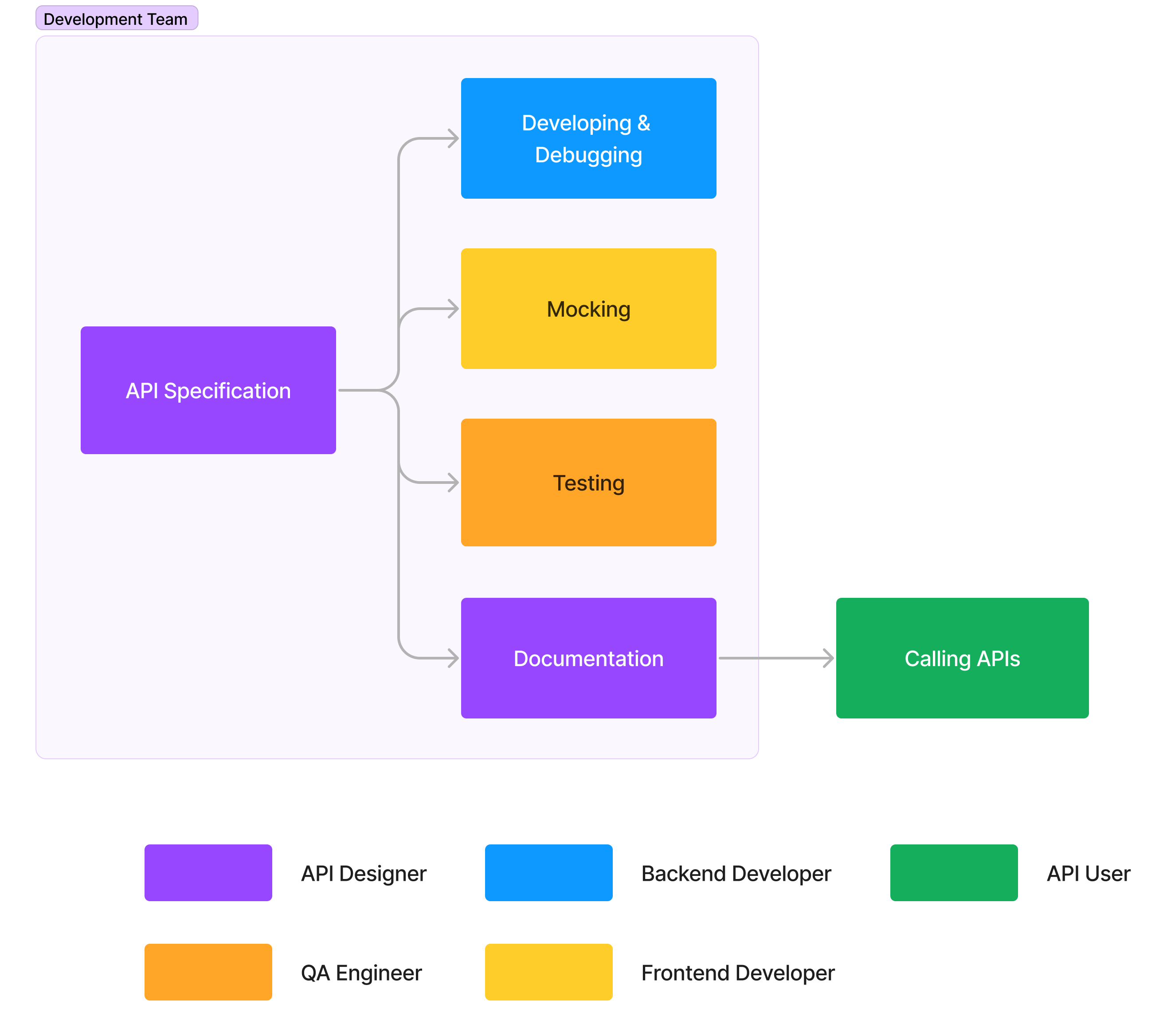
    Apidog is an all-in-one toolkit for API development. The whole team can work on it together to produce APIs efficiently and conveniently. Each role in the team can use it to solve their own problems.
    image-20230112105006206
    Apidog follows the API-first approach, which is a development approach where the API is designed and developed before the user interface. This approach has several benefits, such as:
    1.
    Apidog allows teams to work in parallel and establish a contract between services, allowing them to work on multiple APIs simultaneously and improving development speed.
    2.
    Automation can be achieved by using tools that import API definition files, reducing the time needed to develop and launch an API.
    3.
    It ensures a good developer experience, with well-designed and well-documented APIs, making it easy for developers to use and reuse code, onboard new developers, and reduce the learning curve.
    4.
    By solving most of the problems before any code is written, it can also prevent issues when integrating APIs with applications.
    Apidog can help you achieve all these benefits above.

    Why Apidog#

    We have observed that development teams often utilize a variety of tools, such as Postman, Swagger, Stoplight, and Jmeter, to design, manage, and test APIs during the development process. However, the absence of data synchronization and collaboration between these tools can significantly hinder efficiency.
    A better solution is for the entire development team to work within a single API tool. As long as the API documentation is defined, back-end developers can easily implement and self-test the API, front-end developers can easily call the API and use mock data, and test engineers can directly test the API and easily generate test cases. This greatly improves the efficiency of team collaboration.
    That is why we created the Apidog product. It is a comprehensive tool for API design, development, testing, management, documentation, and mocking, specifically designed for team collaboration.

    API Designers: Specify APIs#

    API designers can use Apidog to specify APIs visually or import from OpenAPI specifications.

    Import from OpenAPI specifications#

    If your API has been specified in OpenAPI or any other format, you can import it into Apidog so that it can be easily debugged, tested, or mocked.
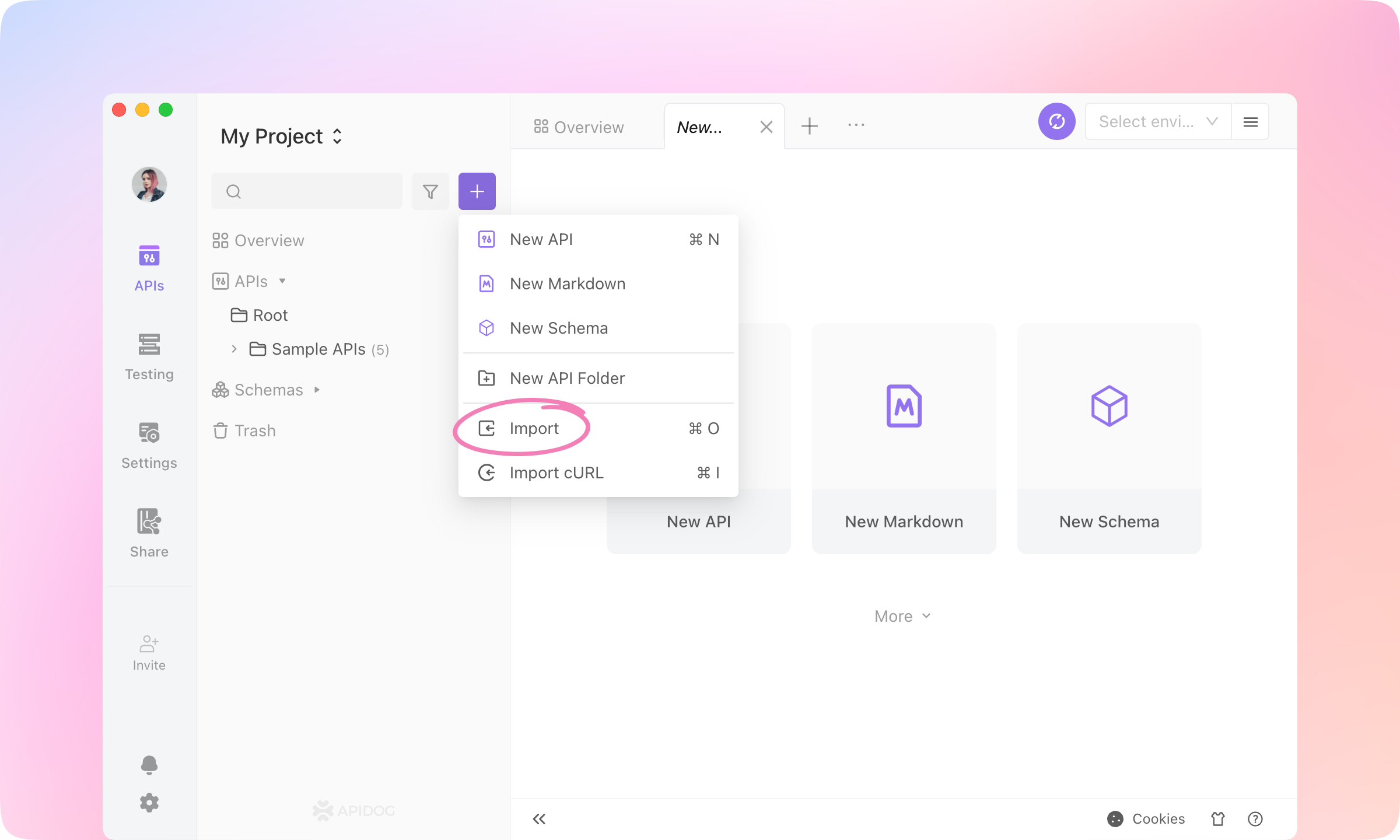
    1.
    Click Import in an Apidog project.
    Import
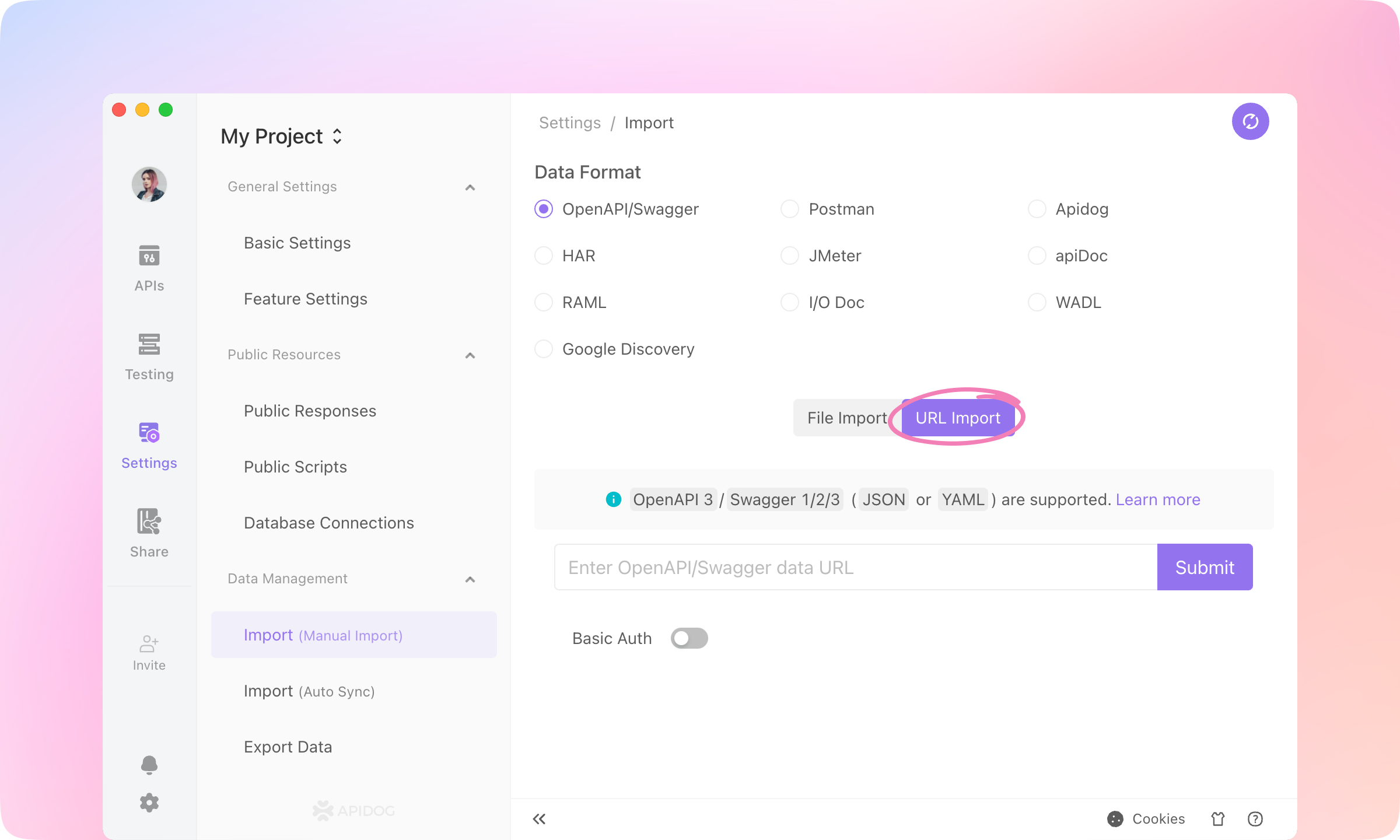
    2.
    Switch to URL Import, paste the following URL and click Submit.
    https://petstore.swagger.io/v2/swagger.json
    URL Import
    You can also select a JSON or YAML file to import. Other API specifications formats are also supported, such as Apidog, HAR, etc.
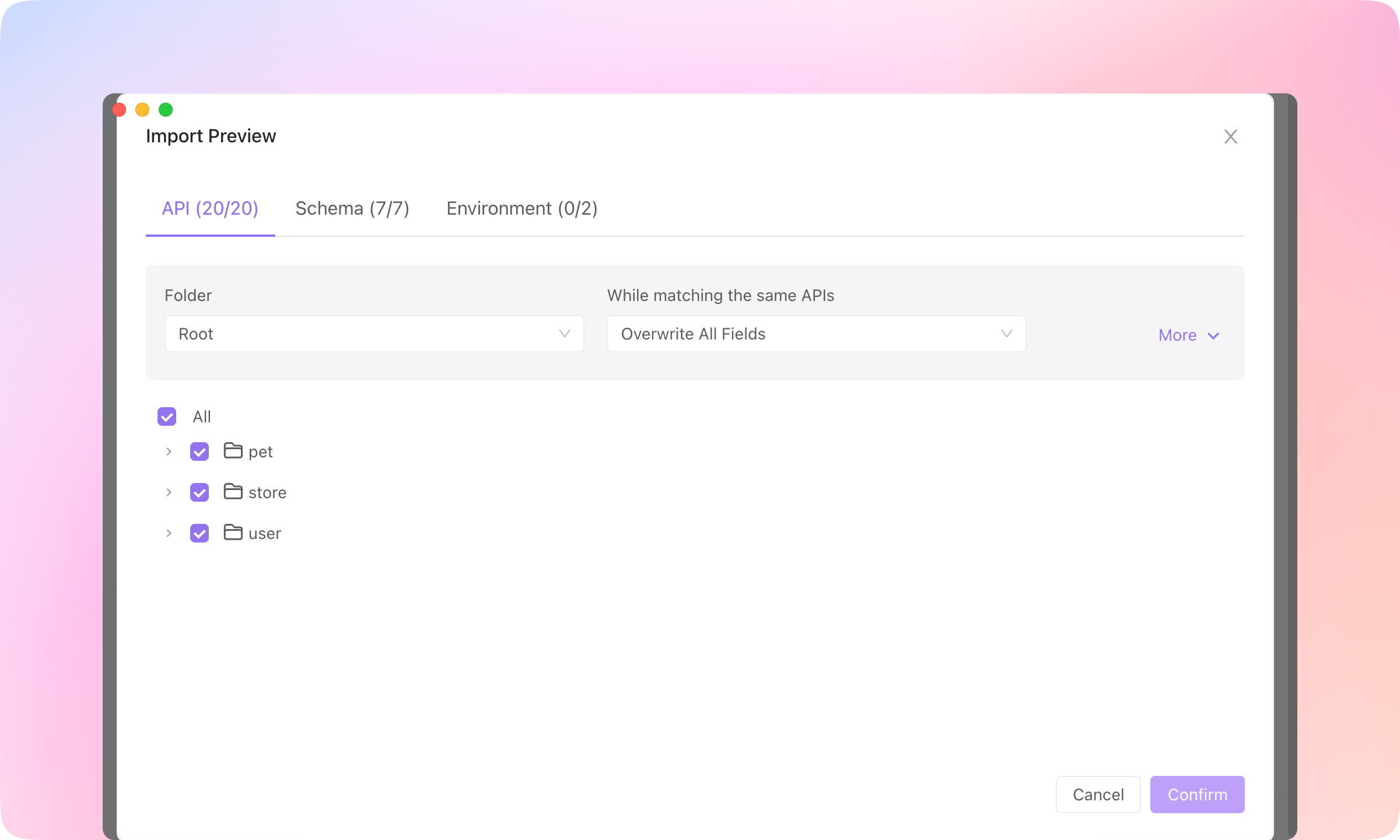
    3.
    Click Confirm to import.
    Confirm
    4.
    Now you can run or test the API in Apidog.
    image-20230111163711523
    TIP
    Learn more about importing data here.

    Specify a new API#

    API designers can use Apidog to specify APIs in an intuitive interface.
    1.
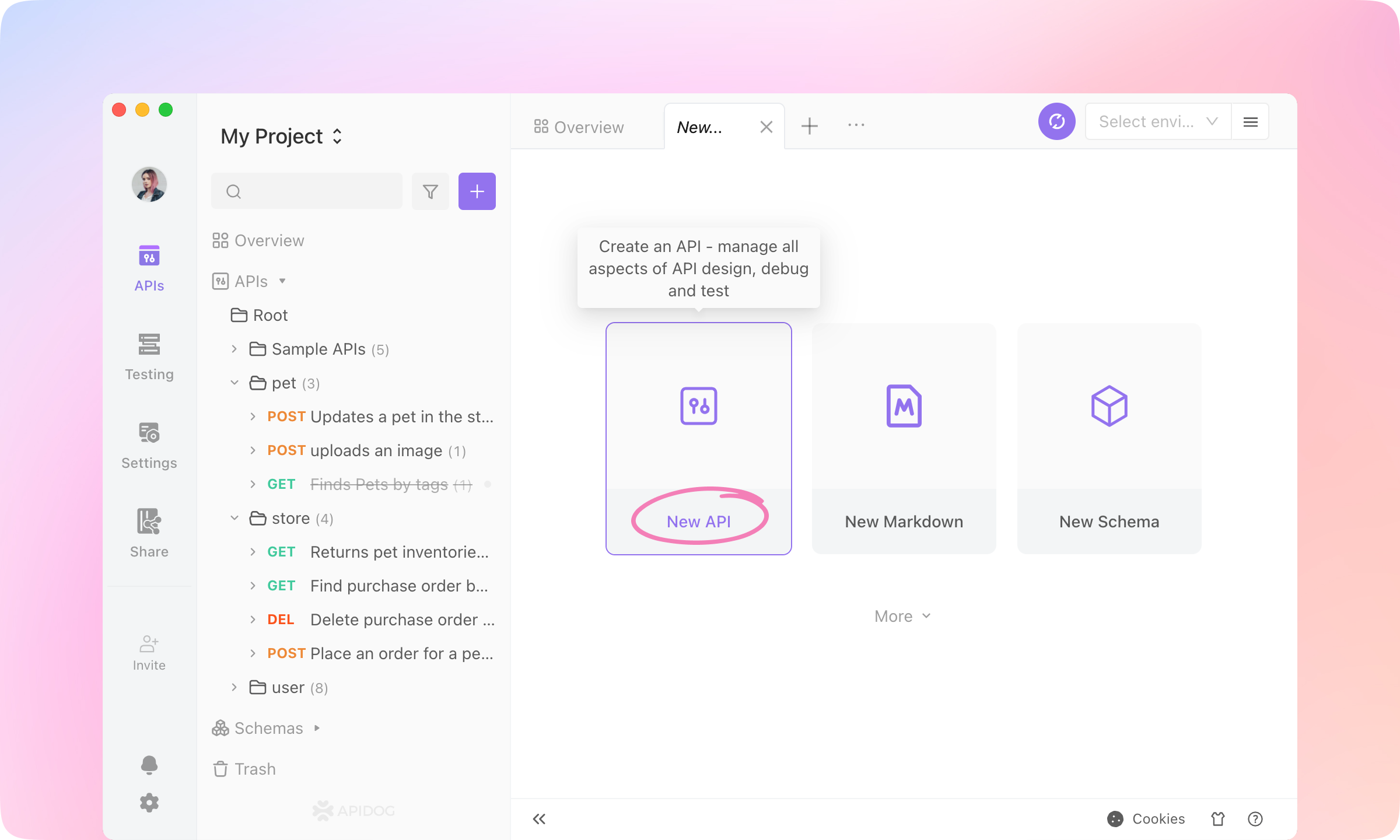
    Start a new tab and click New API to create an endpoint.
    image-20230111164357797
    2.
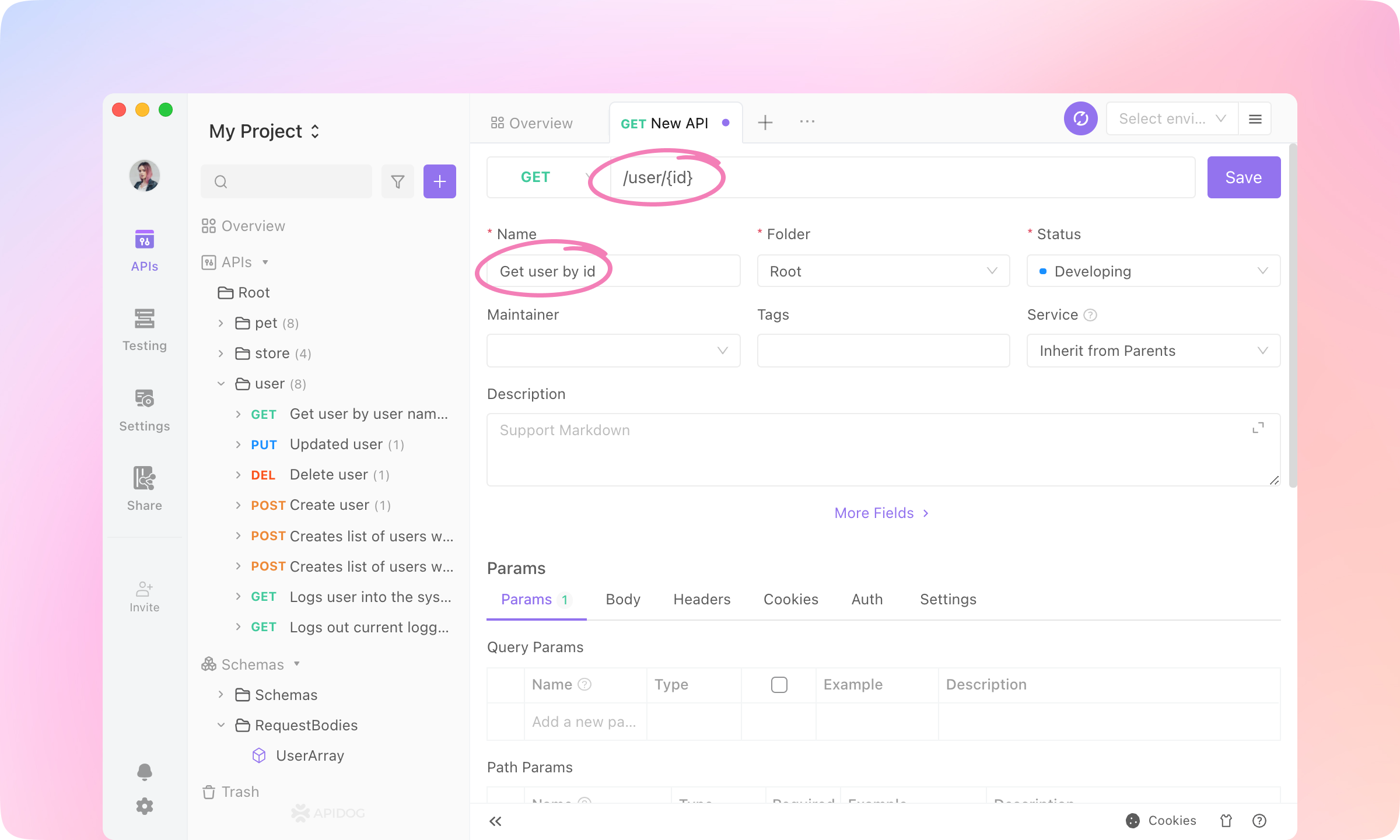
    Now we're going to specify an API for querying user information by id. So you can enter these fields into the API.
    API Path
    /users/{id}
    Name
    Get user by id
    image-20230111180123369
    3.
    This API has no query params or body params. You'll see 'id' recognized as a path param. Now the Request part is finished.
    4.
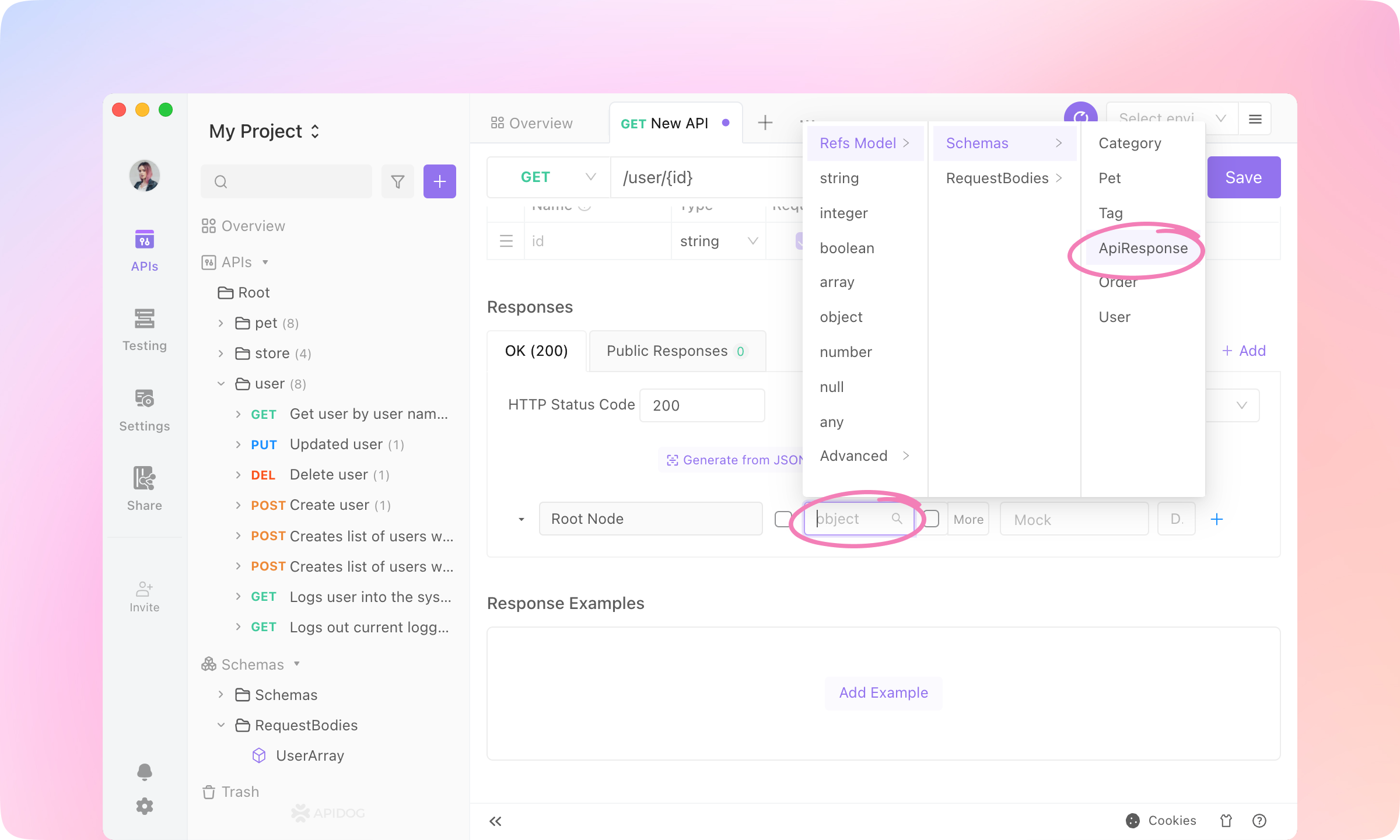
    Roll to the Responses part. In the 'OK(200)' response, change the field type of the root node to 'Refs Model - Schemas - ApiResponse'.
    image-20230111182133080
    5.
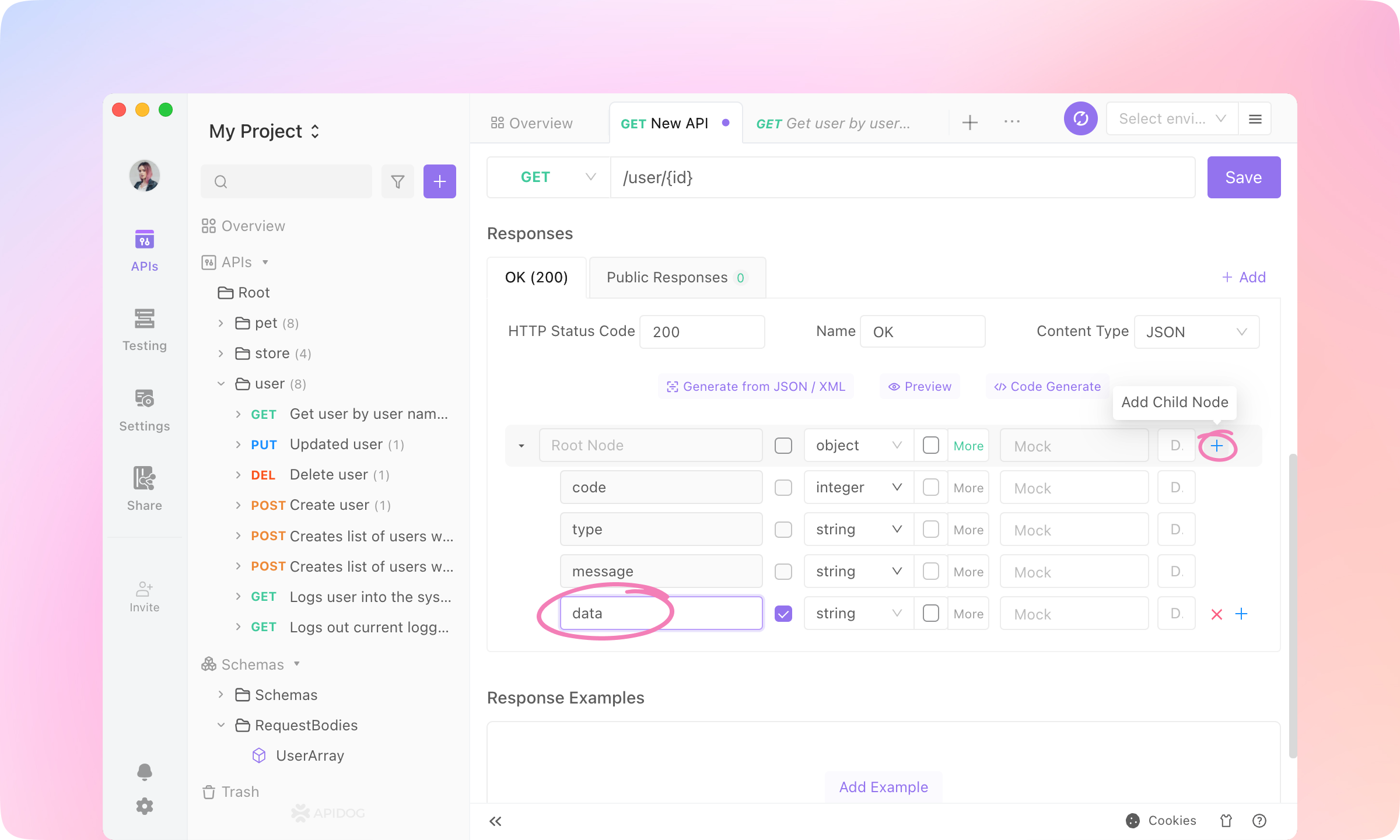
    Now this API has a general JSON structure like the following. Each API has a different 'data' field, so add a child node to the root node and name it 'data'.
    image-20230111183541907
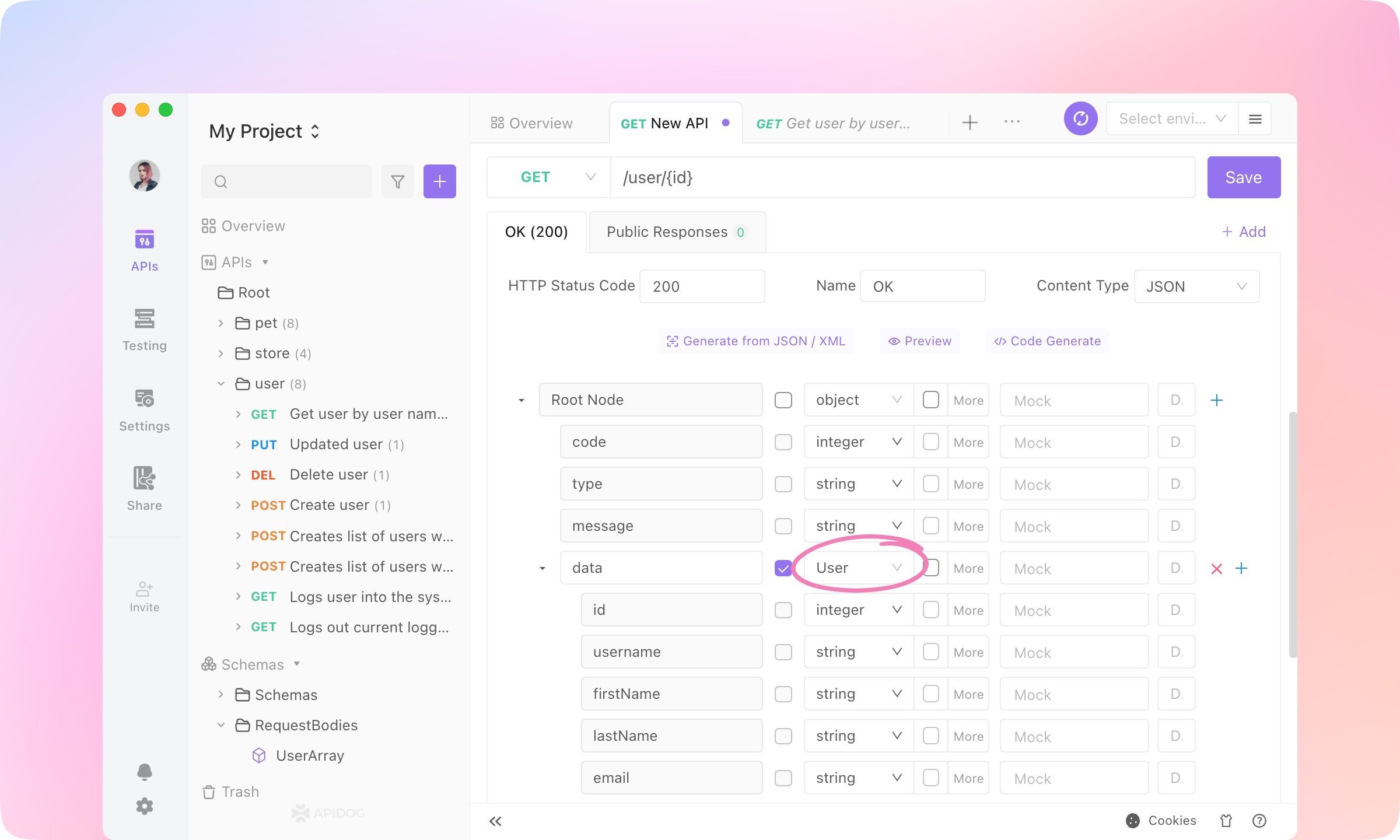
    6.
    Change the field type of the 'data' node to 'Refs Model' - 'Schemas' - 'User'.
    image-20230111184058051
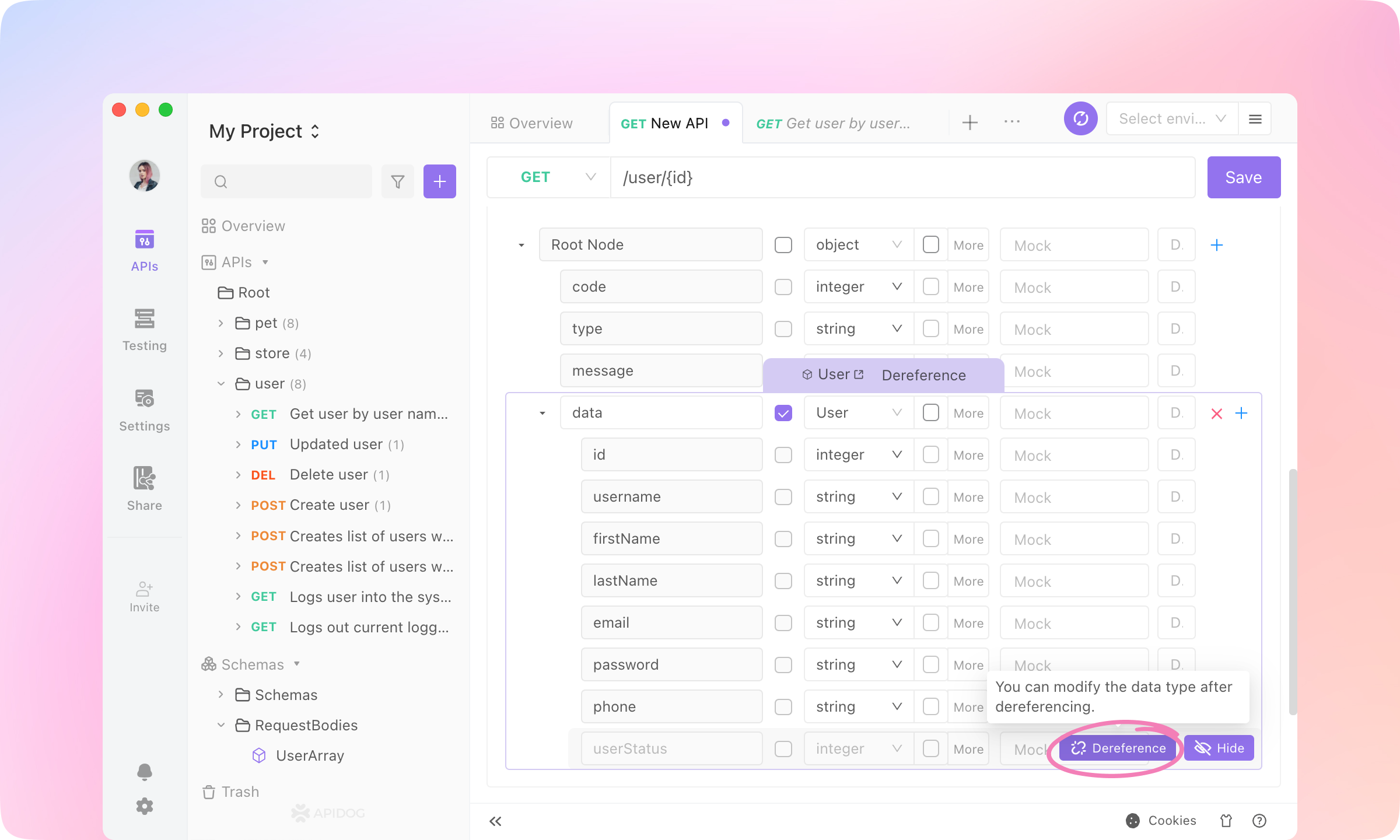
    7.
    Now the response structure is specified well. If you need to edit the 'data' structure, you can dereference the schema or dereference a field to edit.
    image-20230111184503122
    TIP
    Learn more about Data Schema here.
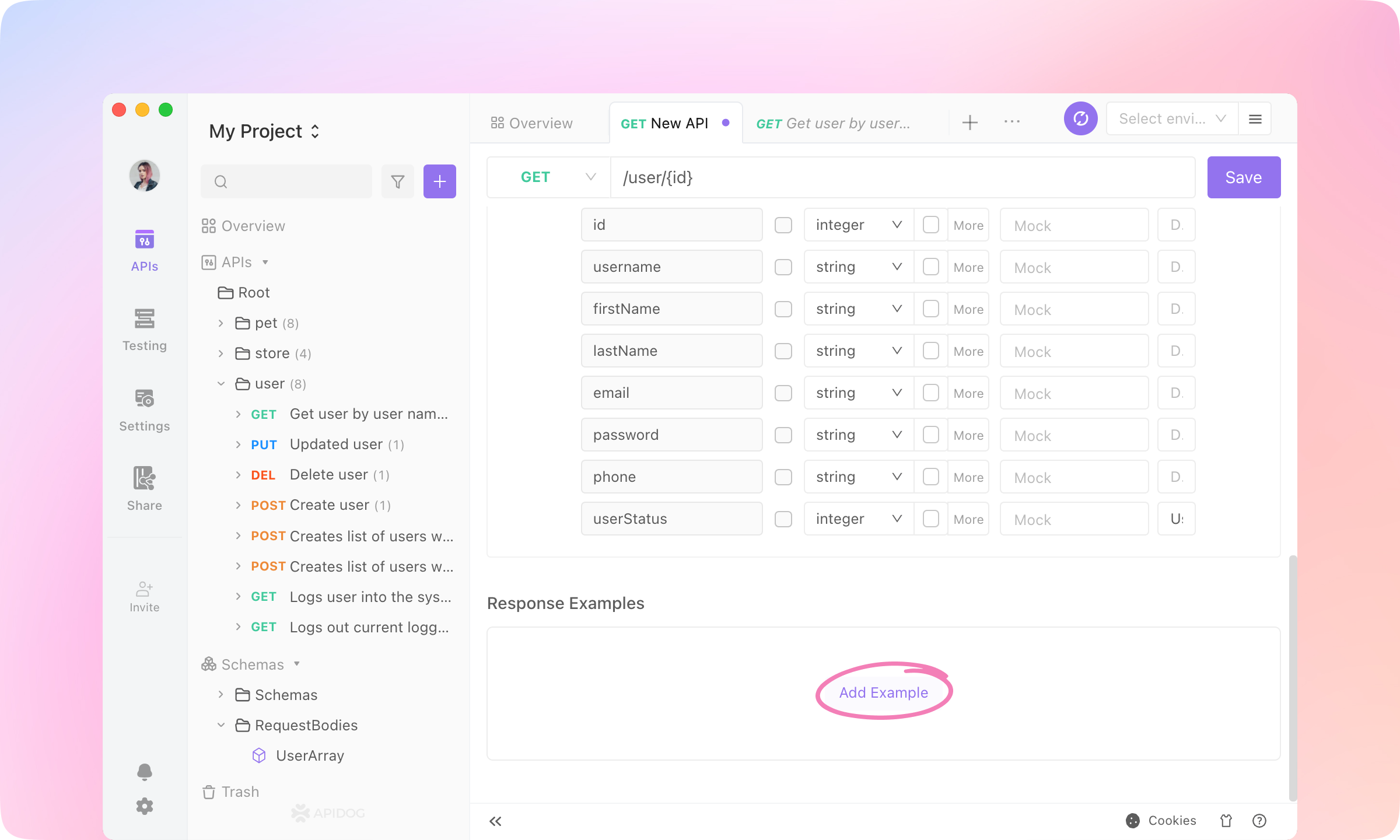
    8.
    Roll to the Response Examples part. Click Add Example.
    image-20230111184846475
    9.
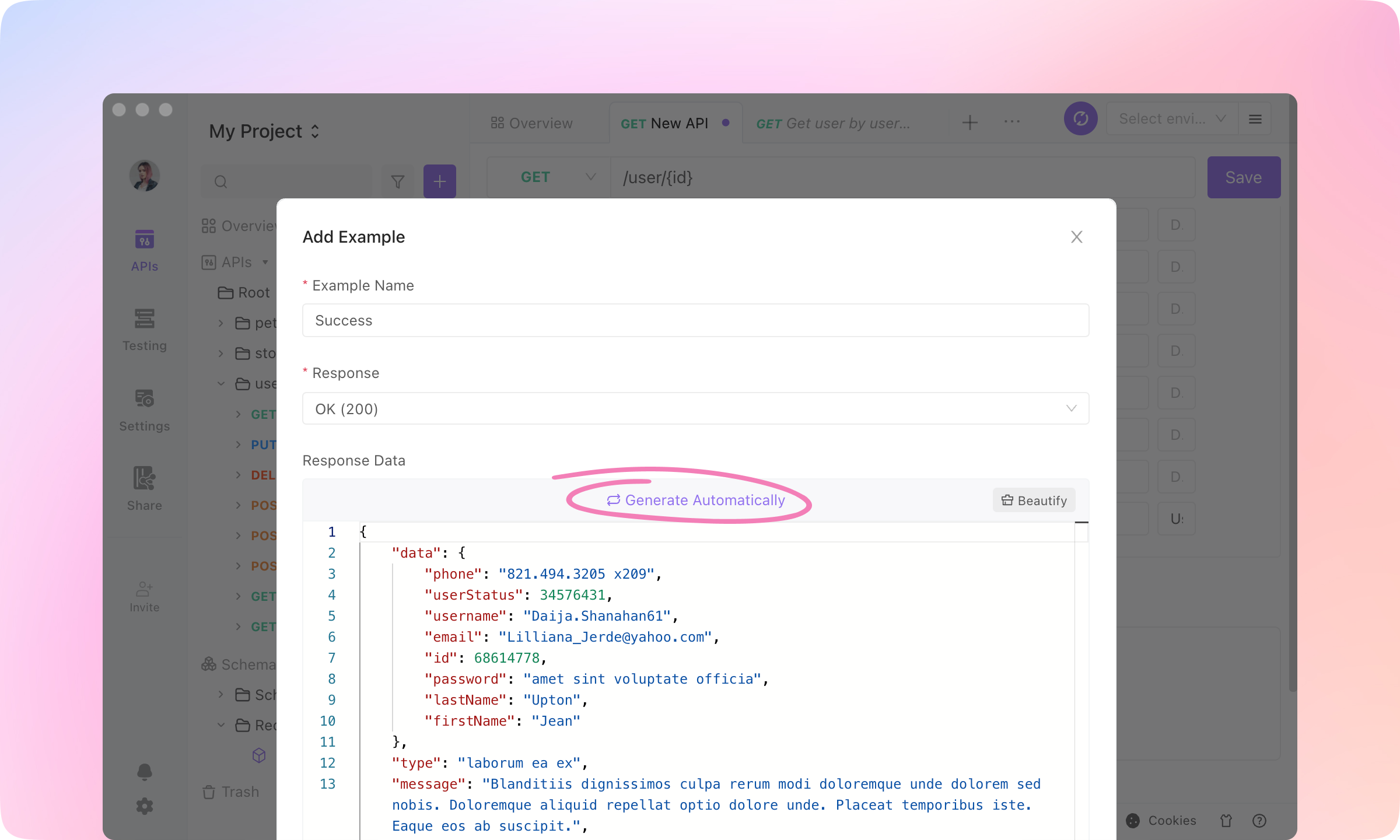
    Name the example 'Success'. Now it's the magical part: click Generate Automatically, and the response data will be generated according to the response structure. Click OK to add the example.
    image-20230111185225636
    10.
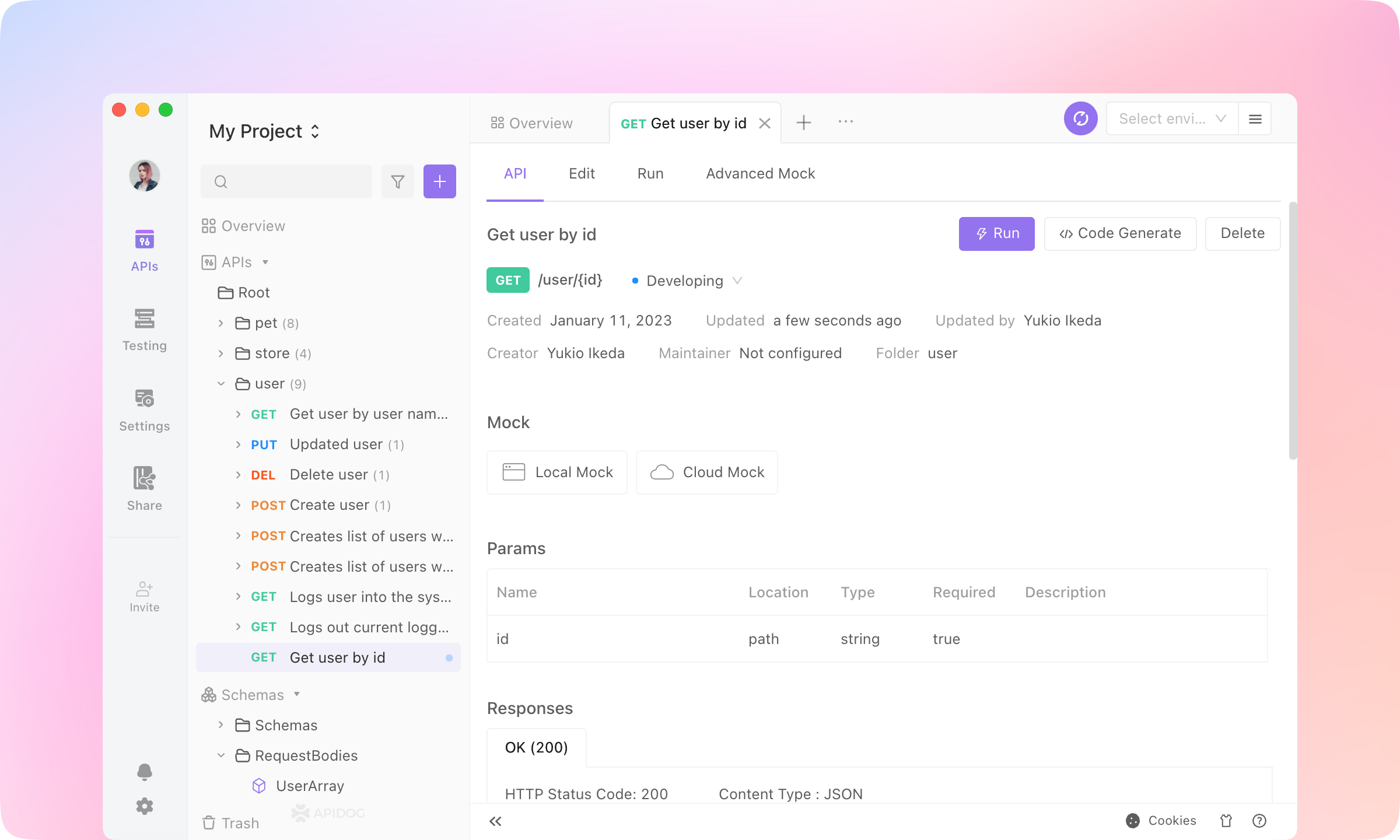
    Click Save to finish the API specification. You'll get a well-designed API.
    image-20230111190104494

    Back-end Developers: API Developing & Debugging#

    Different teams adopt different development approaches. Some teams adopt API-first, and some teams adopt code-first. Regardless of which method your team uses, back-end developers can use Apidog to assist in the development and debugging of the API.

    Generate Code#

    1.
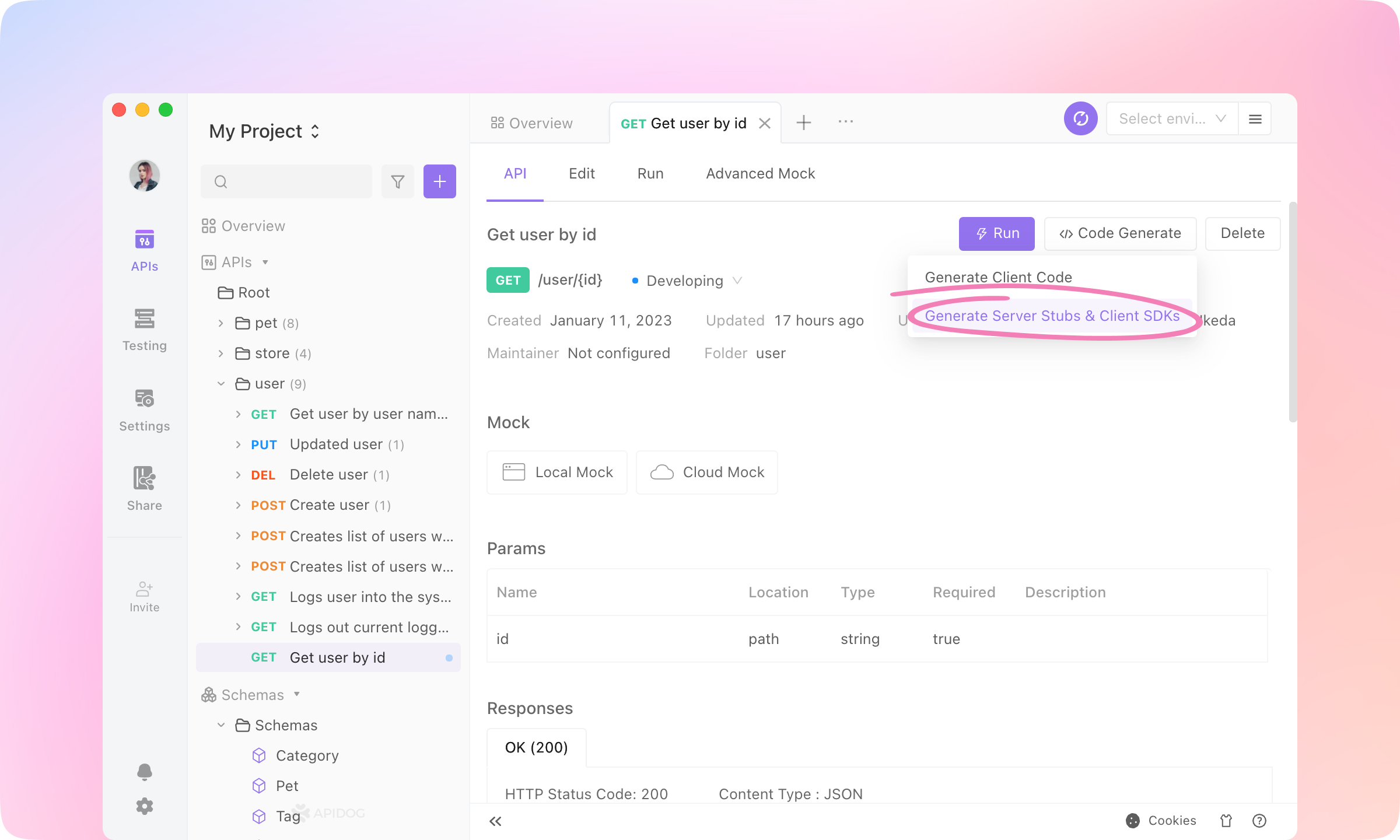
    While APIs are specified, server stubs and client SDKs can be generated easily. Just click Generate Code on the API page and select Generate Server Stubs & Client SDKs.
    image-20230112141130066
    2.
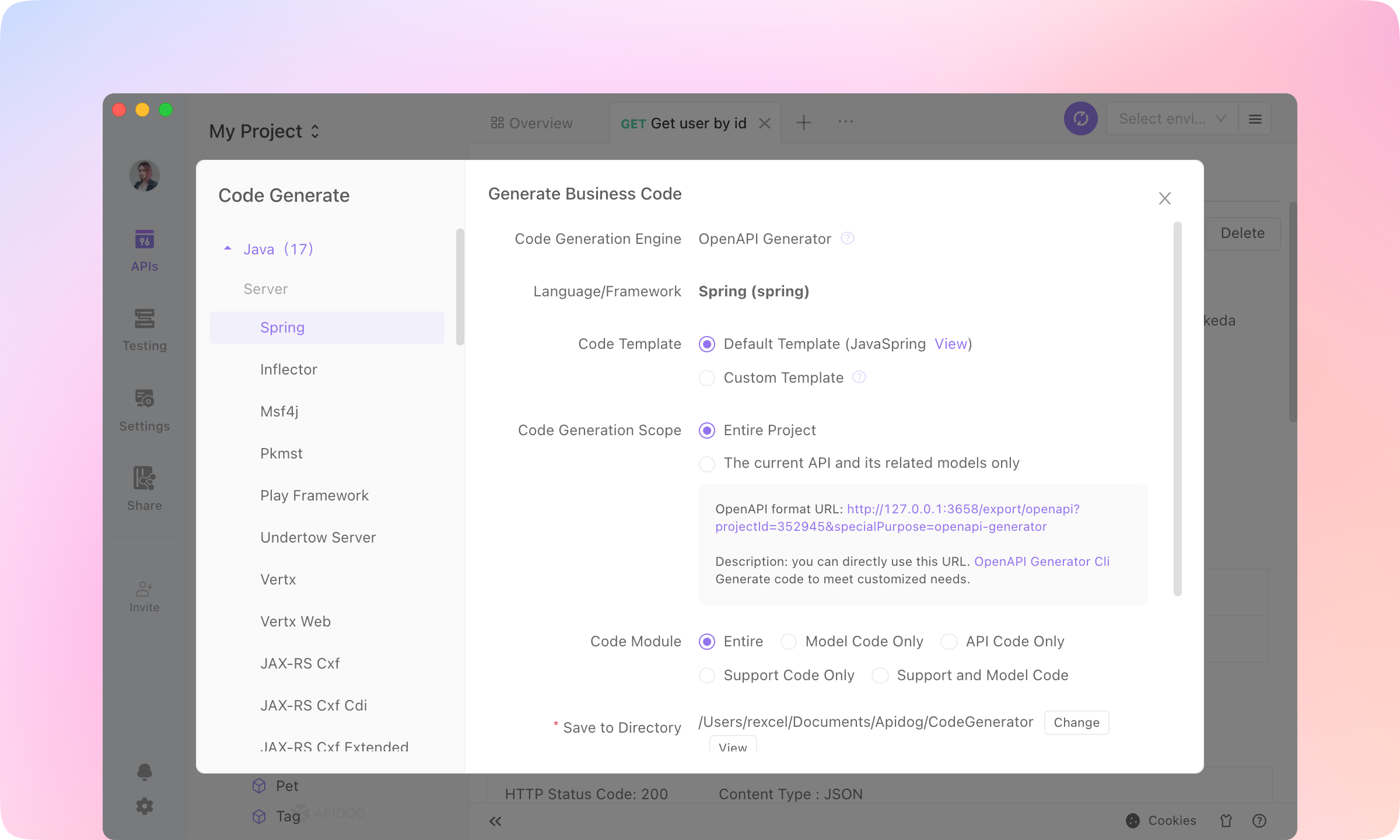
    Using the OpenAPI Generator engine, server stubs and client SDKs in tens of languages can be generated.
    image-20230112141716502
    TIP
    Learn more about Code Generation here.

    Run the API#

    After API development is completed, the back-end often needs to debug whether the API can give the correct output under different input parameters. Using Apidog makes it easy to debug each API and ensure that they are running normally.
    1.
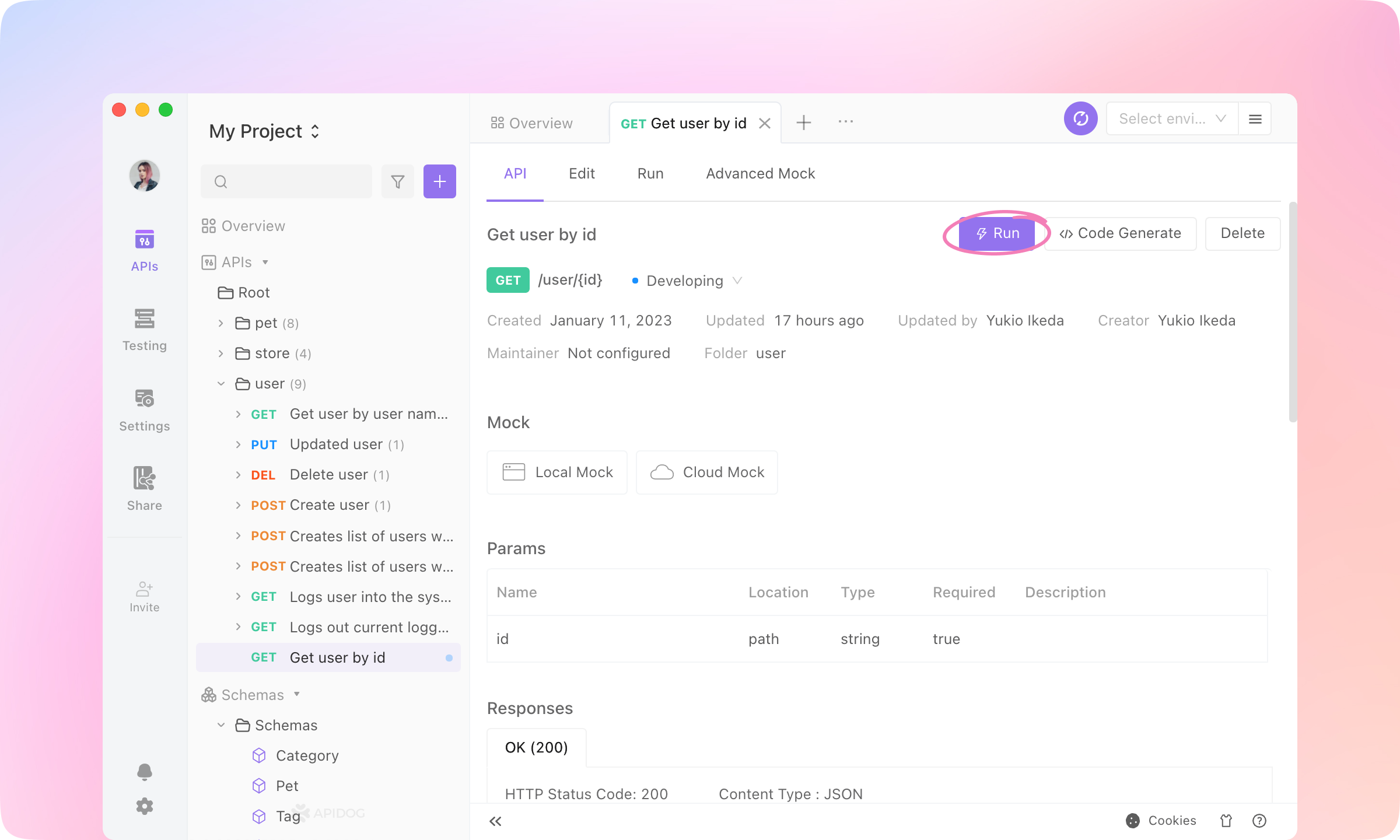
    In the API page we just created, click the Run button to enter the Run tab.
    image-20230112143153718
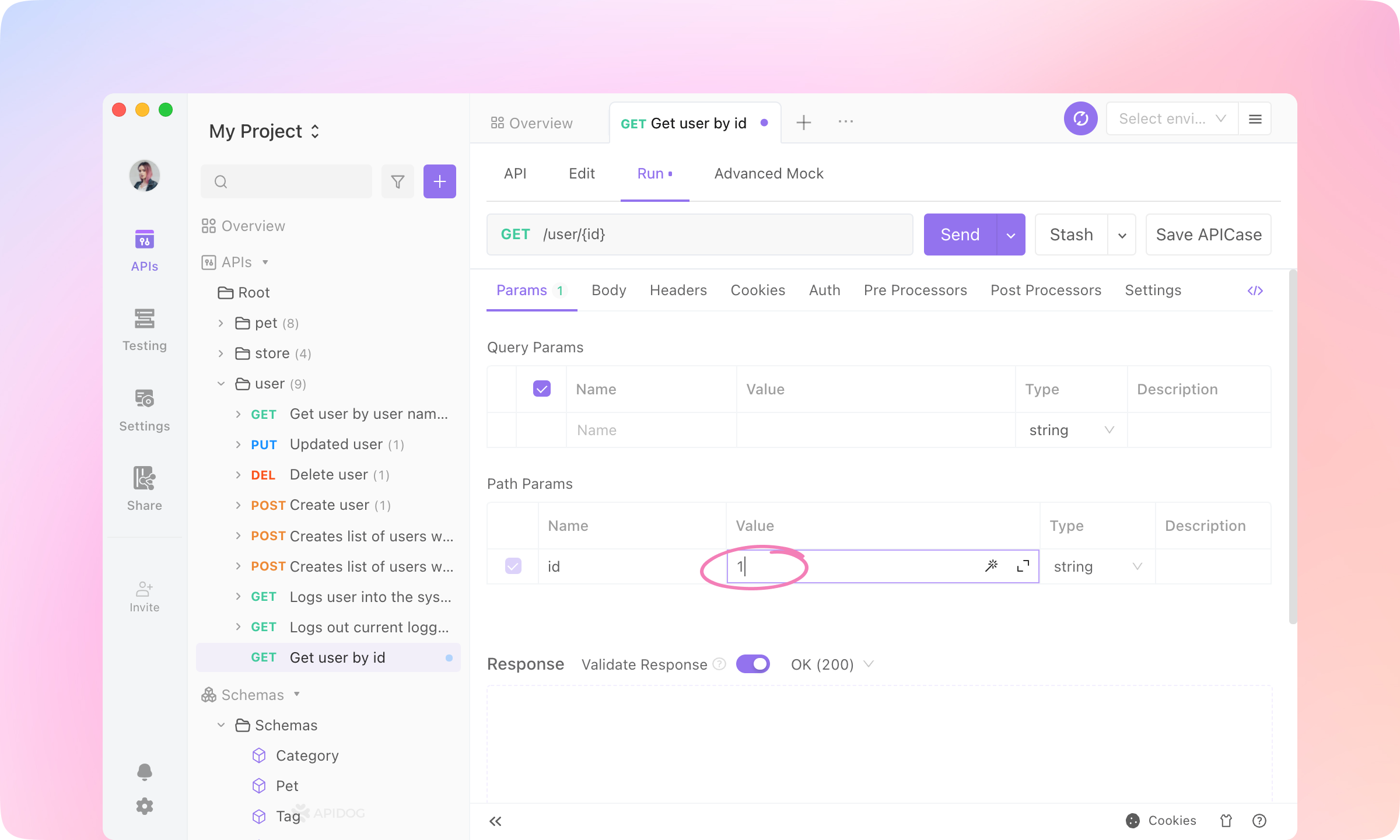
    2.
    Enter '1' to the 'id' param. In the request URL to be sent, {id} will be replaced by the value '1'.
    image-20230112150509769
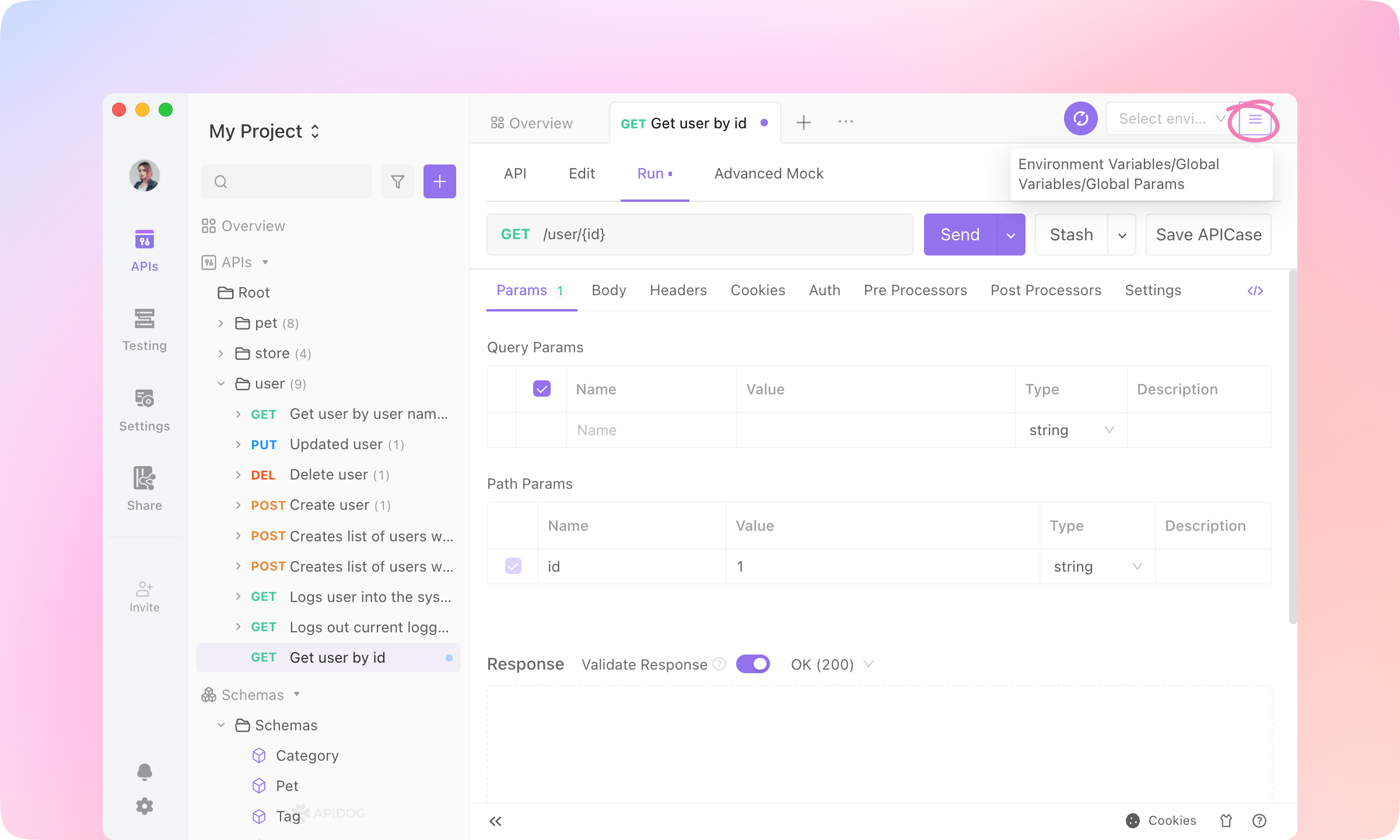
    3.
    Click the Manage Environments button at the top right.
    image-20230112150905364
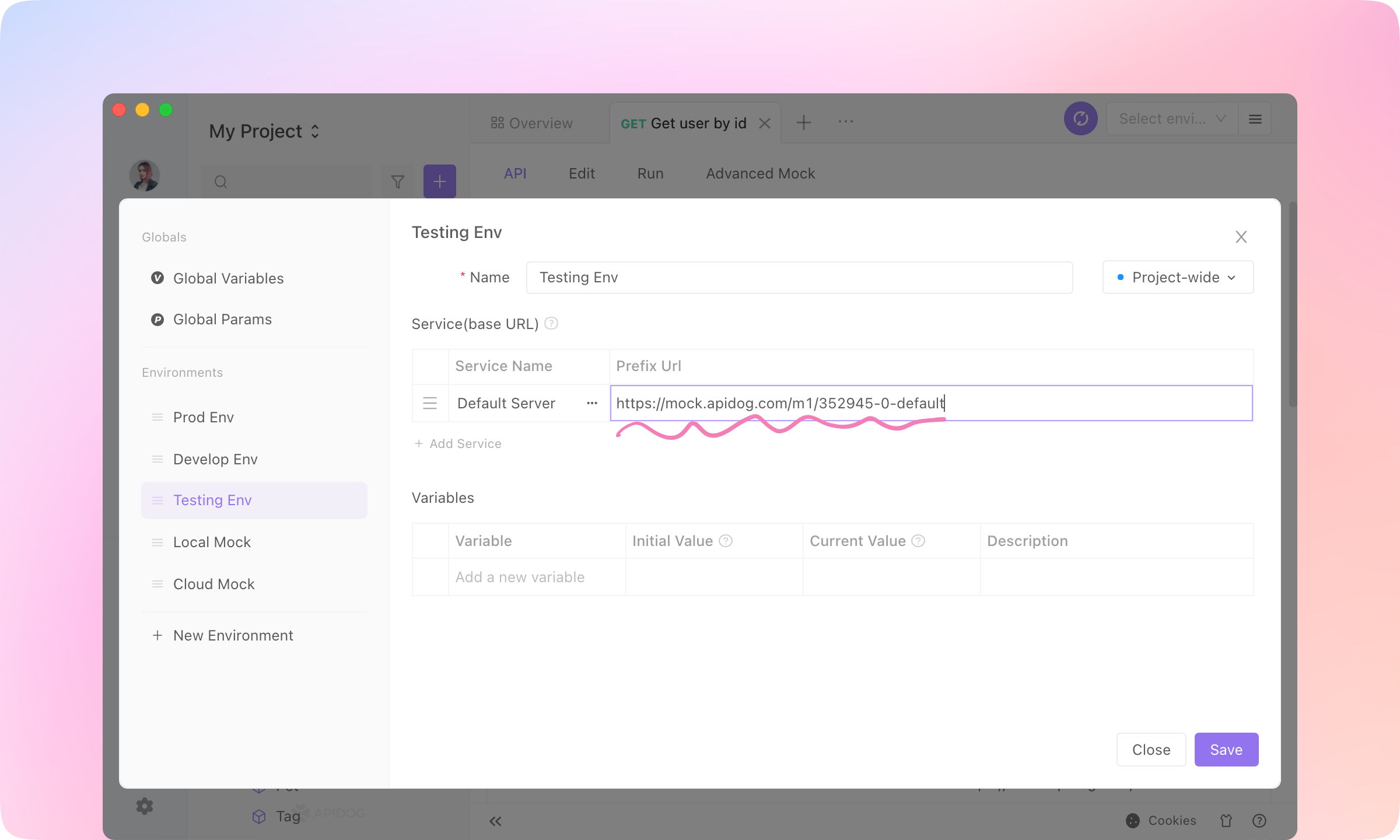
    4.
    Switch to 'Test Env', and paste the following URL into the 'Default Server' service. Then save the environment.
    https://mock.apidog.com/m1/352945-0-default
    TIP
    Learn more about Environment Management here.
    image-20230112152926197
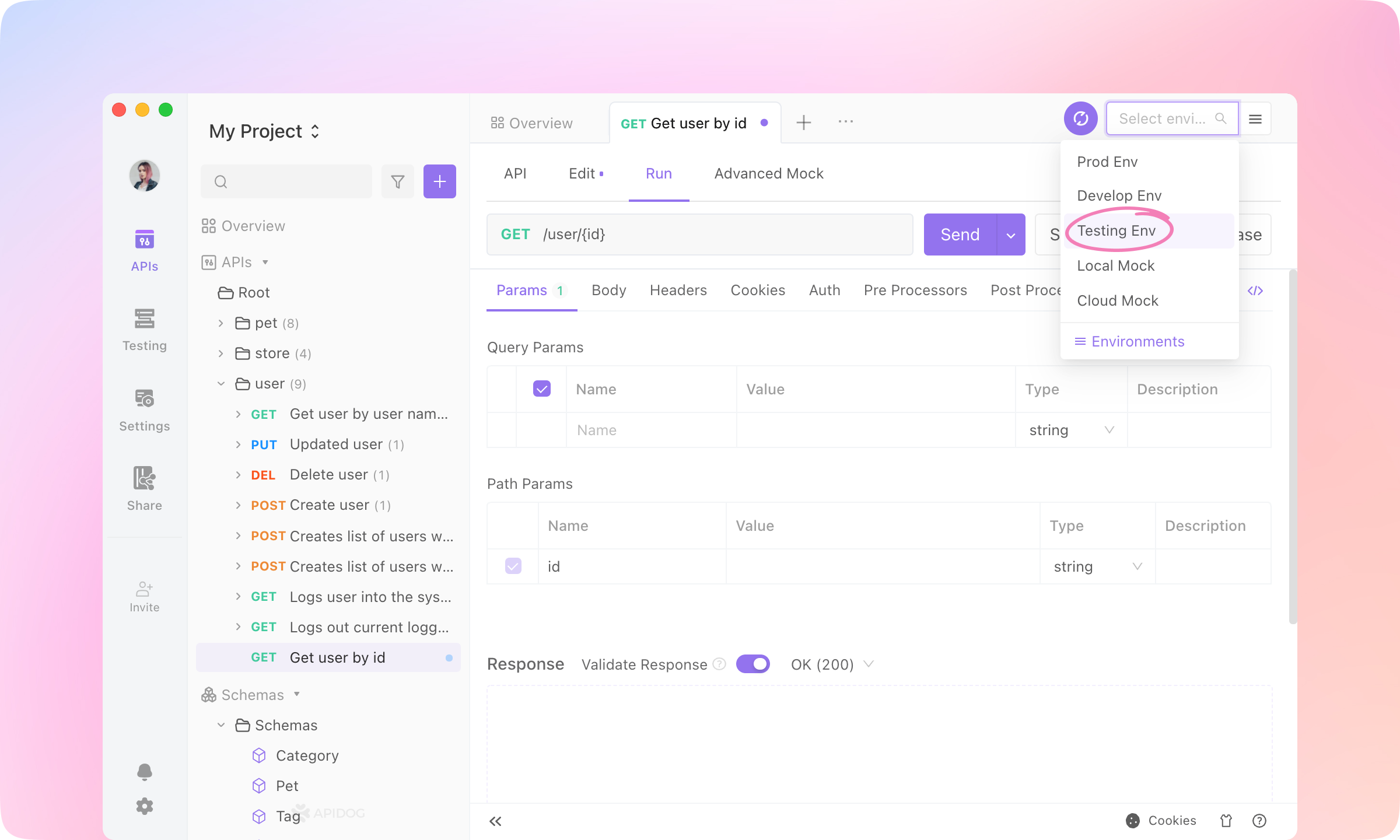
    5.
    Select the 'Testing Env' so that all the requests will be sent with the base URL just configured in the front.
    image-20230112153642553
    6.
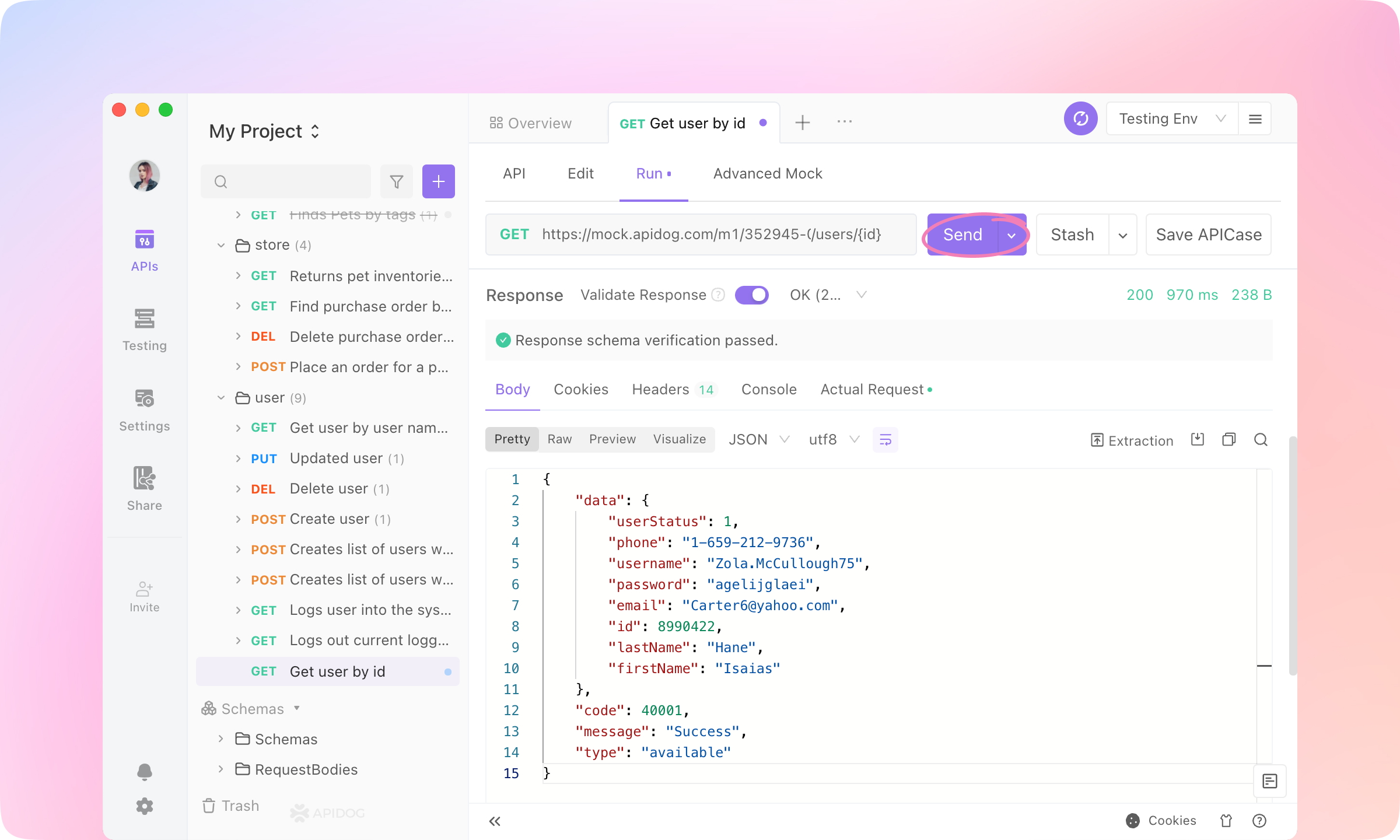
    Click Send to send the request. The response of the API will be displayed below.
    image-20230112174329229

    Debugging#

    After the API is developed, the back-end needs to test whether it can return the expected data and whether the API has implemented the correct business logic.
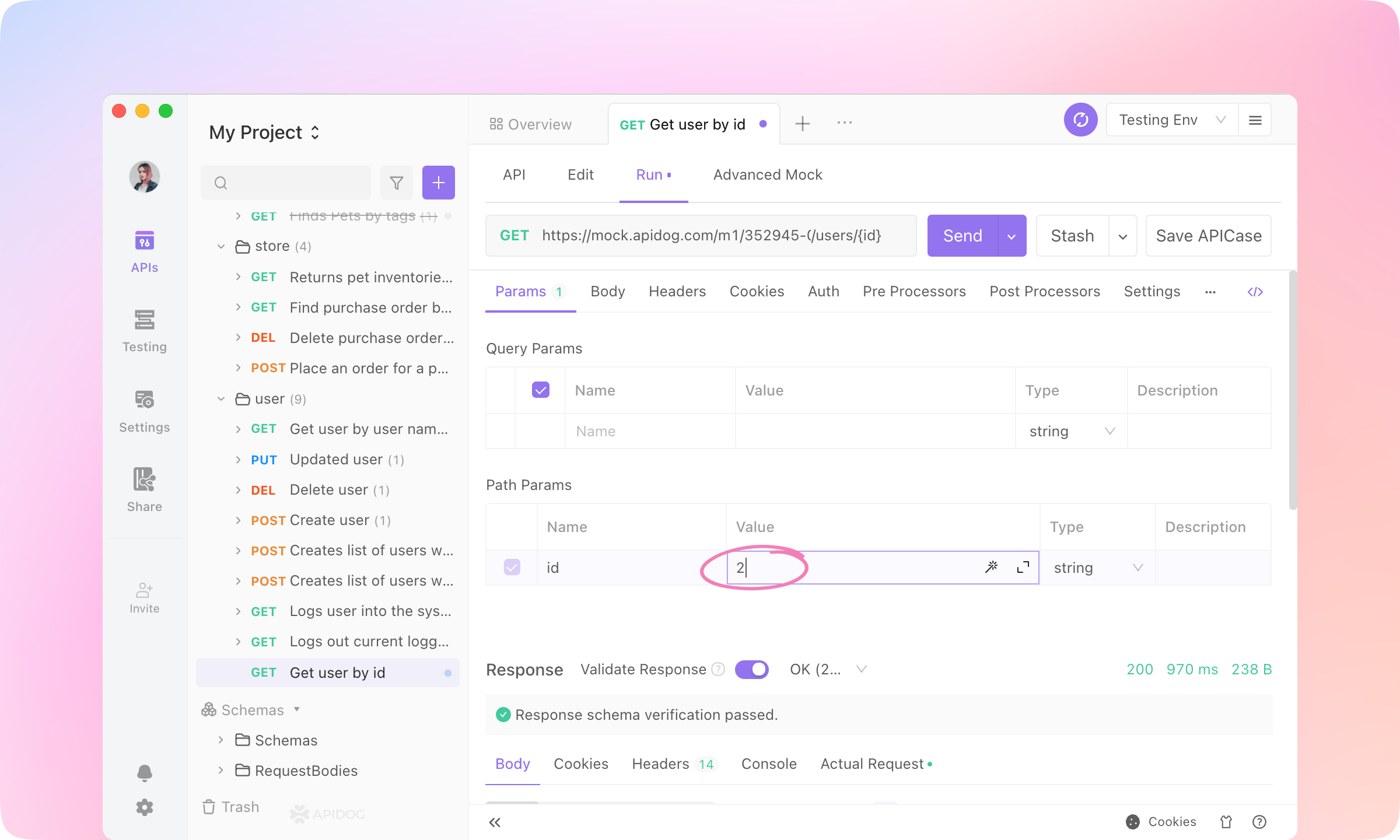
    1.
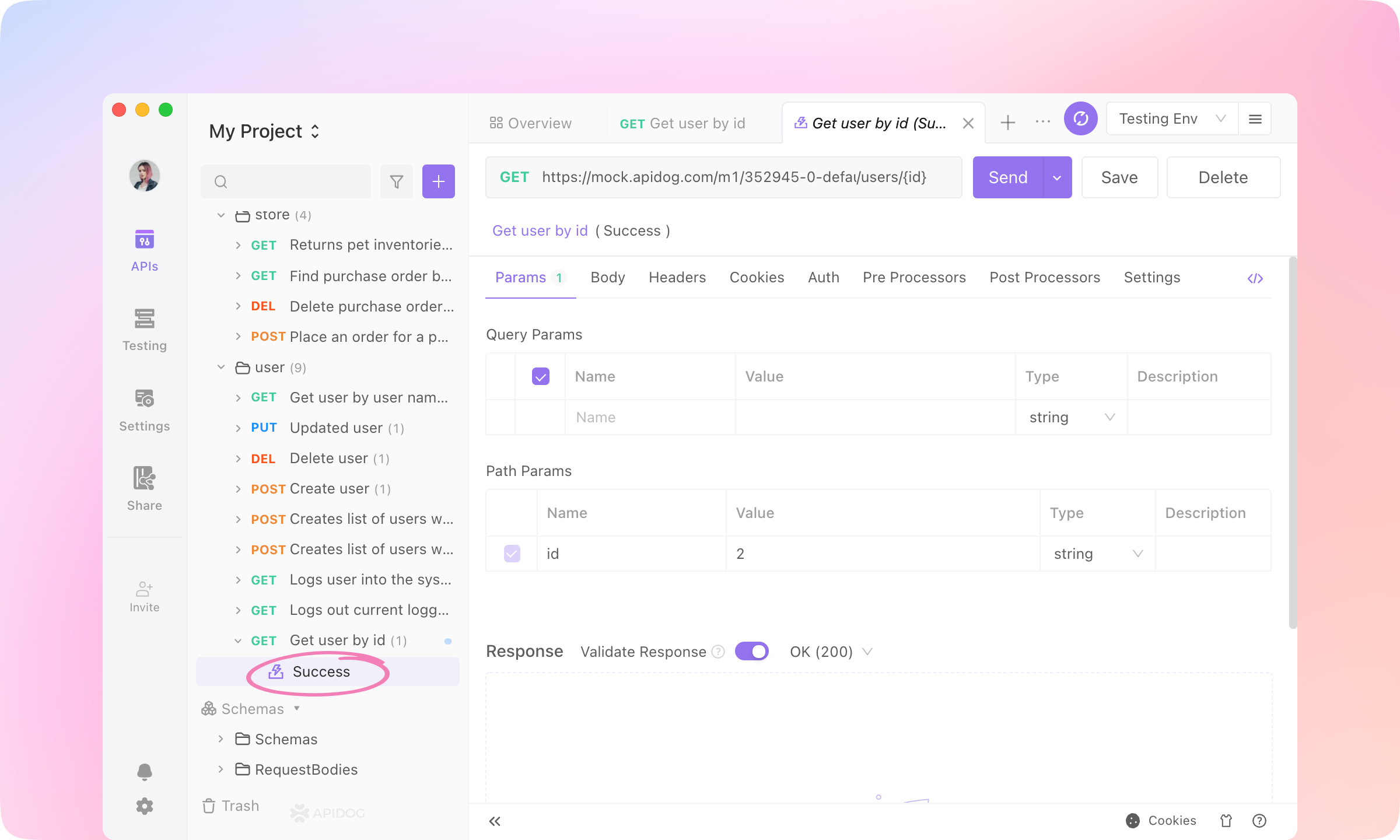
    Set the value of the path param to '2', and Send the request.
    image-20230112181113456
    2.
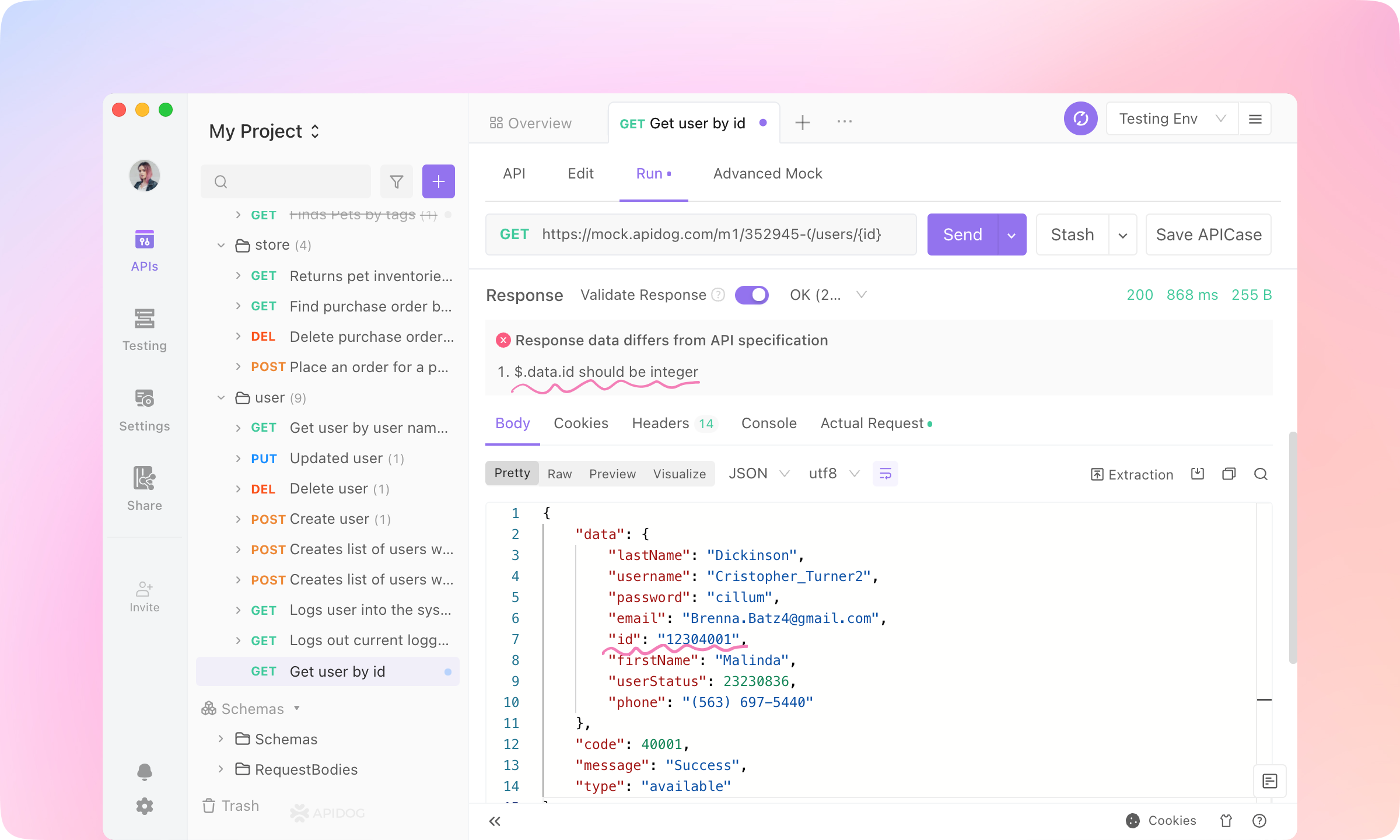
    You'll see an alert '๐ŸšซResponse data differs from API specification: .data.idshouldbeintegerโ€ฒ.Thatisbecausethe.data.id is specified as an integer, but the $.data.id in the actual response is a string.
    image-20230112191828215
    3.
    Apidog automatically verifies whether the API definition and actual response are consistent. Issues such as incorrect data types, undefined enumerated values, missing required fields, and so on will be automatically detected. The back-end can easily discover problems in the response data.
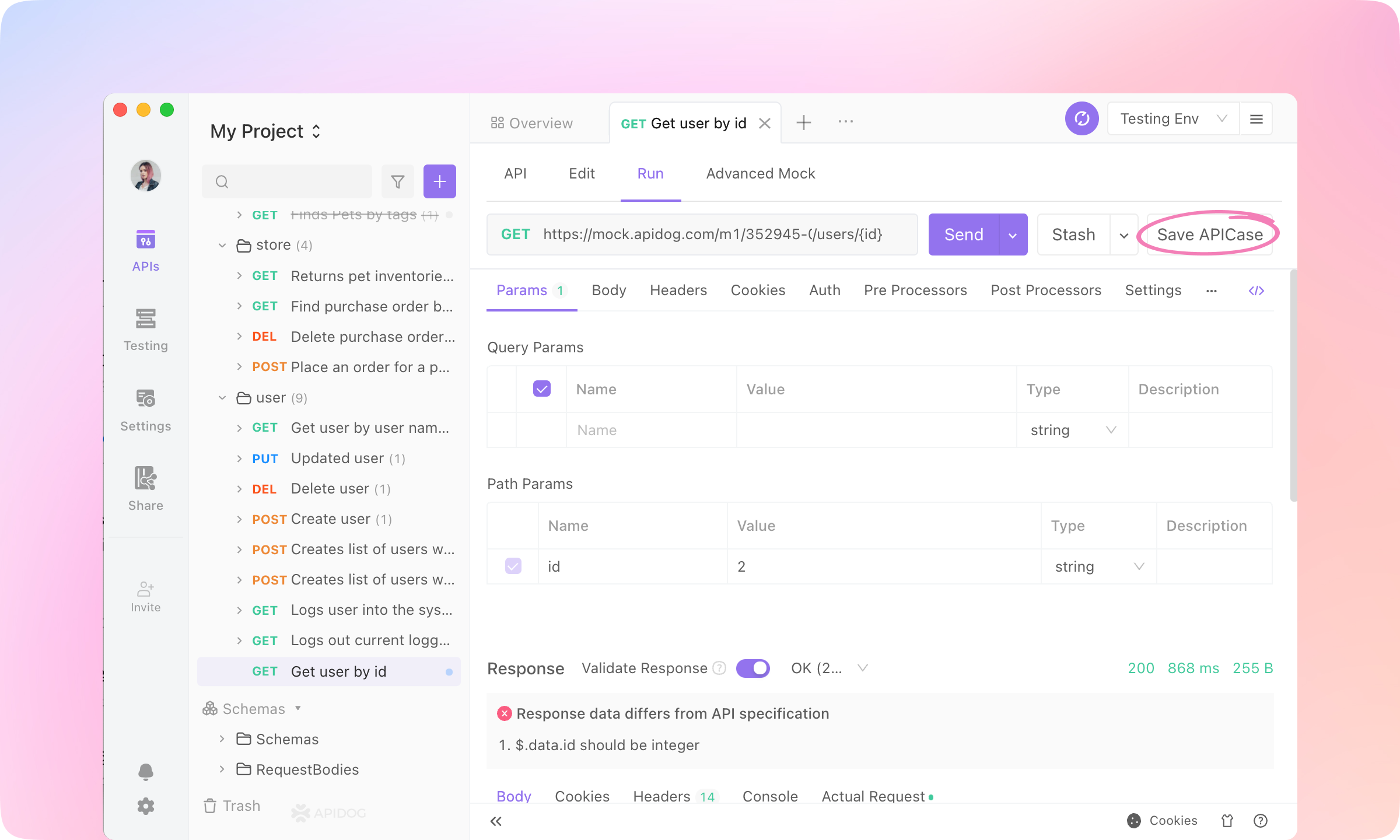
    4.
    Click Save APICase to save the request. The requests will be saved as children of the API and can be referenced in the testing module.
    image-20230112194429922
    image-20230112195055270

    Use Variables#

    In Apidog, variables are used to store values that can be reused across requests.
    Environment variables are specific to an environment, meaning that they are only accessible when a particular environment is selected. Global variables, on the other hand, are accessible across all environments.
    You can define environment variables in the "Manage Environments" section of Apidog, and reference them in your requests using double curly braces notation, for example {{variableName}}.
    Here is an example.
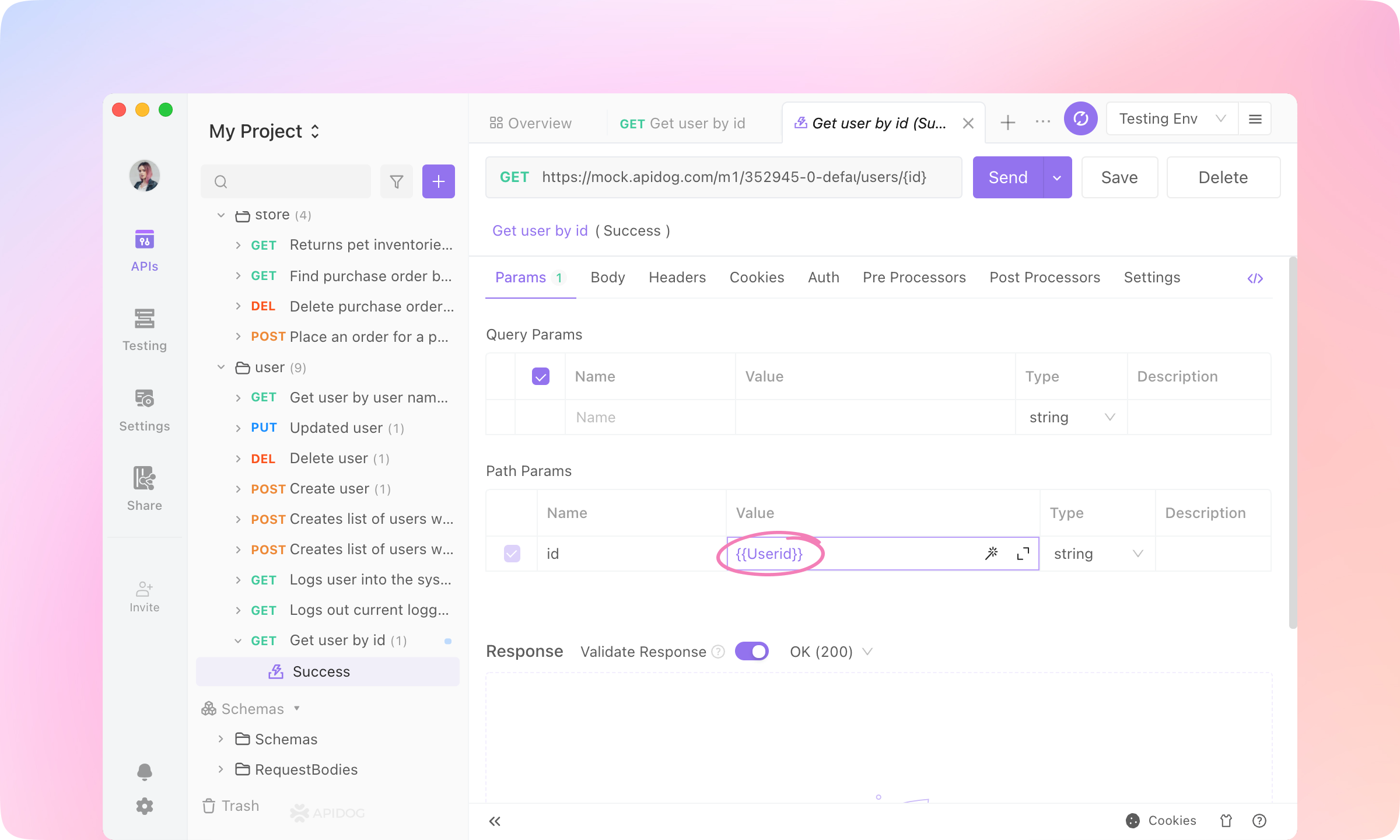
    1.
    Fill the path param 'id' with {{Userid}}.
    image-20230112200744605
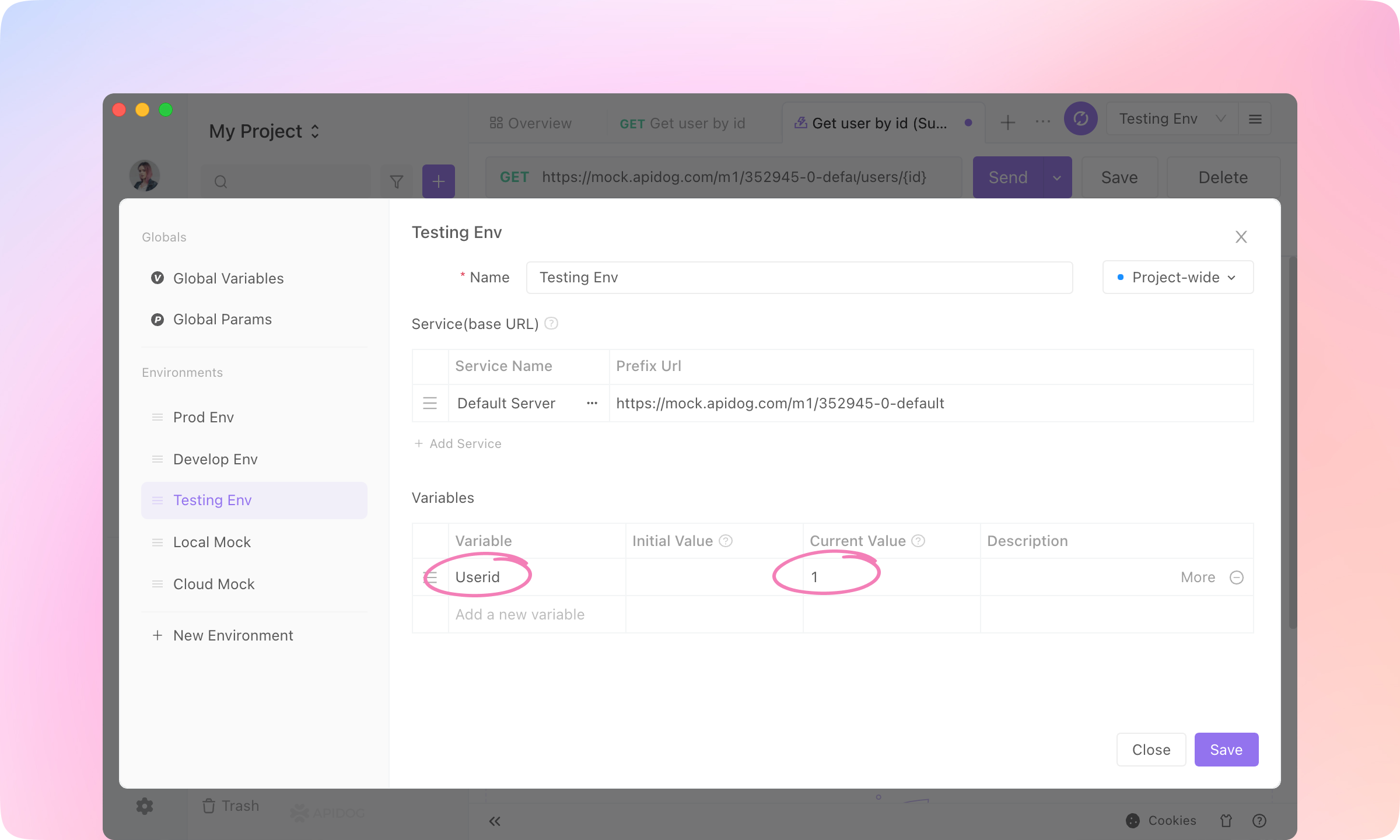
    2.
    Click Environment Management. Add a new variable named Userid, and fill the Current Value with '1'. Save the Variable.
    image-20230112201612506
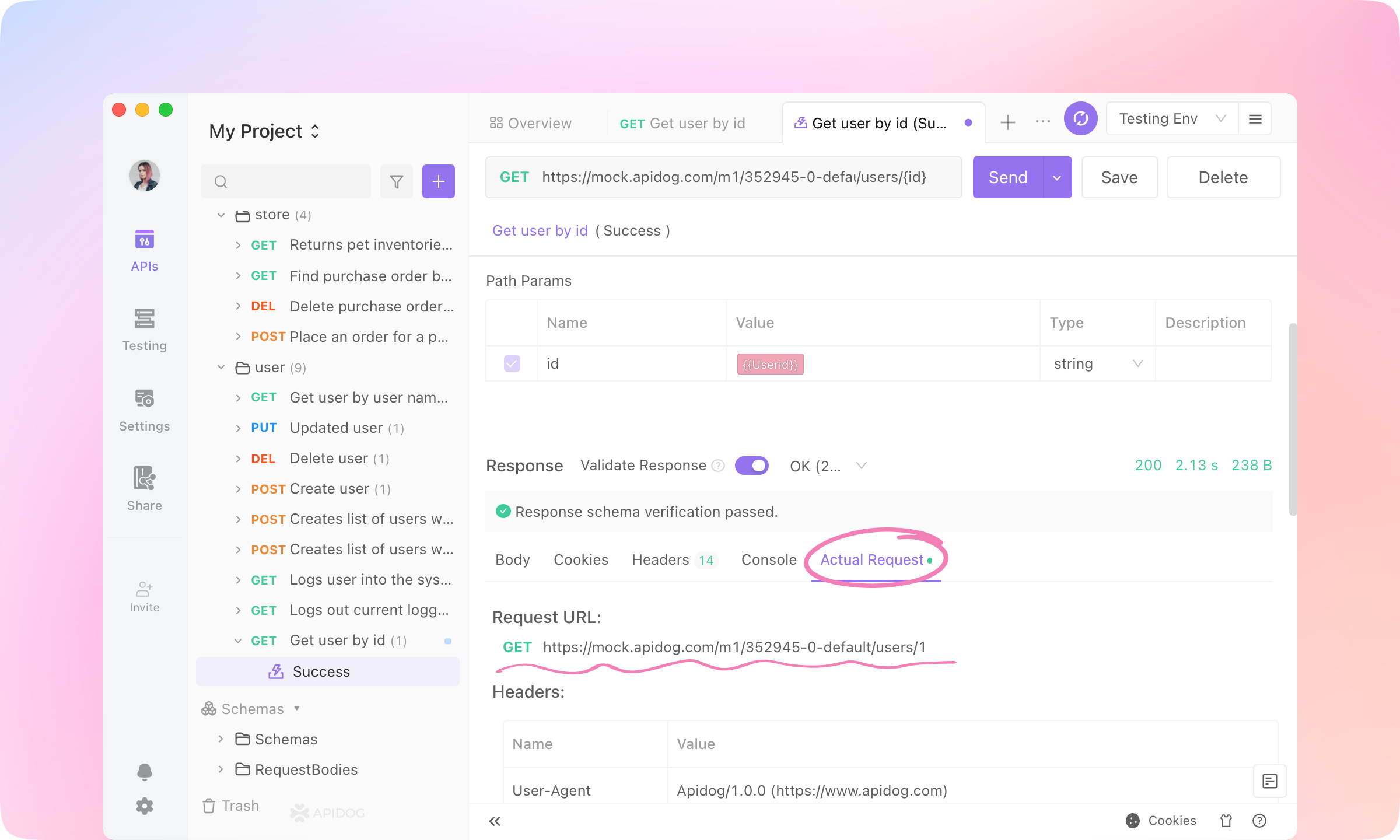
    3.
    Send the request. Click Response - Actual Request to see the request URL, and you'll find the {{Userid}} is replaced by the current value.
    image-20230112202141999
    TIP
    Learn more about Variables here.

    Pre Processors#

    In Apidog, Pre Processors are operations that are executed before a request is sent. They allow you to manipulate the request and environment variables before the request is sent.
    Pre Processors can be used to:
    Set or modify variables that are used in the request
    Perform data validation or data transformation
    Add or modify headers
    Log information or debug data
    Make other requests and store the response data in variables
    Modify the request URL
    These operations can be written in JavaScript, and you can use the Postman SDK to access the request and response objects, as well as the environment and global variables. Once a script is added, it will execute every time the request is sent.
    Here is an example to modify the request param value in Pre Processors.
    1.
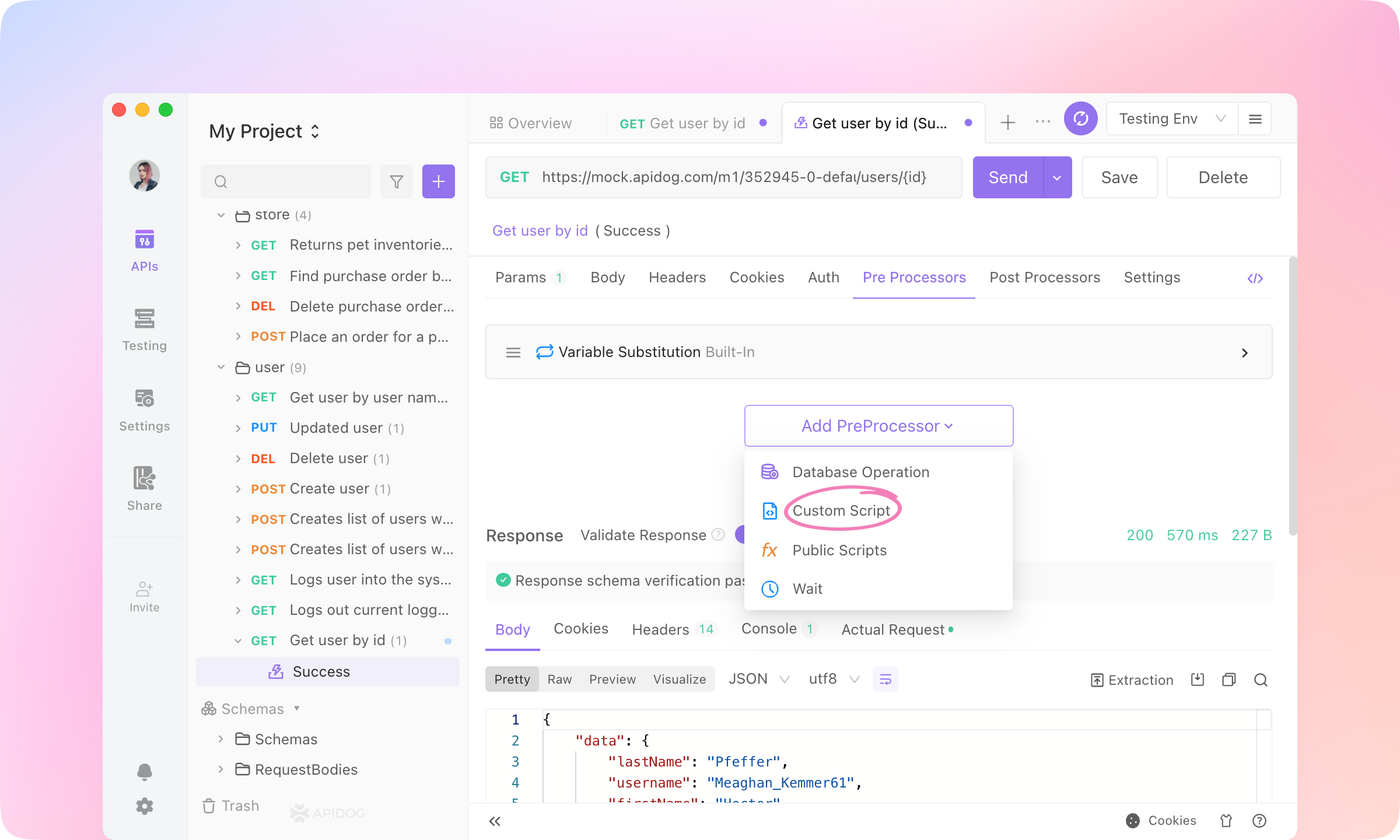
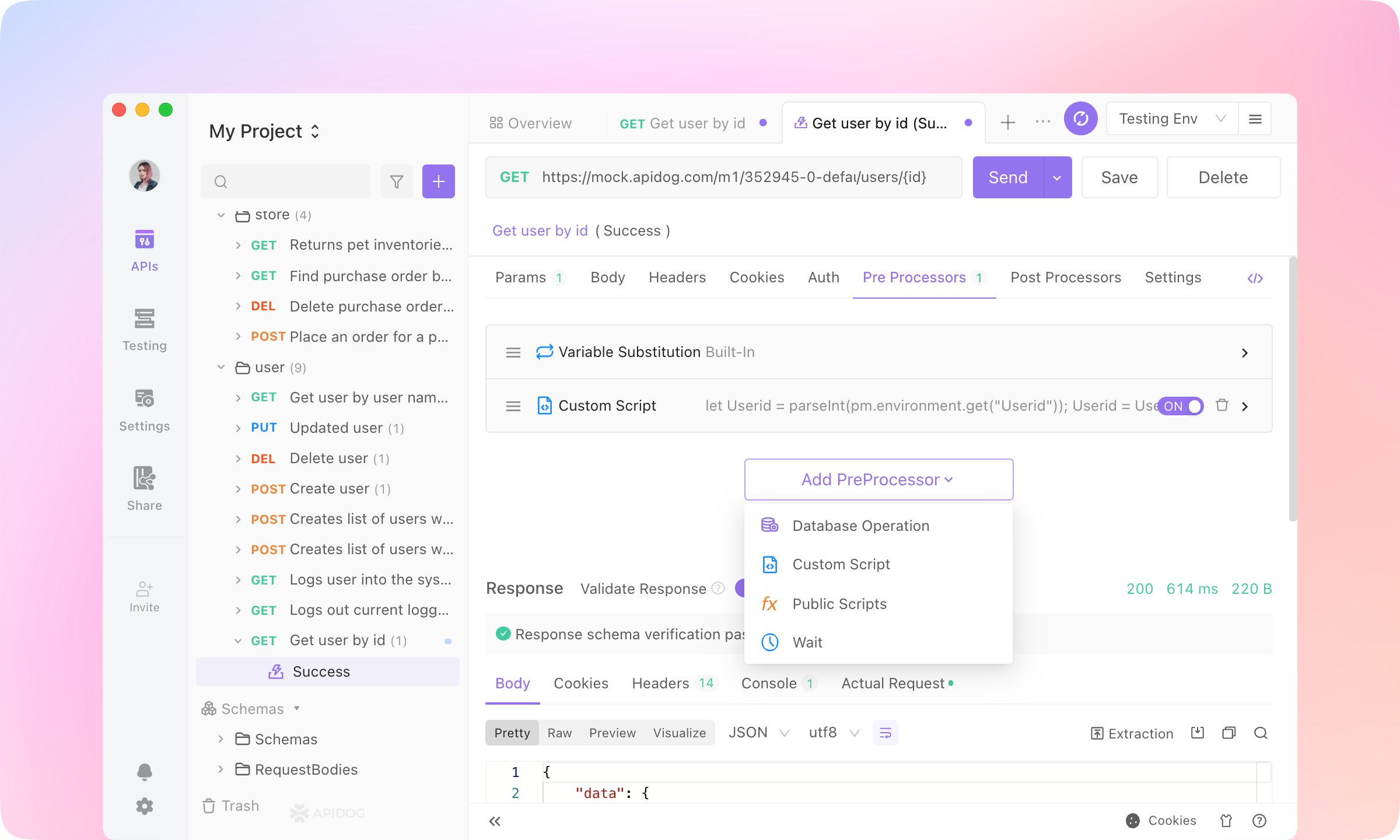
    Click the Pre Processors tab, and click the Add PreProcessor button. Add a Custom Script.
    image-20230112204309478
    2.
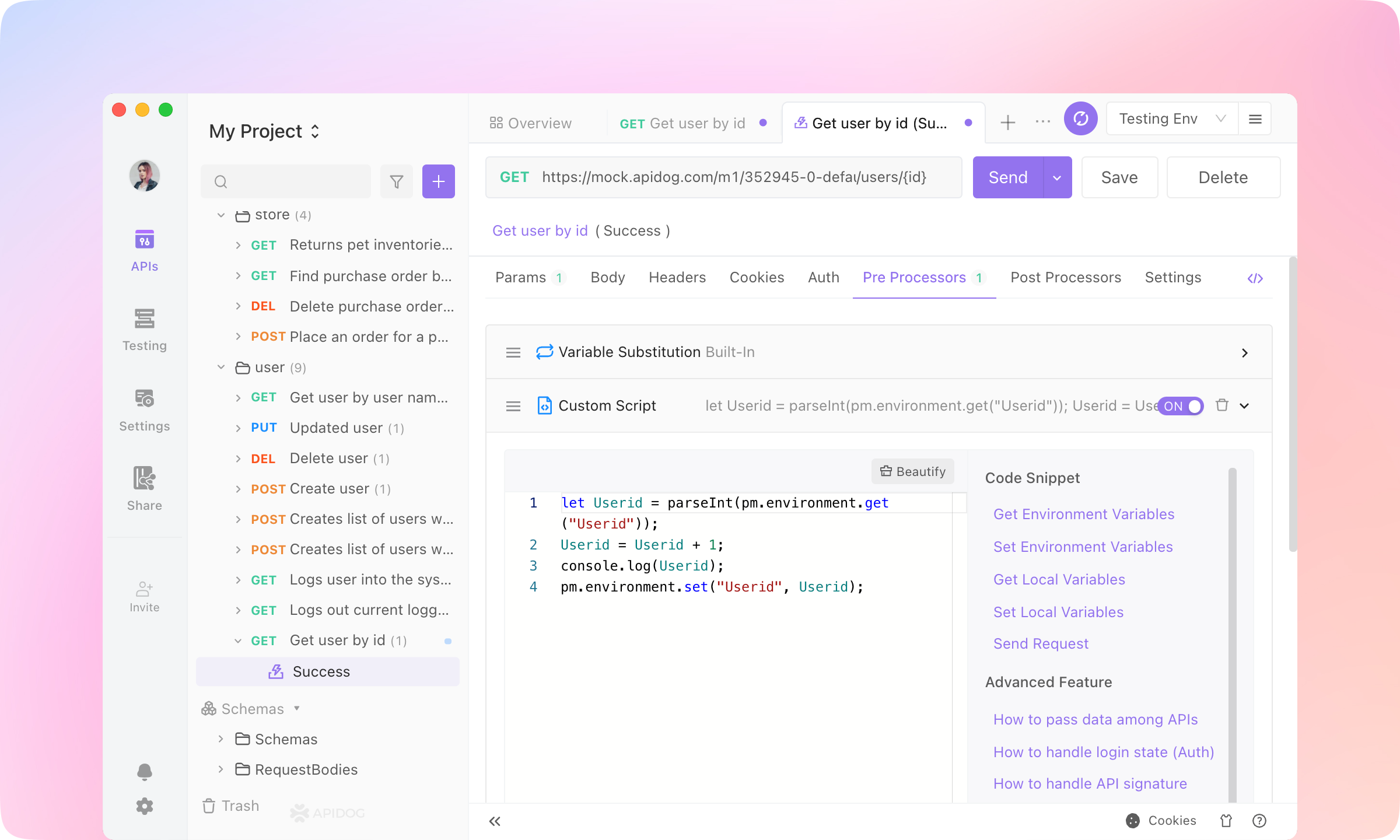
    Paste the following script into the Custom Script area.
    image-20230112210726674
    3.
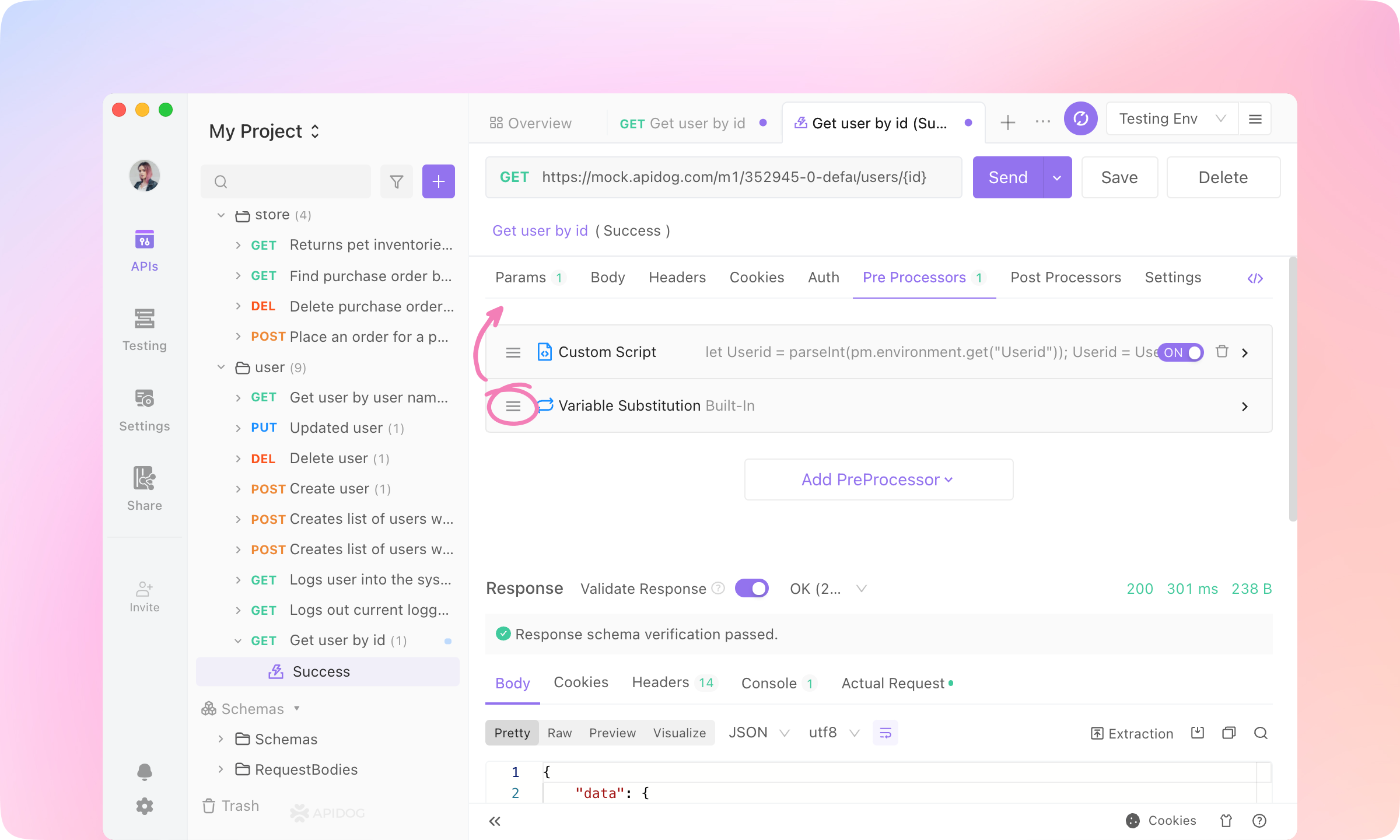
    Drag the Custom Script before the Variable Substitution operation. Send the request.
    image-20230112210917938
    4.
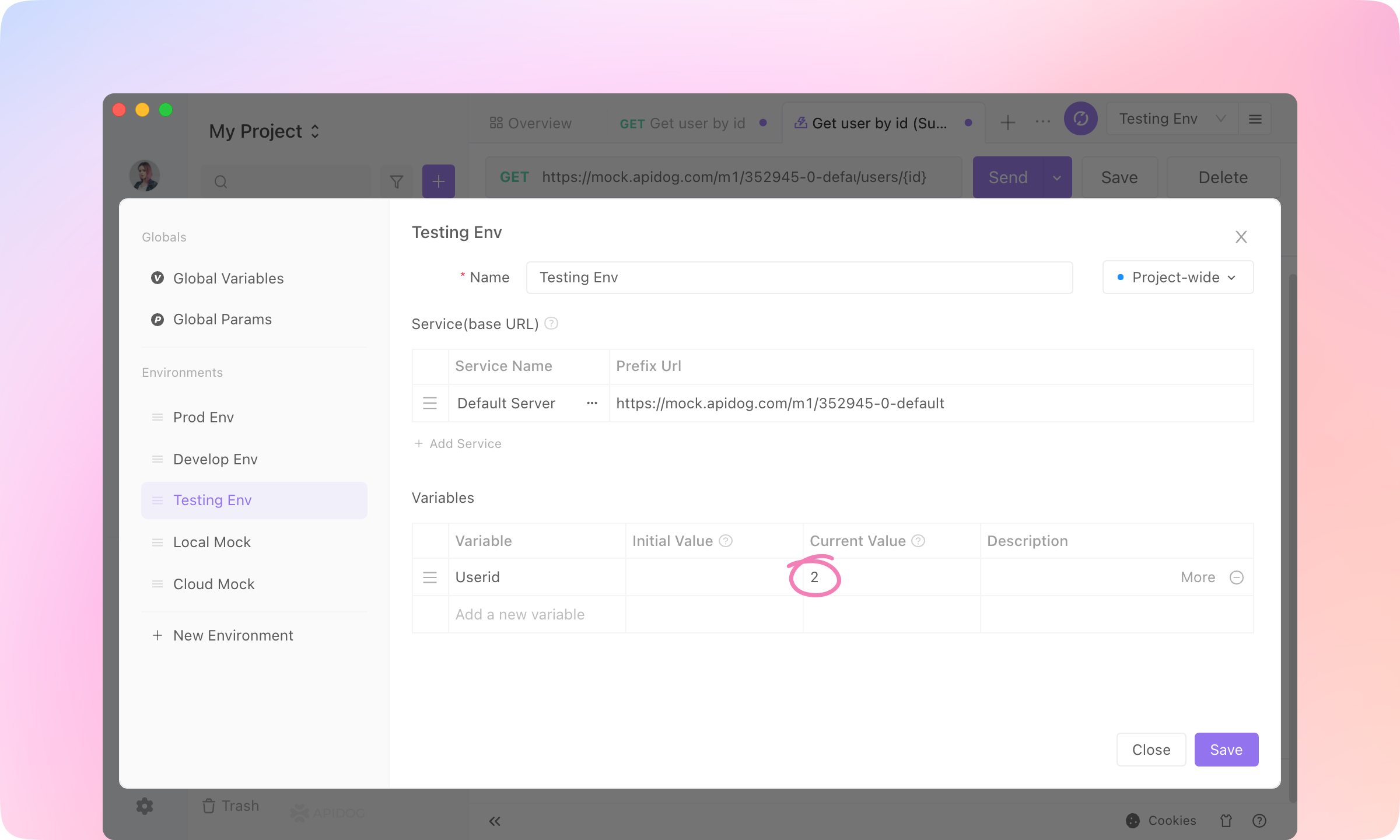
    After sending, you'll see the value of {{Userid}} became 2. And if you send the request many times, the {{Userid}} will plus one each time sending.
    image-20230112211449147
    5.
    Public Script, Database Operation, and Wait can also be added to Pre Processors.
    image-20230113112243557
    TIP
    Learn more about Scripts here.

    Front-end Developers: API Mocking#

    API mocking is a simulated version of an API that is used for testing and development purposes. It allows developers to test their applications or services without relying on a live API, and can be configured to return specific responses to incoming requests.
    Based on the specified API, Apidog can generate mock data automatically without any configuration. That's very convenient for front-end developers.
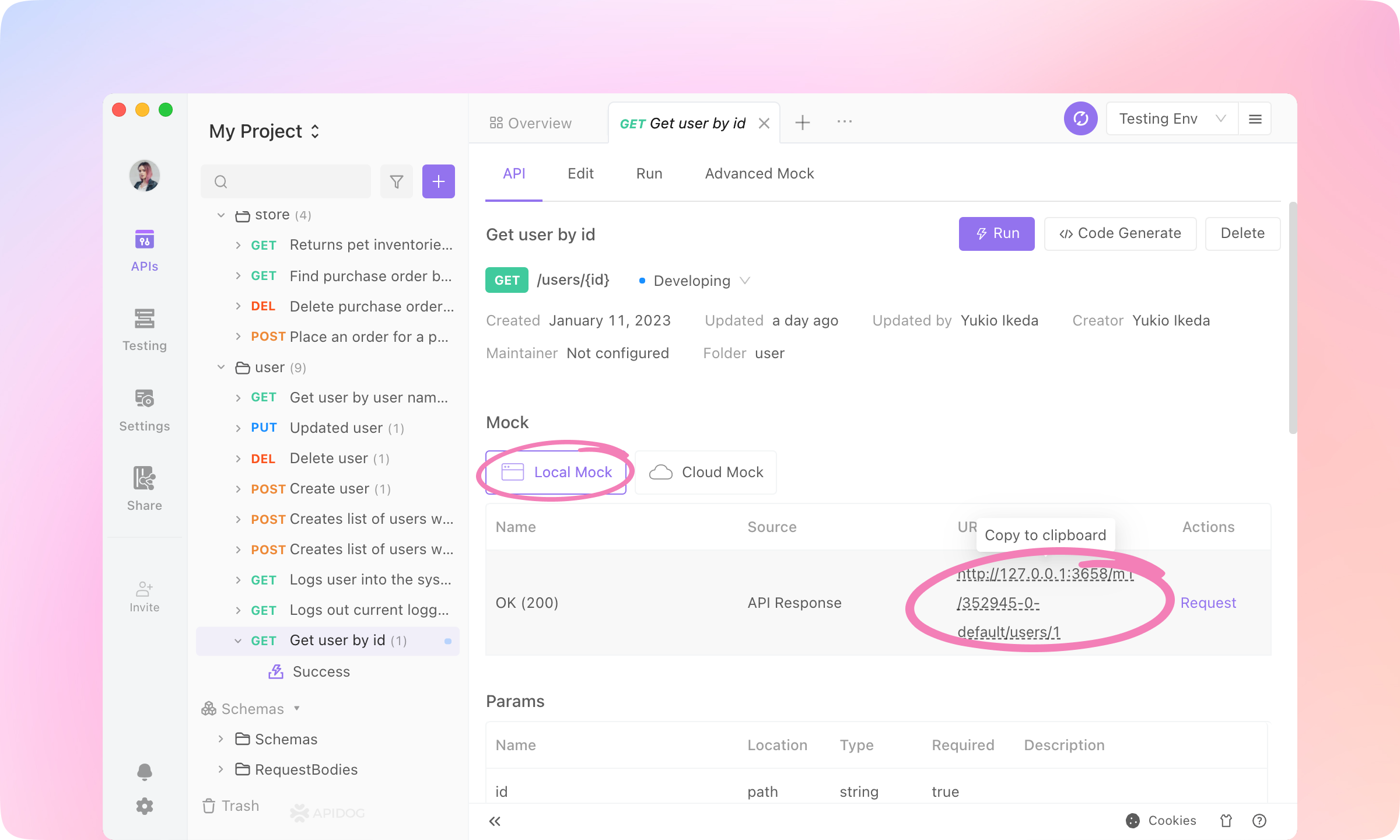
    1.
    Switch to the API tab and click Local Mock. Click the URL & Params of 'OK(200)' to copy to the clipboard.
    image-20230113145039145
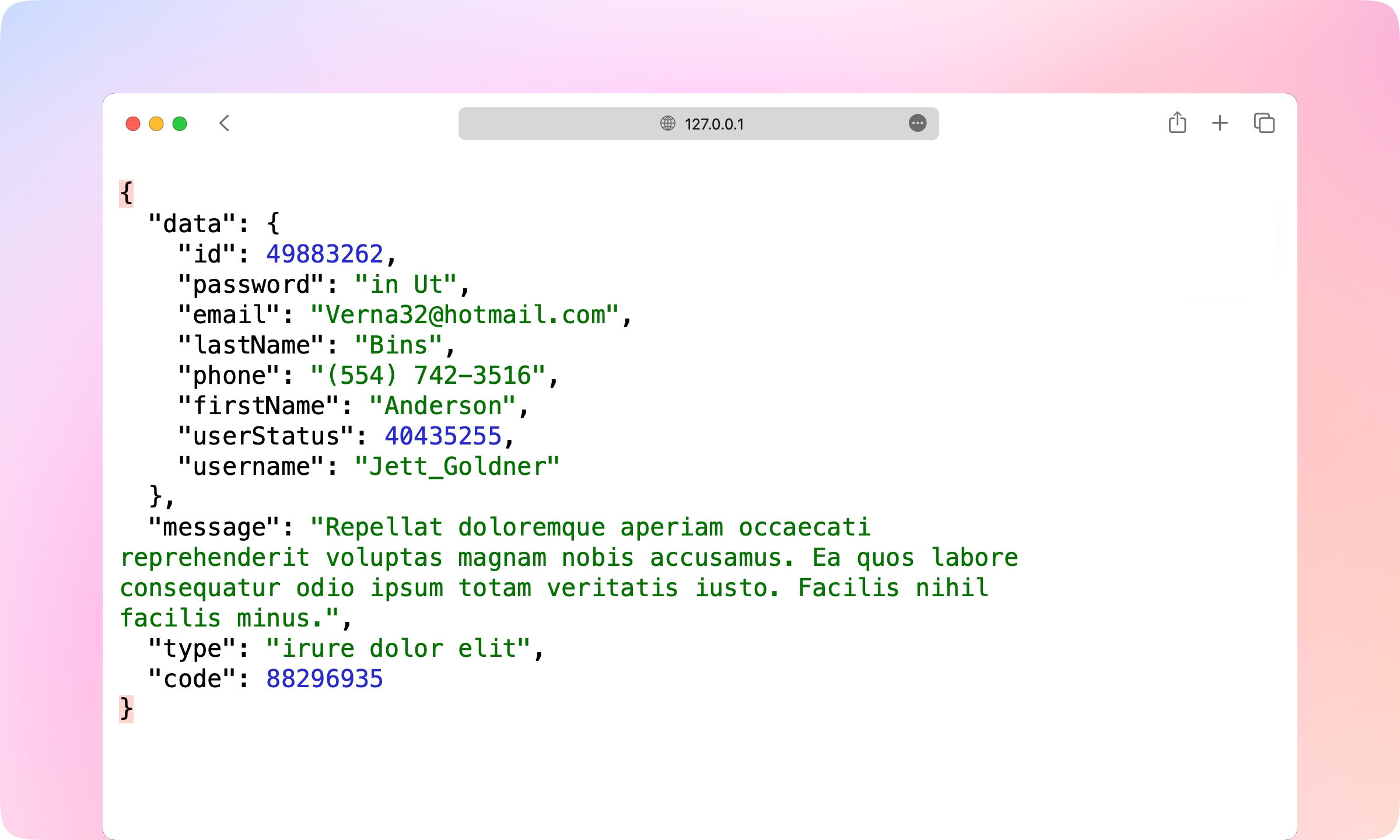
    2.
    Paste the URL to a browser. And you'll see a generated JSON. The data is dynamic; each time you reload the page, the data will refresh.
    Especially you'll find the data generated are reasonable according to the name of the node, just like 'email' or 'lastName'. This is the powerful Smart Mock feature of Apidog.
    image-20230113150222660
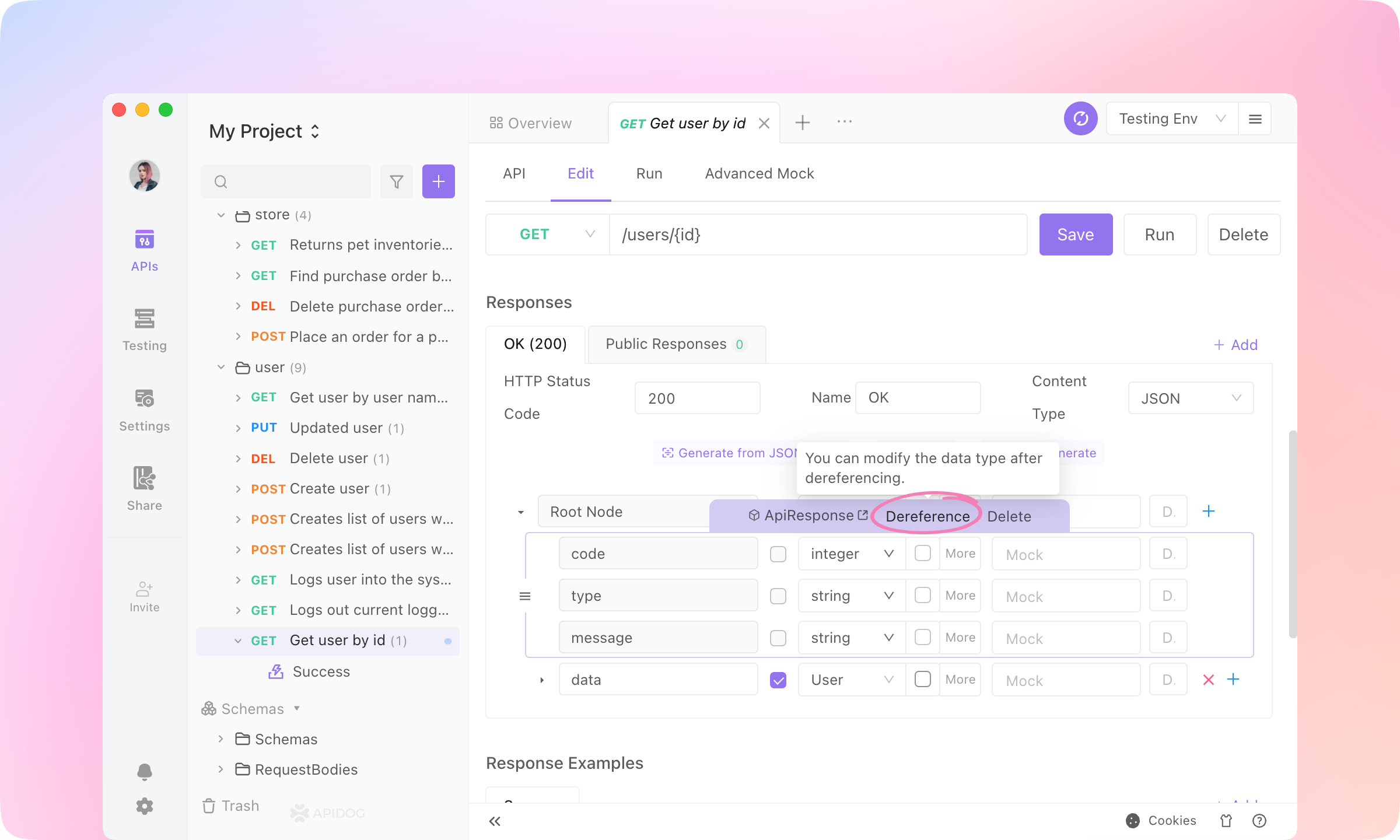
    3.
    Go to the Edit tab and Dereference the 'ApiResponse' Schema in the Response Part.
    image-20230113151121176
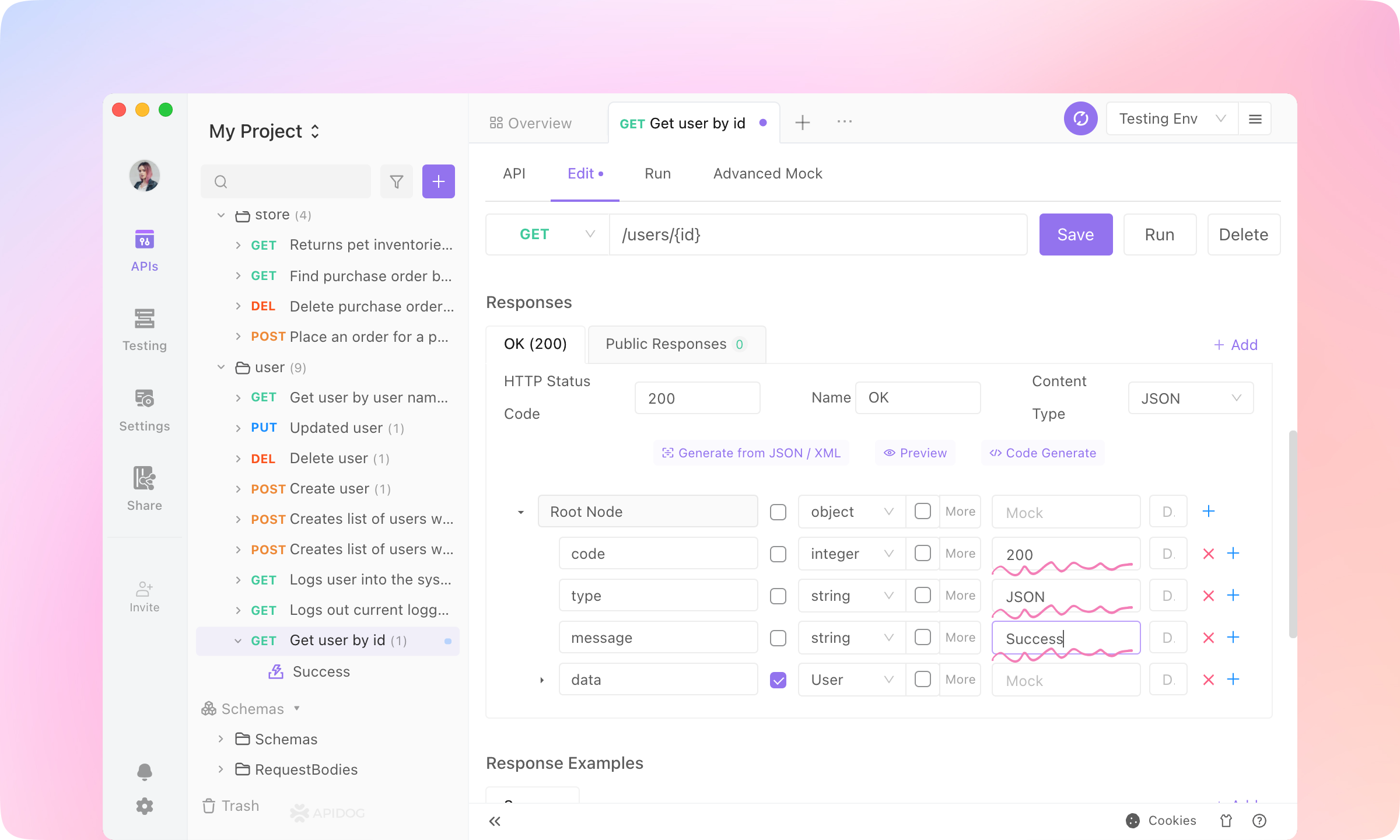
    4.
    Type the Mock value into the nodes, and Save the API.
    code
    200
    type
    JSON
    message
    Success
    image-20230113152334278
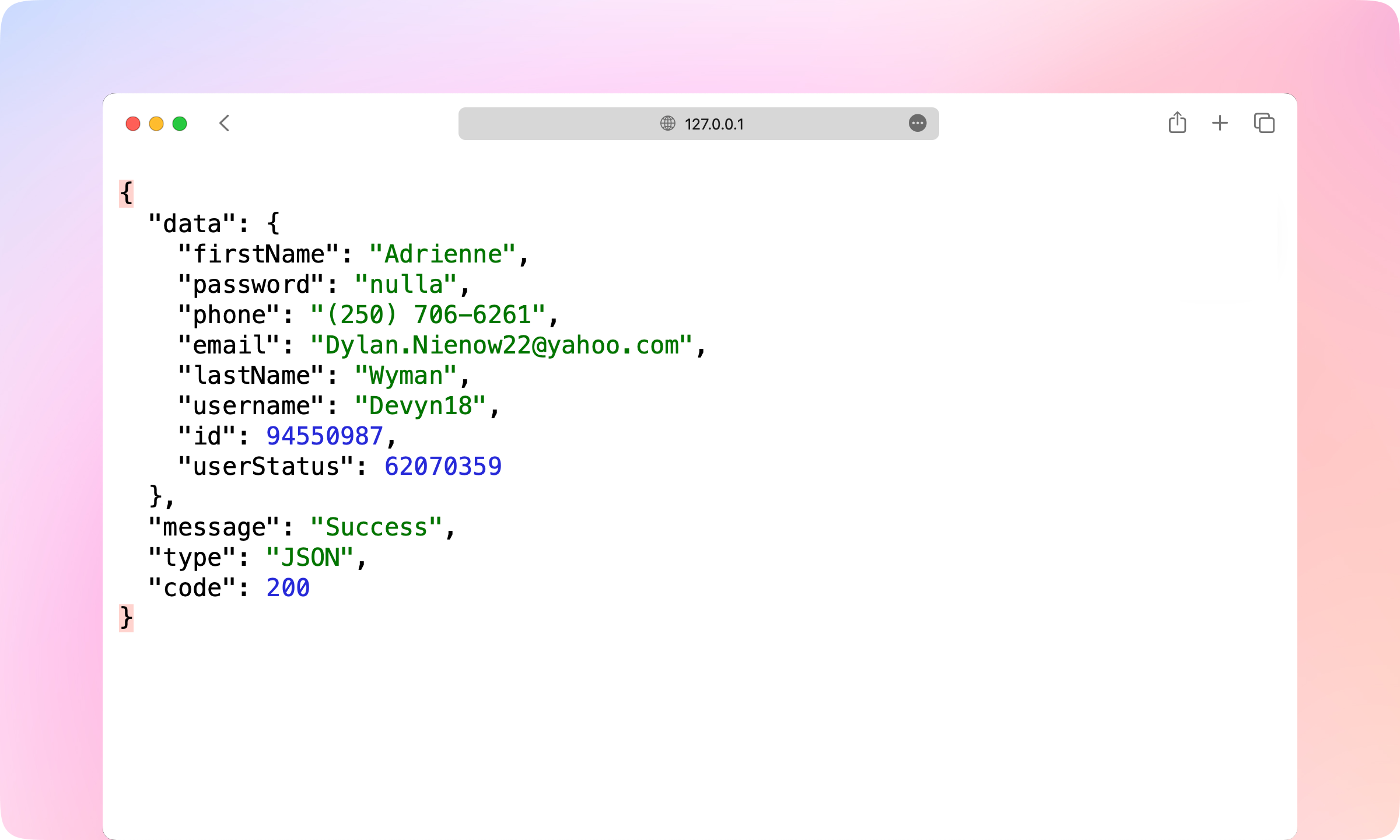
    5.
    Reload the page in the browser, and you'll find the JSON data refreshed, and the 'code', 'type', and 'message' fields are generated according to your settings. Now the front-end developer can use the URL to get data in the client they are developing.
    image-20230113152641730
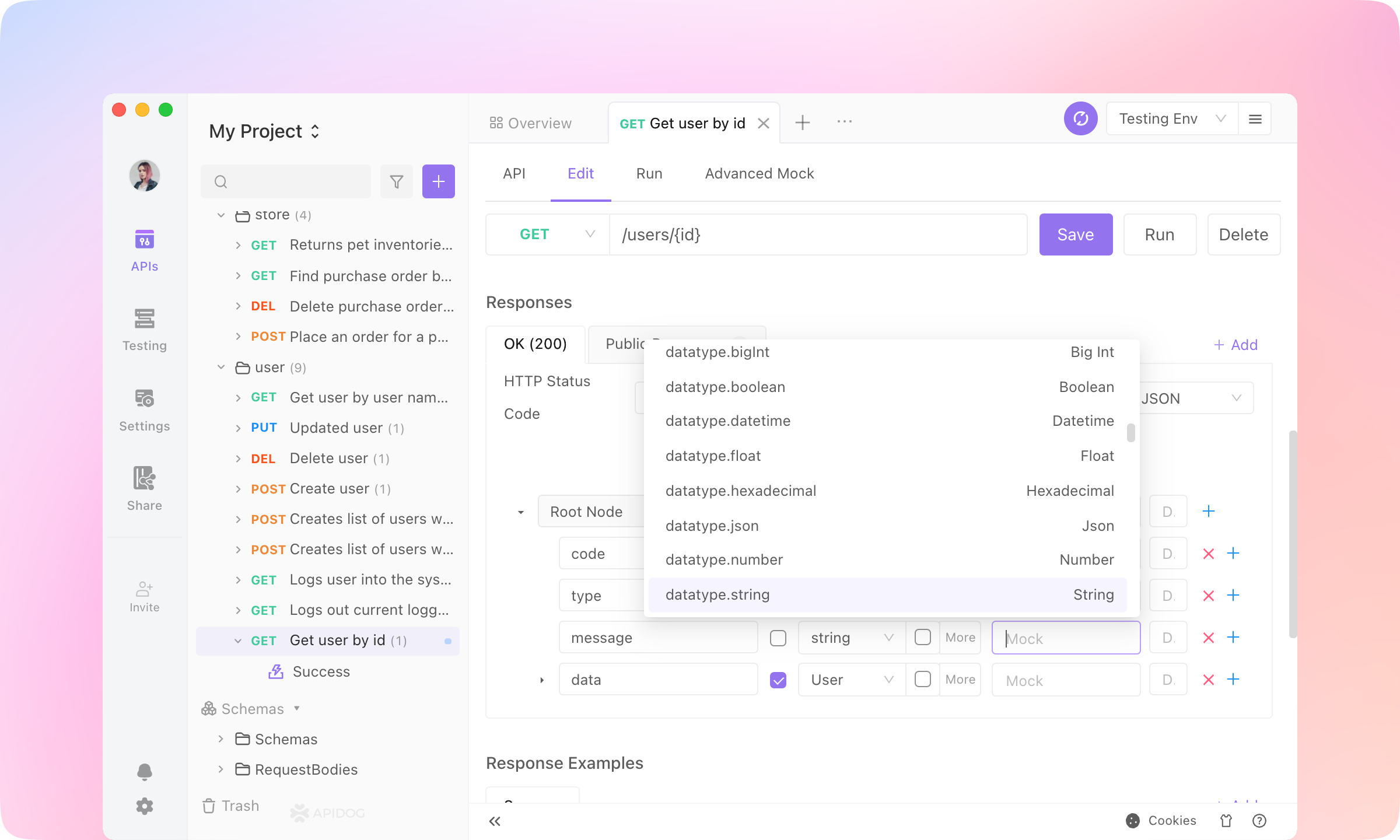
    6.
    Faker.js is also supported in the mock settings. You can select any Faker.js grammar to generate dynamic mock data.
    image-20230113160844357
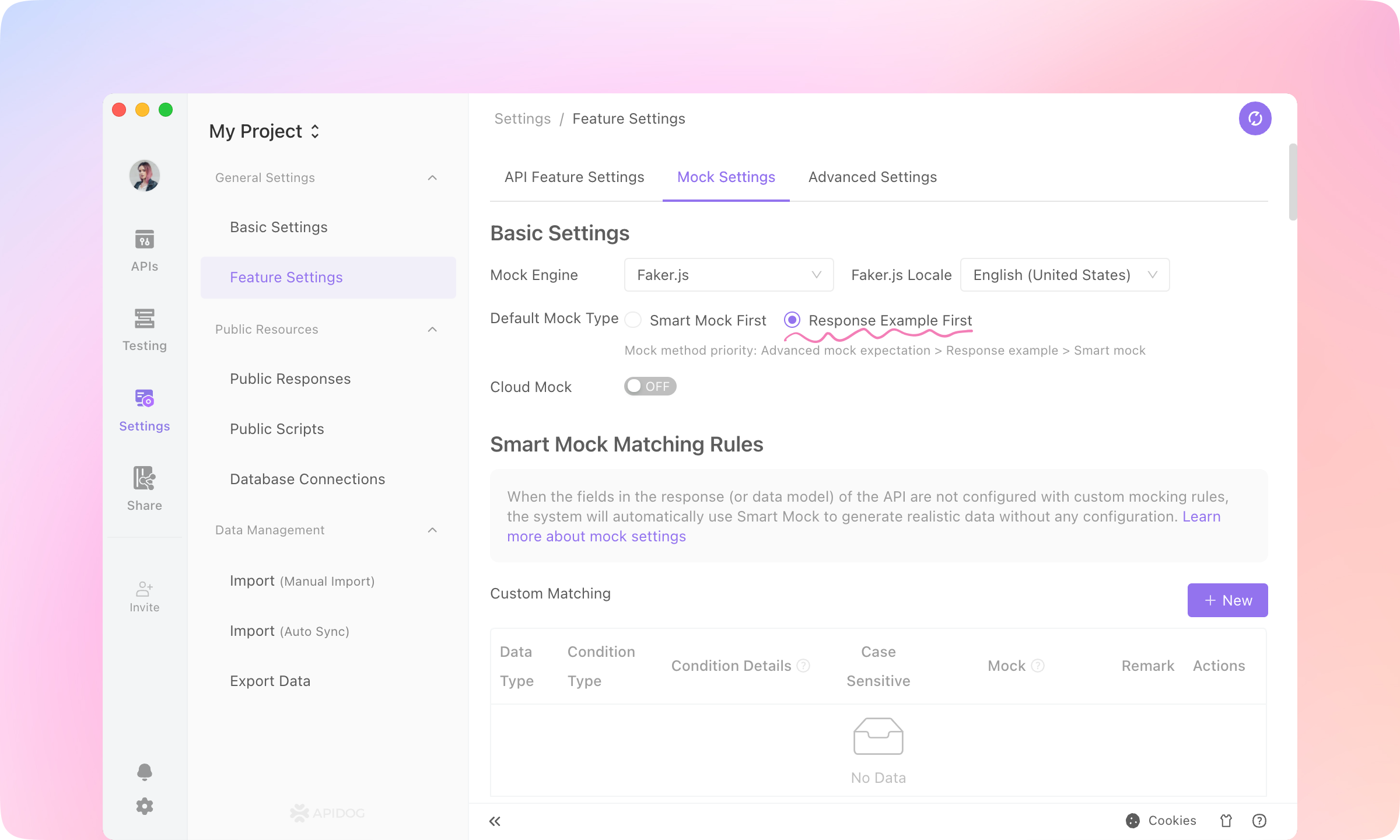
    7.
    If you need the mock response to be fixed, go to Settings - Feature Settings - Mock Settings - Default Mock Type, and switch to Response Example First. Then Apidog mock engine will use the API response example as the mock response.
    image-20230113161432735
    TIP
    The mocking feature in Apidog also supports cloud mocking, returning different mock responses for different request parameters, using scripts to rewrite mock responses, customizing intelligent mock matching rules, and so on. Learn more about Mocking here.

    QA Engineers: API Testing#

    Apidog's automated testing module allows QA engineers to directly generate test scenarios referring API definitions or API cases. It supports data-driven testing and easily generates dynamic test data. The visual assertion and variable extraction features make writing test cases very simple. Apidog also supports CI/CD.

    Assertions#

    In Apidog, test assertions can be added visually in Post Processors. It also supports adding assertion statements in custom scripts using the Postman SDK.
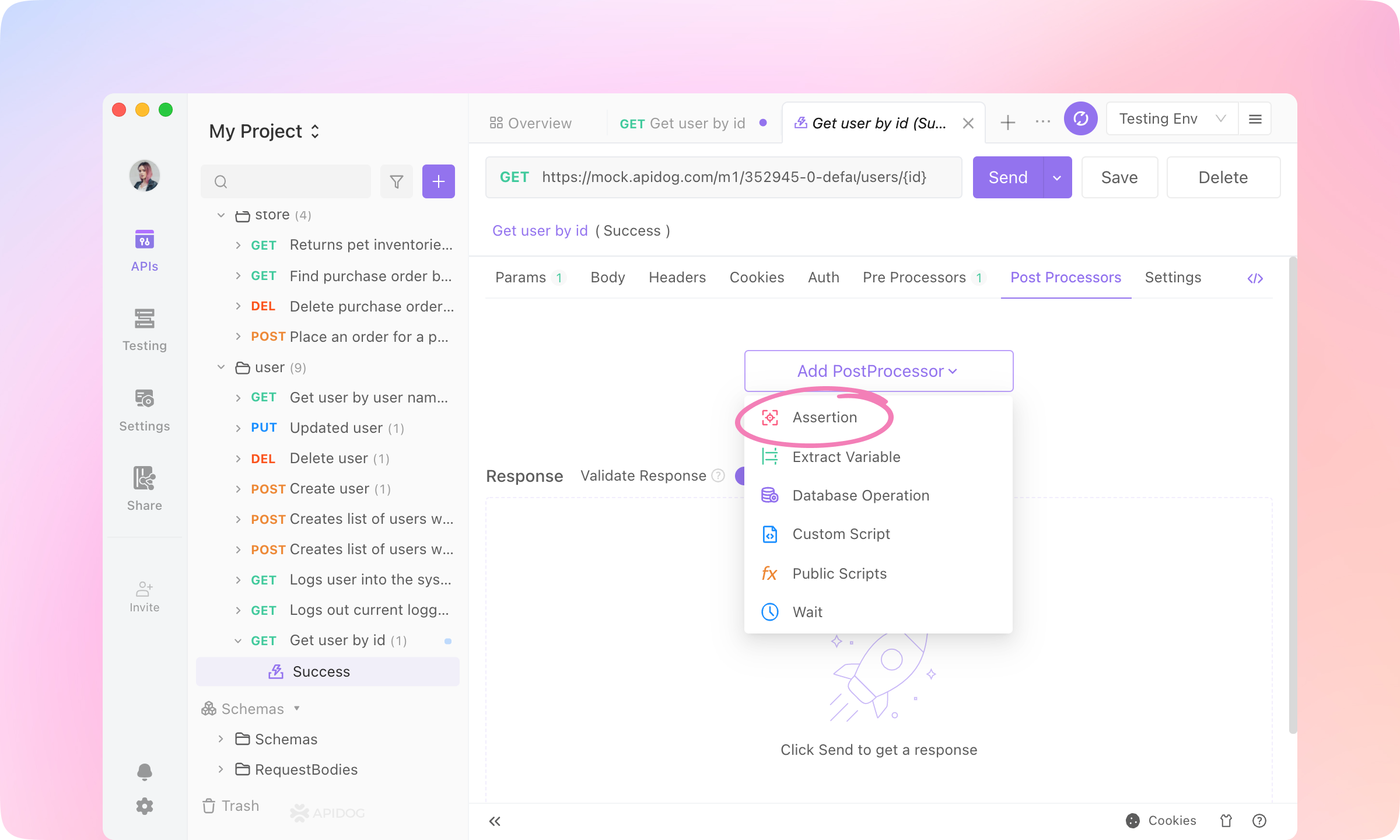
    1.
    Go to Get user by id - Success, switch to Post Processors and Add PostProcessor - Assertion.
    image-20230113174235604
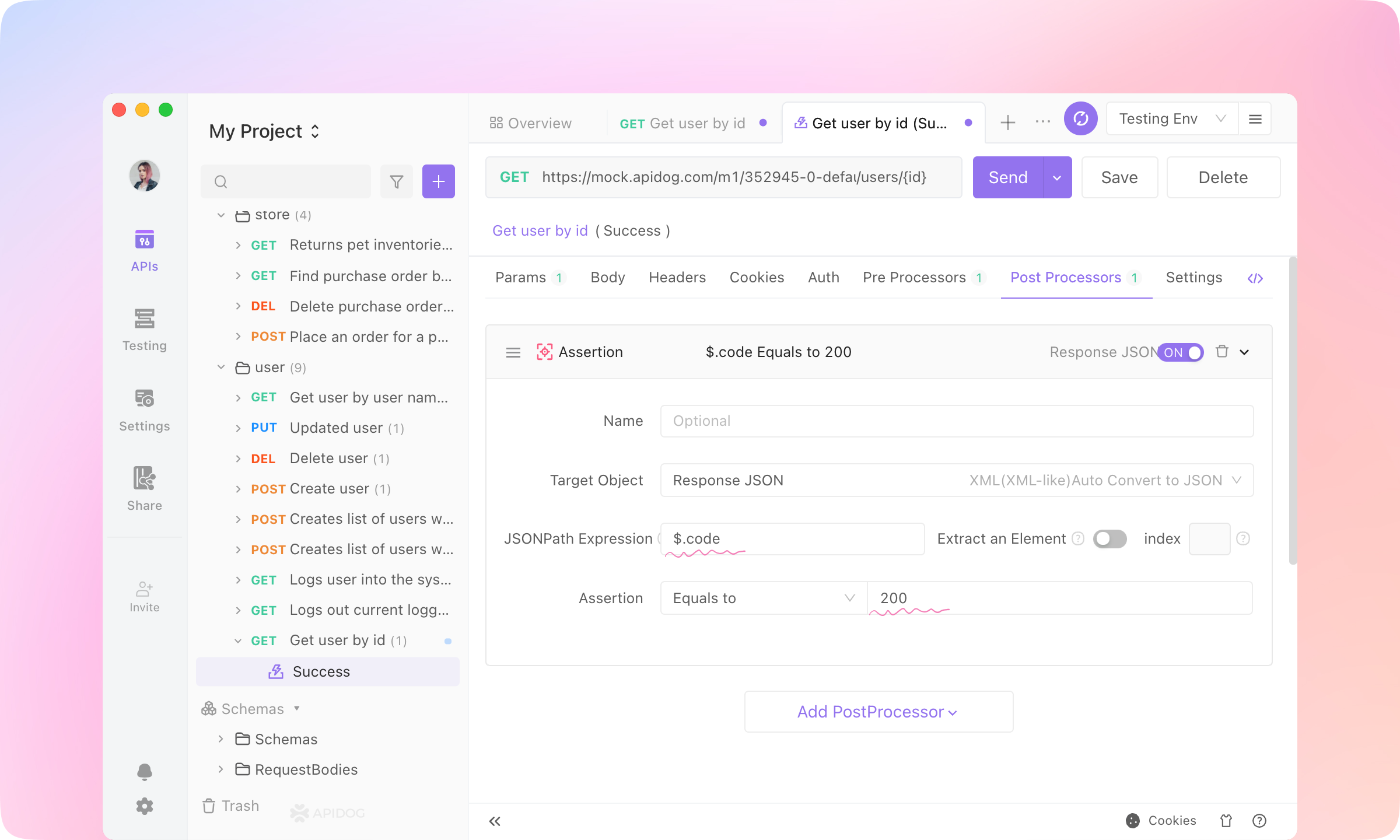
    2.
    Enter the following assertion parameters into the Assertion.
    JSONPath Expression
    $.code
    Assertion
    Equals: 200
    TIP
    Learn more about JsonPath here.
    image-20230113175042069
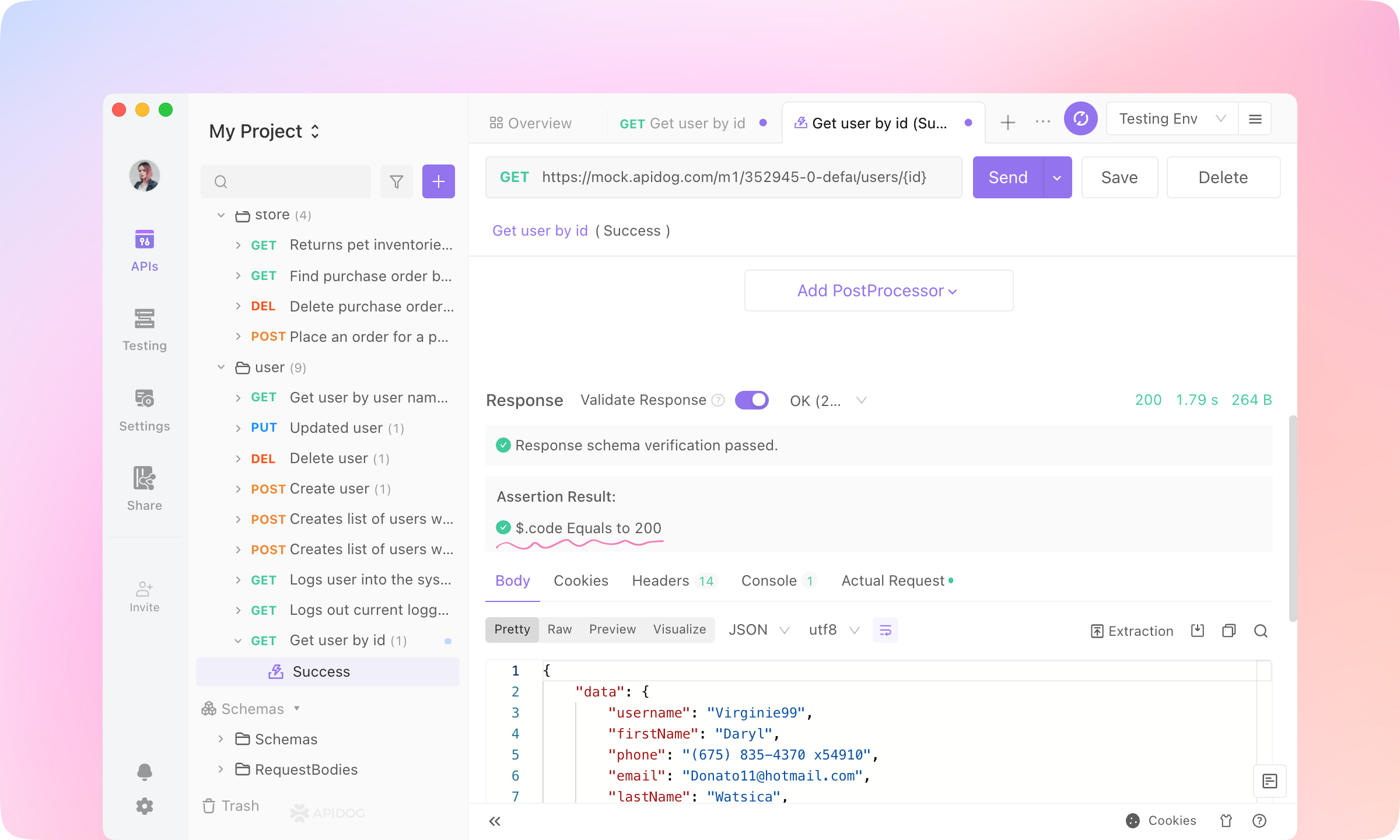
    3.
    Send the request, and you'll see the Assertion Result.
    Apidog will get the value of $.code from the response JSON and compare it with the assertion. If they match, the assertion will pass.
    image-20230113180106665
    4.
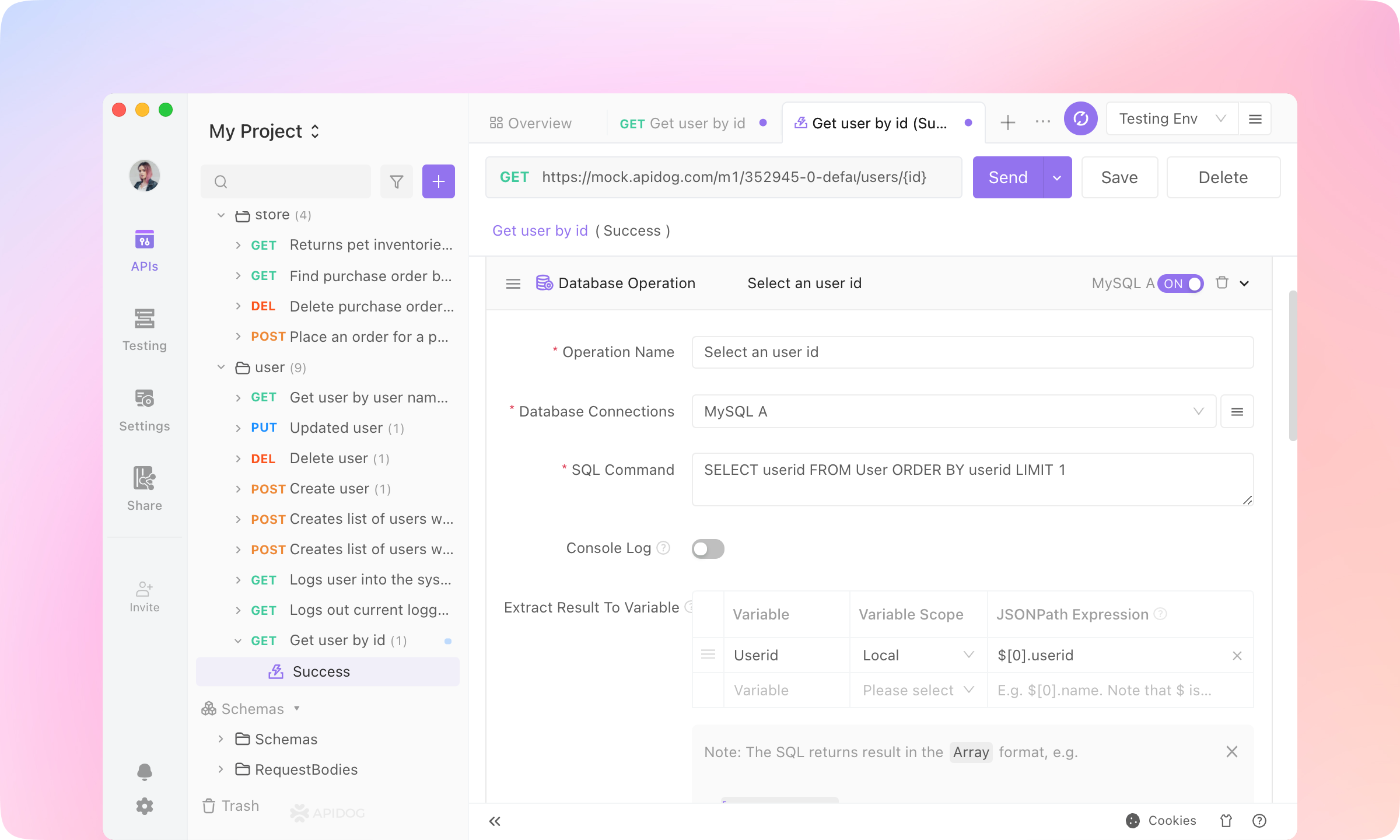
    Extract Variable, Custom Script, Public Script, Database Operation, and Wait can also be added to Post Processors.
    MySQL, SQL Server, Oracle, PostgreSQL, and ClickHouse Database are supported in Apidog. SQL statements can be executed, and the SELECT result can be extracted to variables. Other SQL like INSERT, DELETE, and UPDATE can also be executed.
    image-20230113182425314
    TIP
    Learn more about Database Operation here.

    Test Scenarios#

    After writing the assertions, multiple API cases can be imported into a single test case, run with one click, and generate a test report.
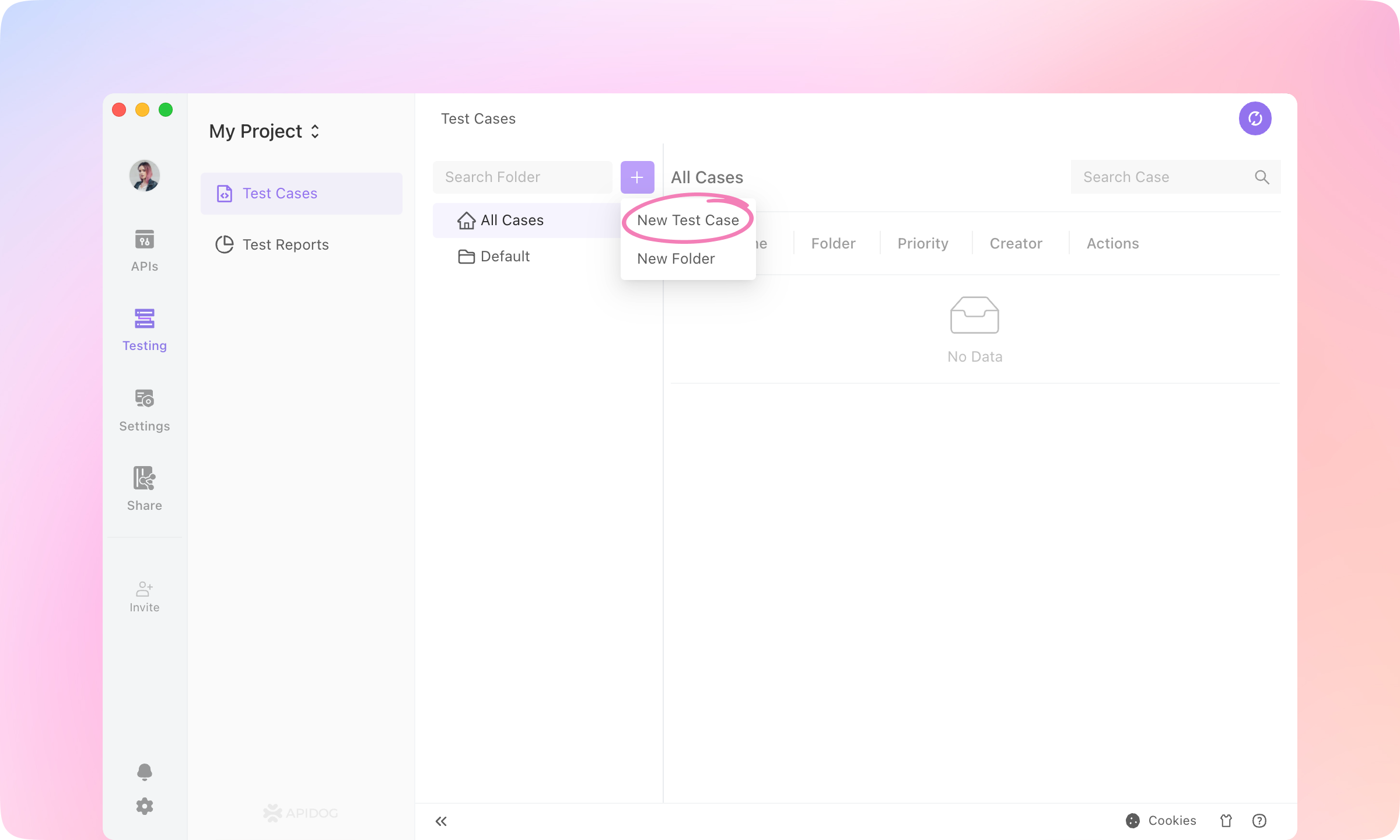
    1.
    Switch to the Testing module. Create a New Test Case.
    image-20230116101016832
    image-20230116101315576
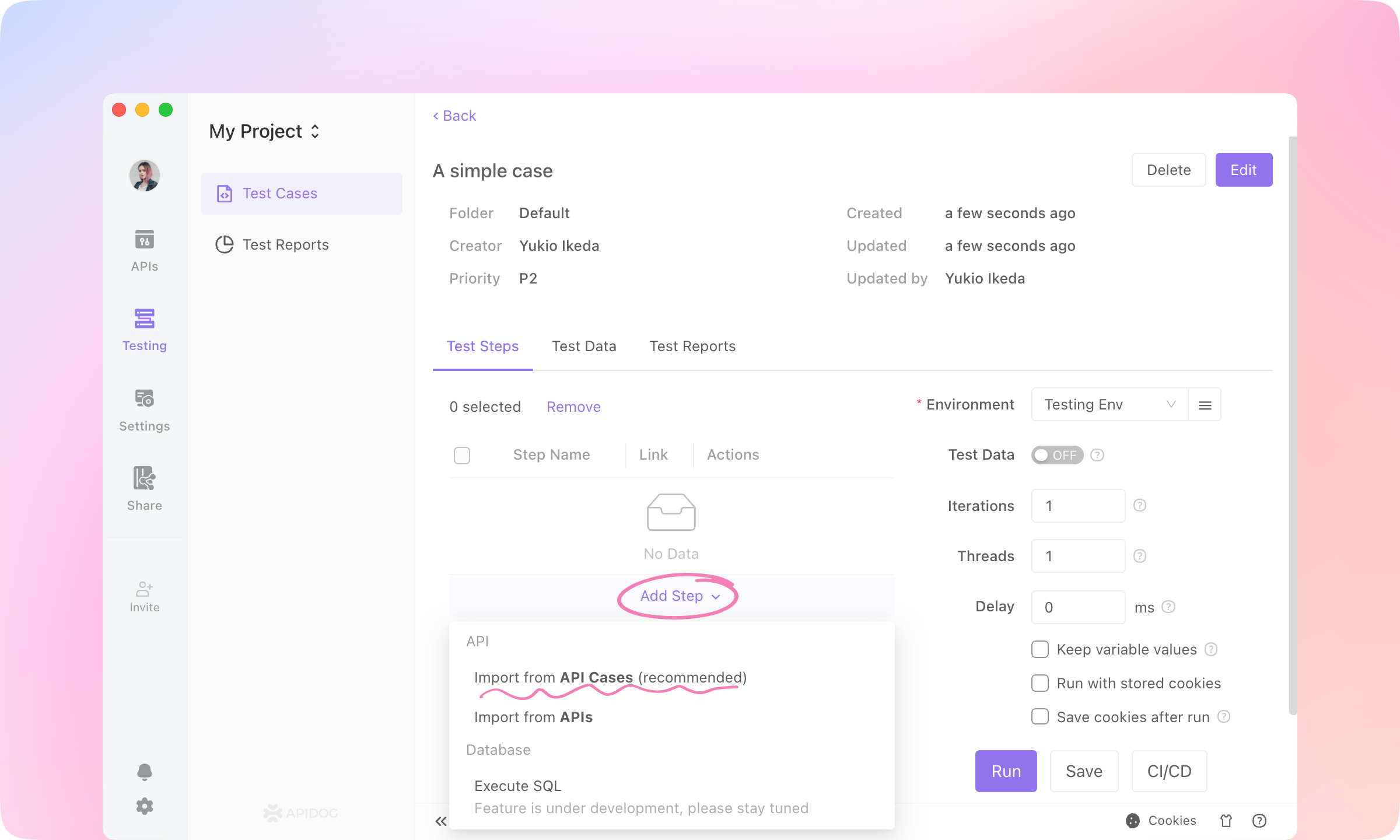
    2.
    Enter the case. Click Add Step and select Import from API Cases.
    image-20230116101614558
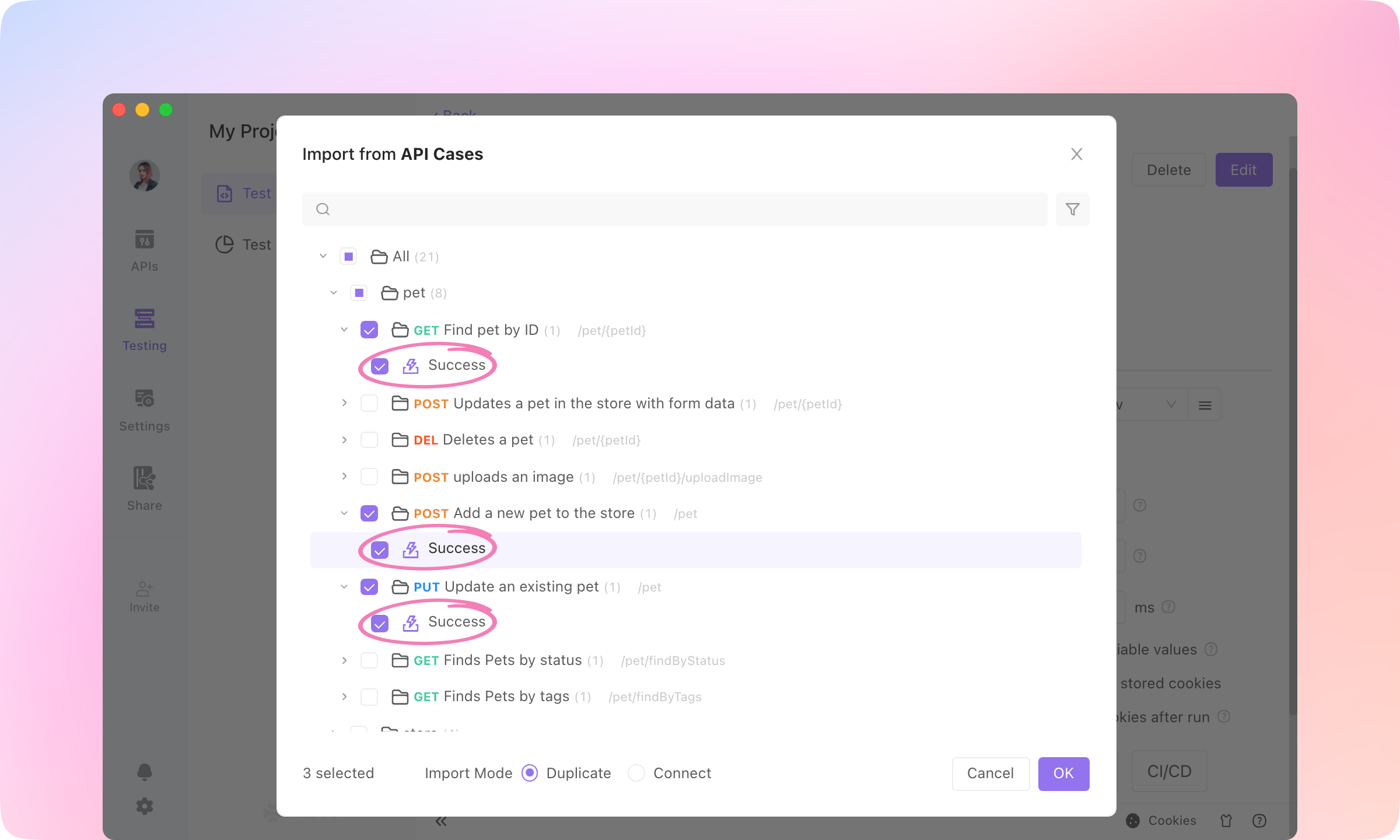
    3.
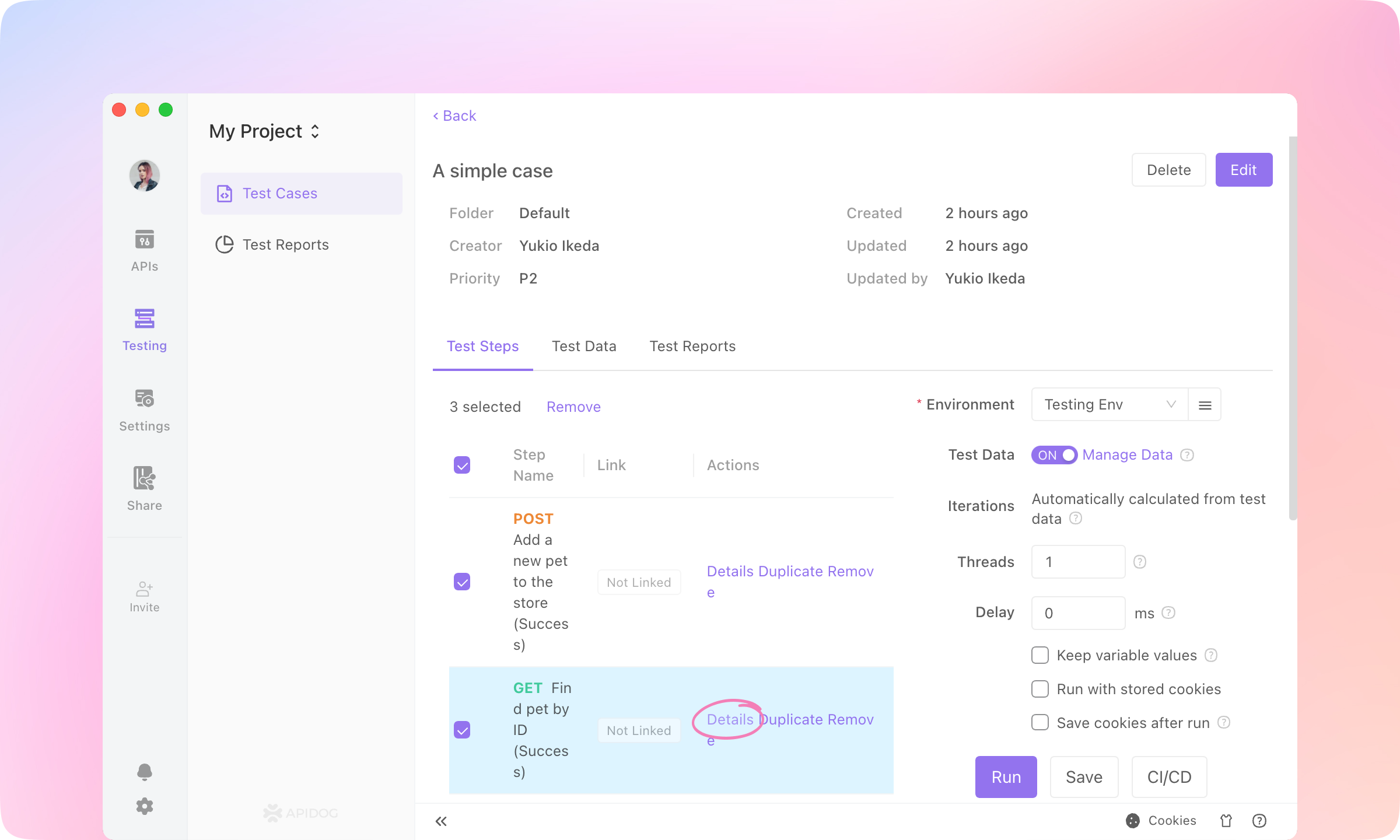
    Select API cases to be imported: 'Add a new pet to the store - Success', 'Find pet by ID - Success', 'Update an existing pet - Success'. Click OK to import.
    image-20230116112924647
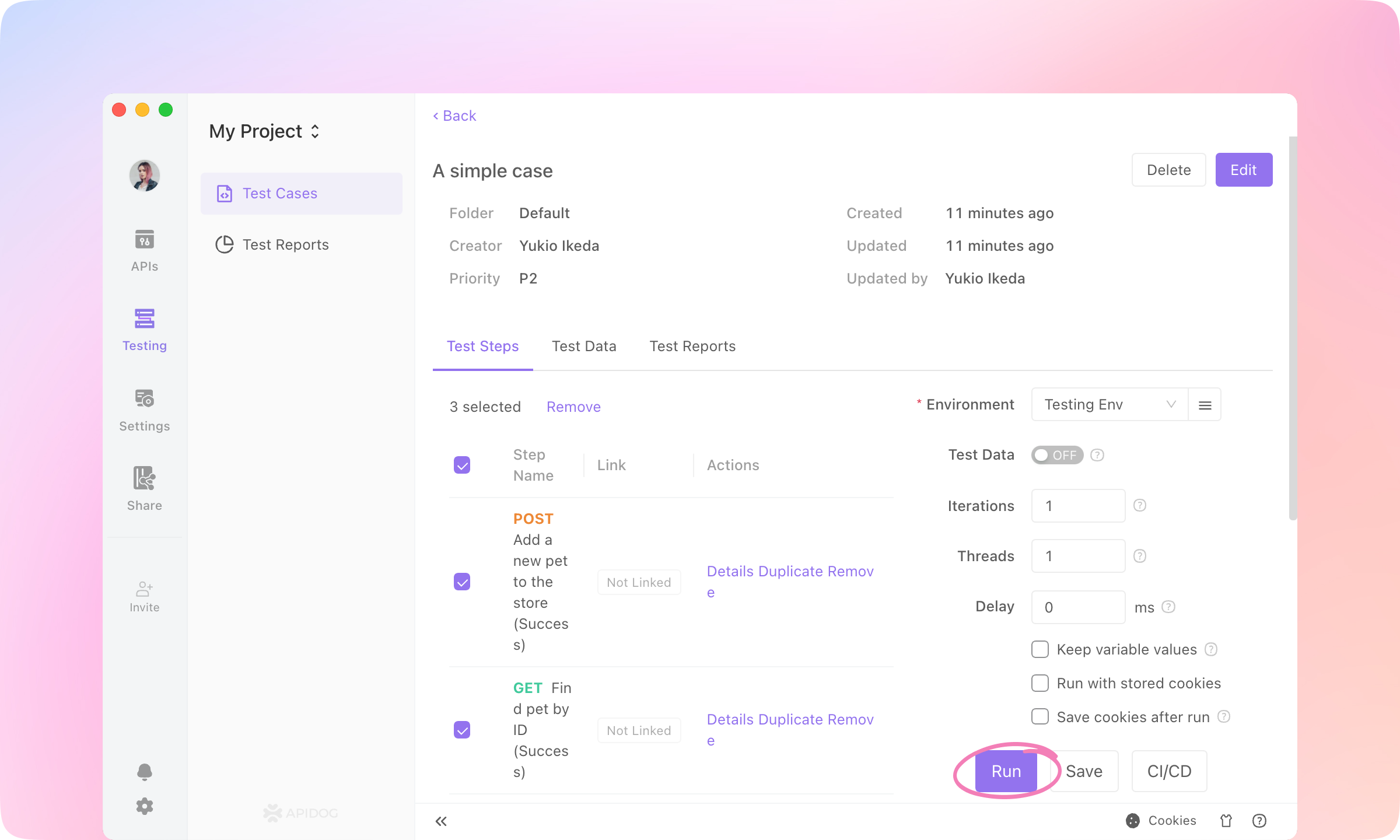
    4.
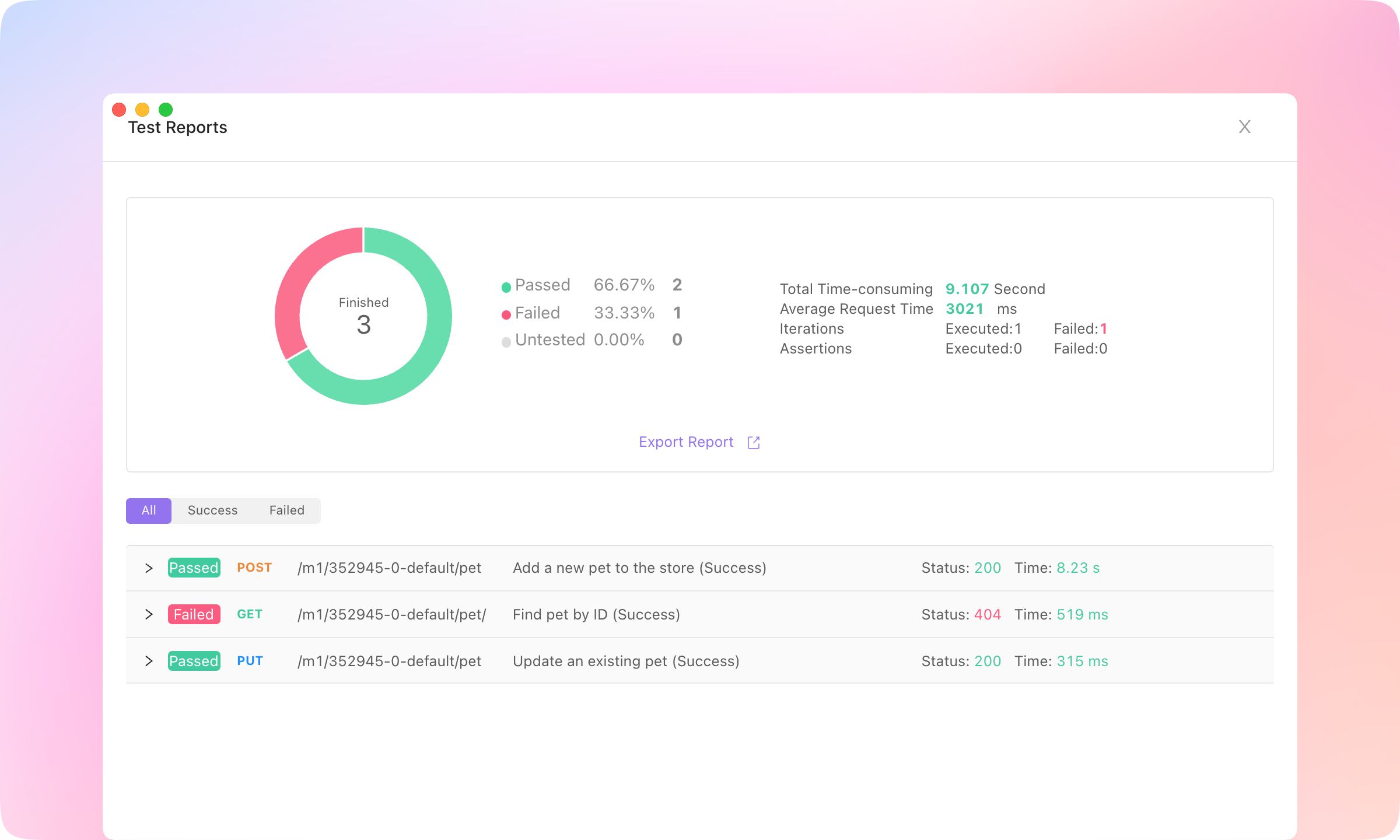
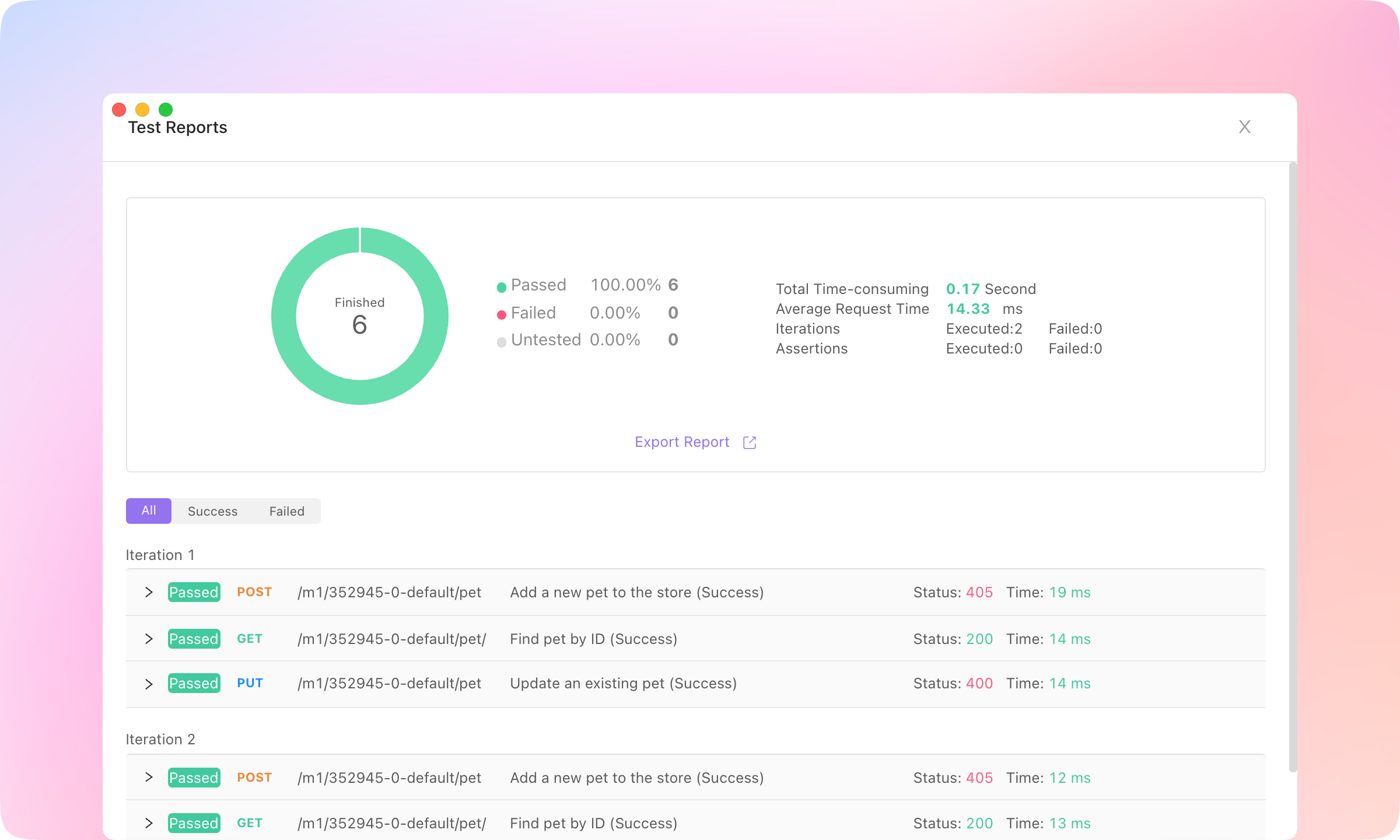
    Click Run to execute the test case. Then you'll see a test report, and the details of each request.
    image-20230116113434905
    image-20230116122321047
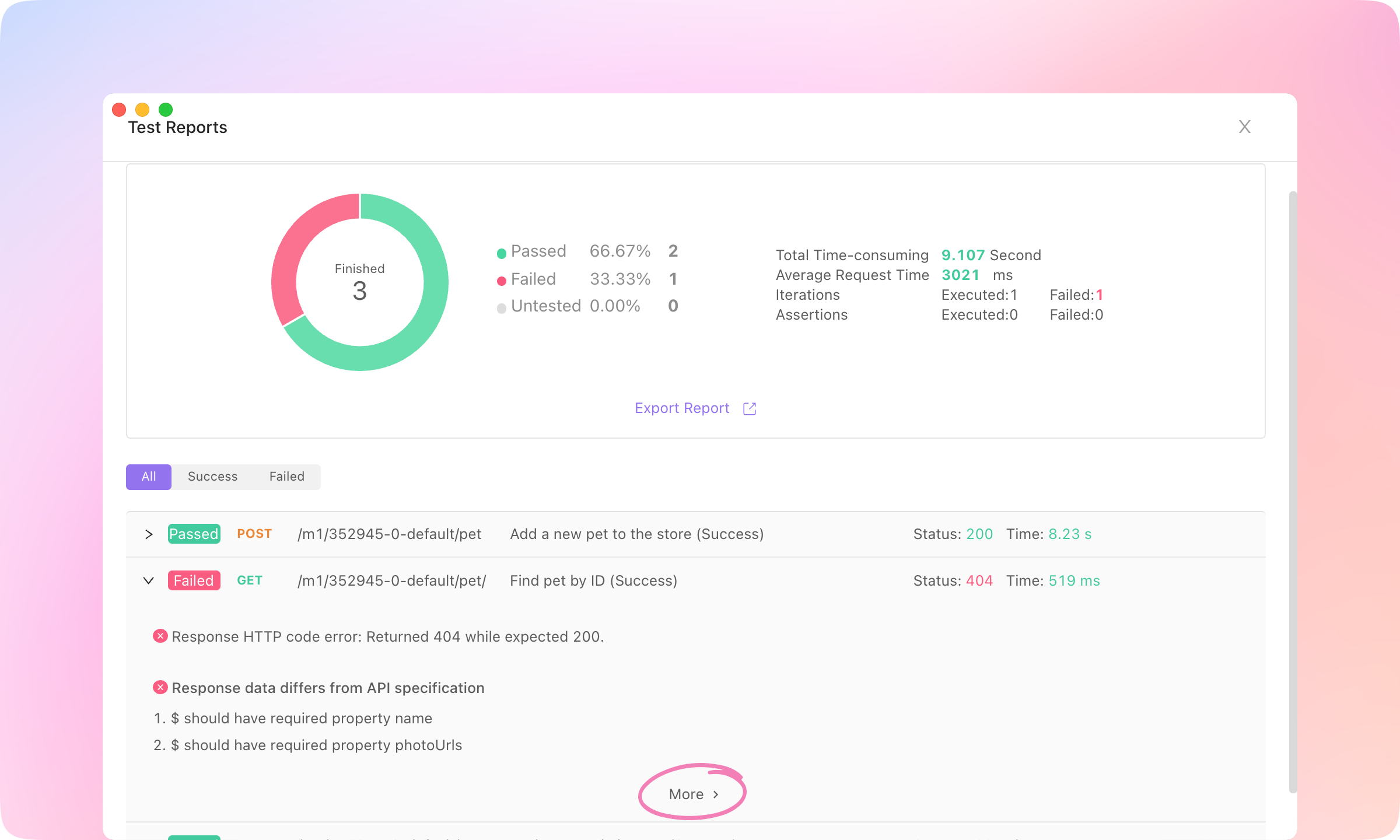
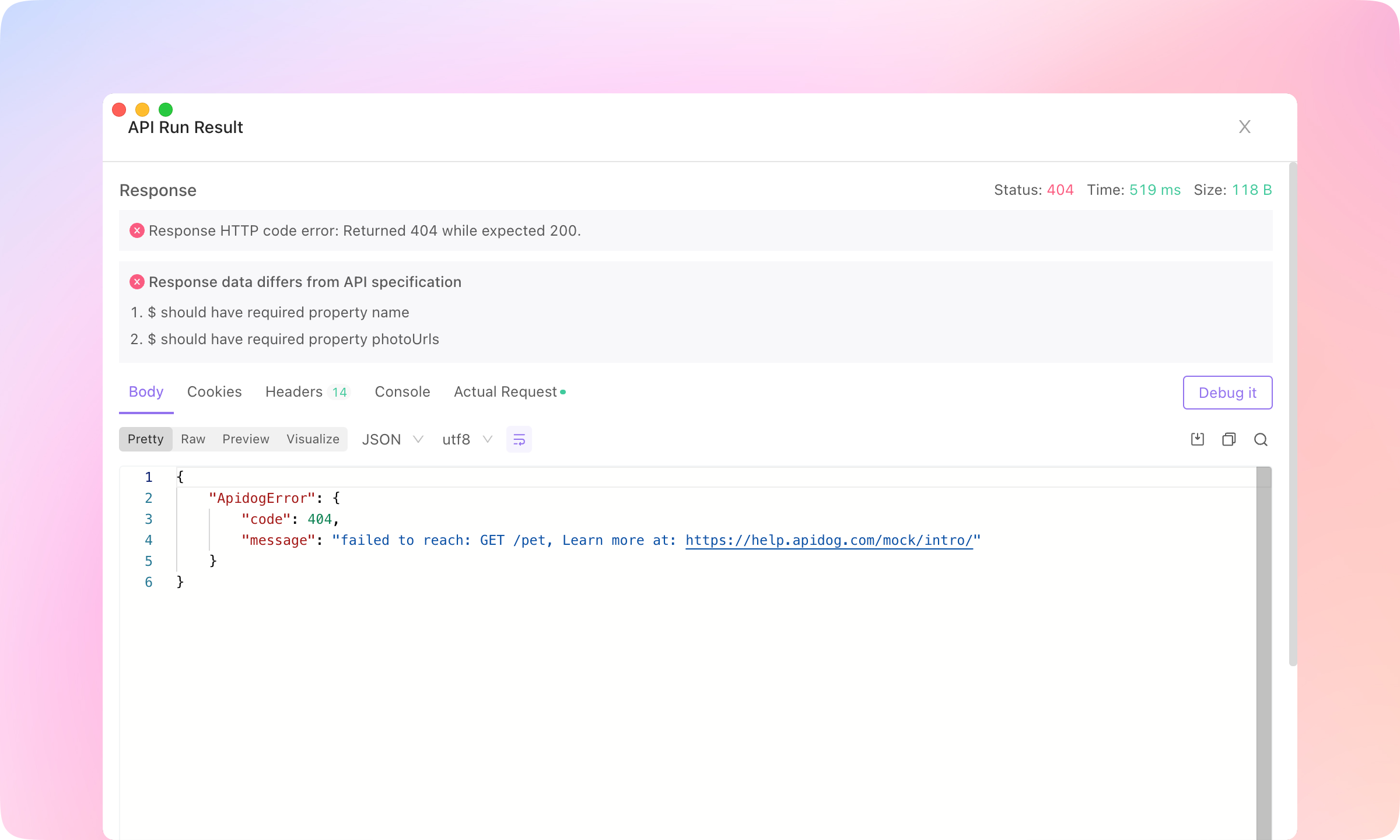
    5.
    Click More to see what went wrong with the failed API and compare the response with the assertions to locate the problem.
    image-20230116122337775
    image-20230116113543359
    TIP
    Learn more about Test Cases here.

    Data-Driven Testing#

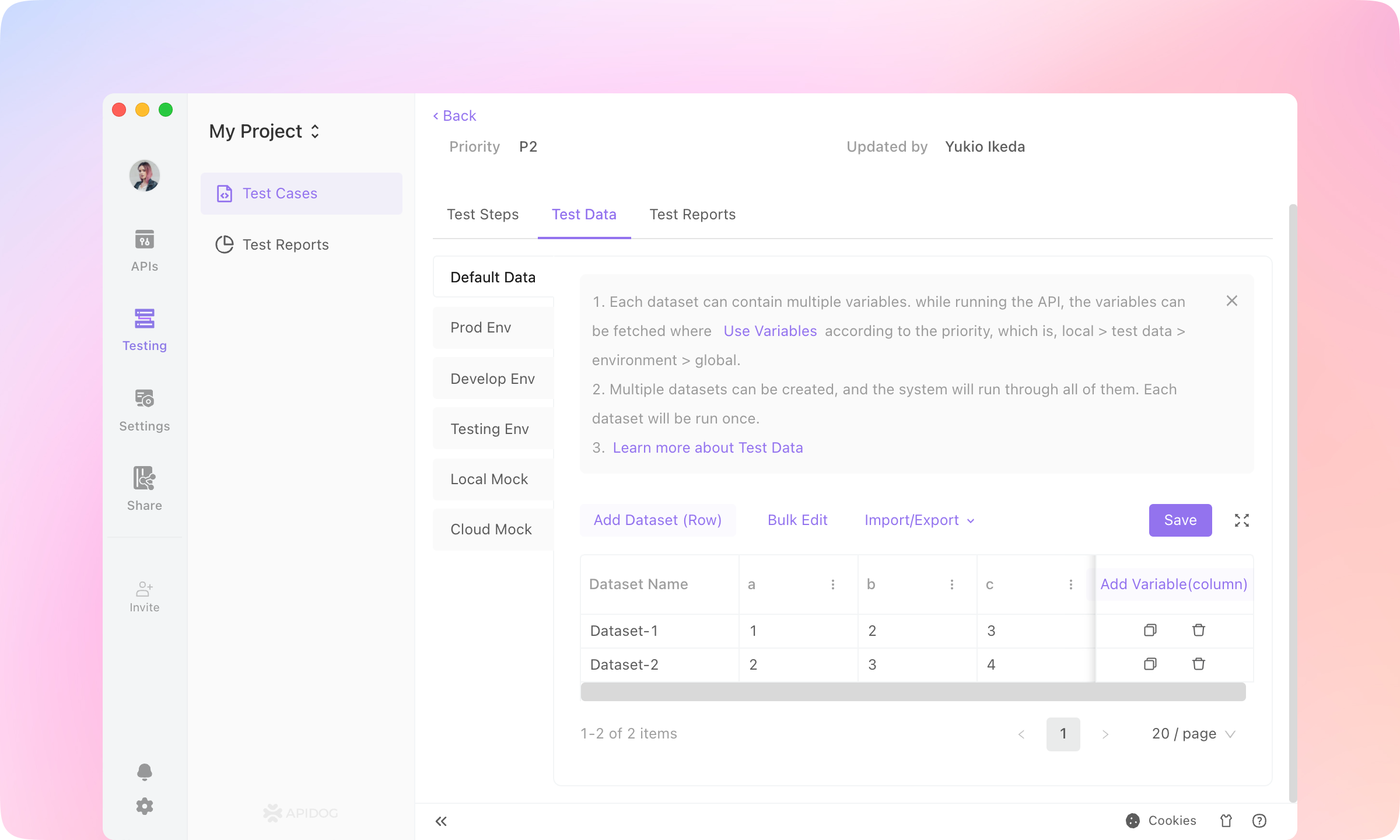
    If variables are used in API cases, then the value of the variables can be set using a data table or by using the Dynamic Value feature to automatically generate variable values.
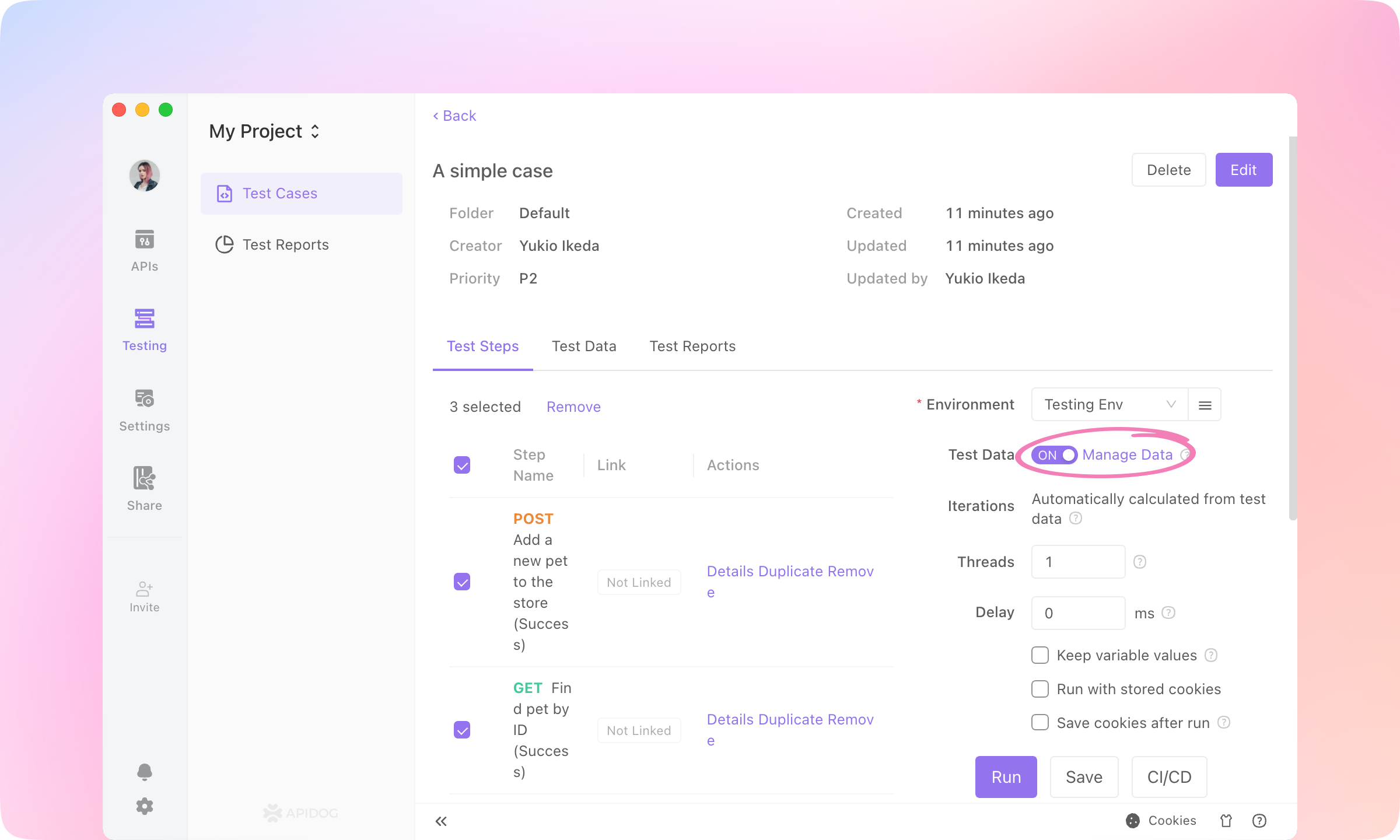
    1.
    Turn on the Test Data switch, and click Manage Data.
    image-20230116115746243
    2.
    Add variables and datasets, then values of the variables. Importing from CSV or JSON is also supported.
    image-20230116121308758
    3.
    Save and Run, and the values of the variables will be used in the iterations of the test case.
    image-20230116122633829
    image-20230116122645312
    TIP
    Learn more about Test Data here.

    Dynamic Values#

    If you need a dynamic change in parameter values for an API, you can use the "dynamic variable" feature.
    1.
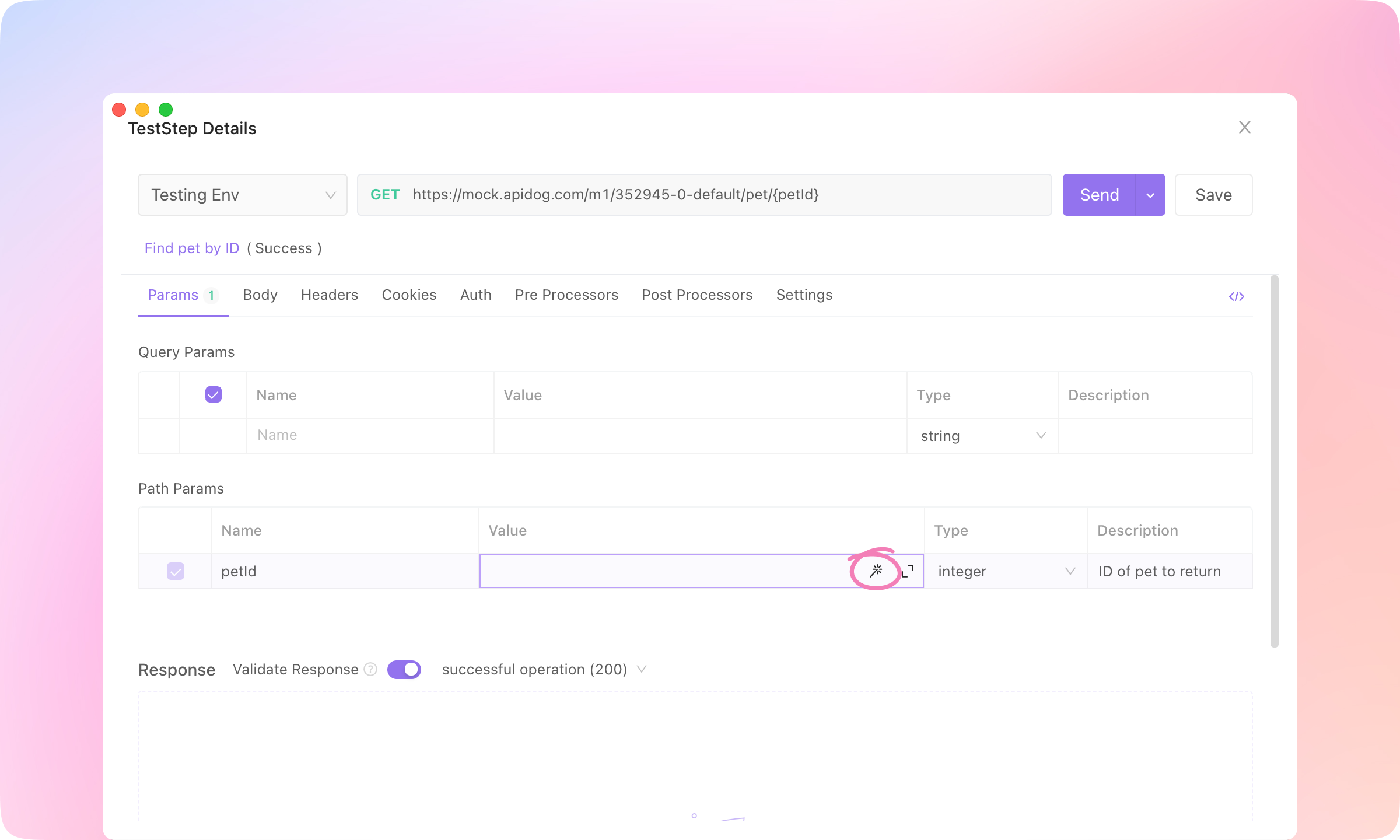
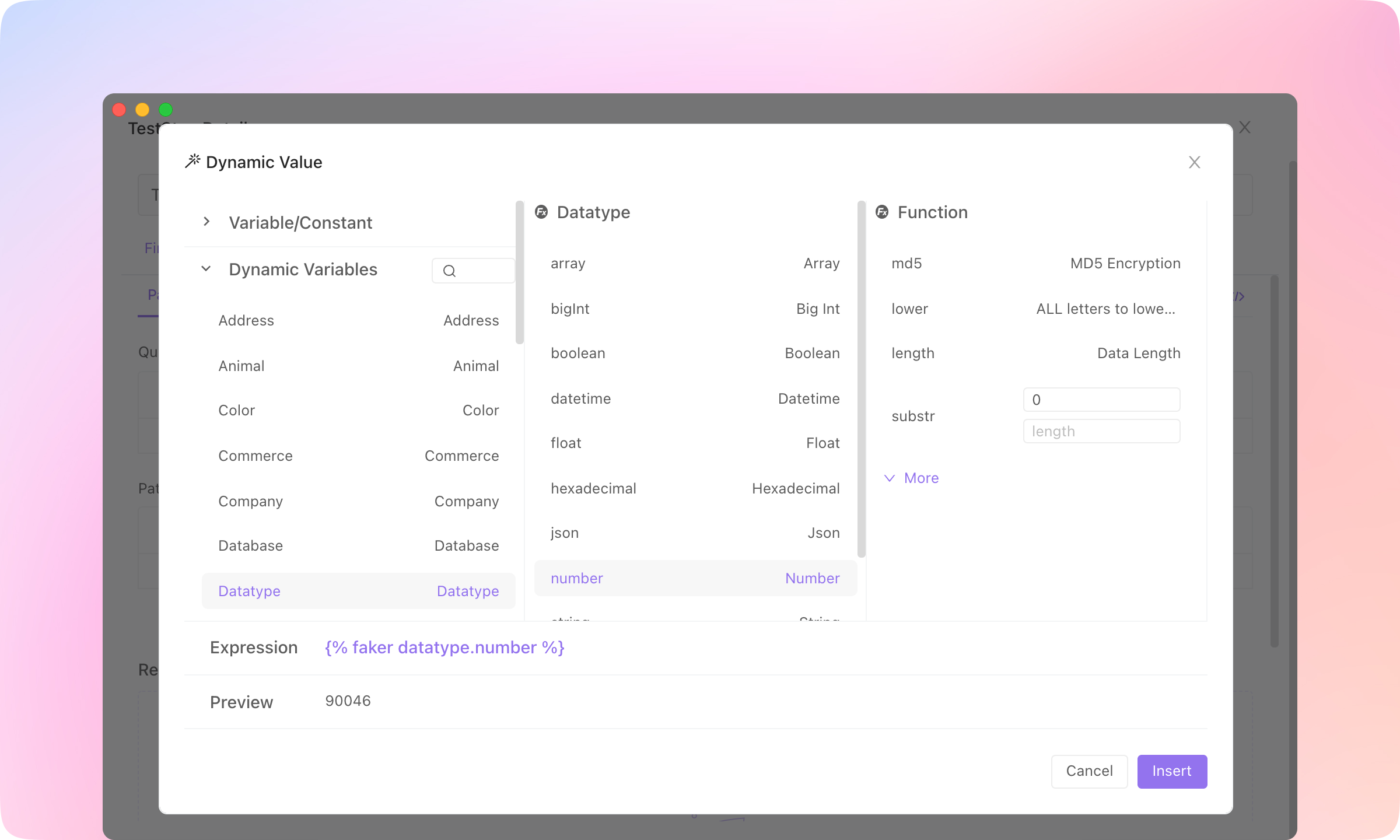
    Click Detail of the API case, and click the ๐Ÿช„(magic wand) button to open the Dynamic Value dialogue.
    image-20230116152731123
    image-20230116152741309
    2.
    Select Datatype - number, and you'll see a preview of the dynamic value. Click Insert to apply the dynamic value.
    image-20230116152930710
    3.
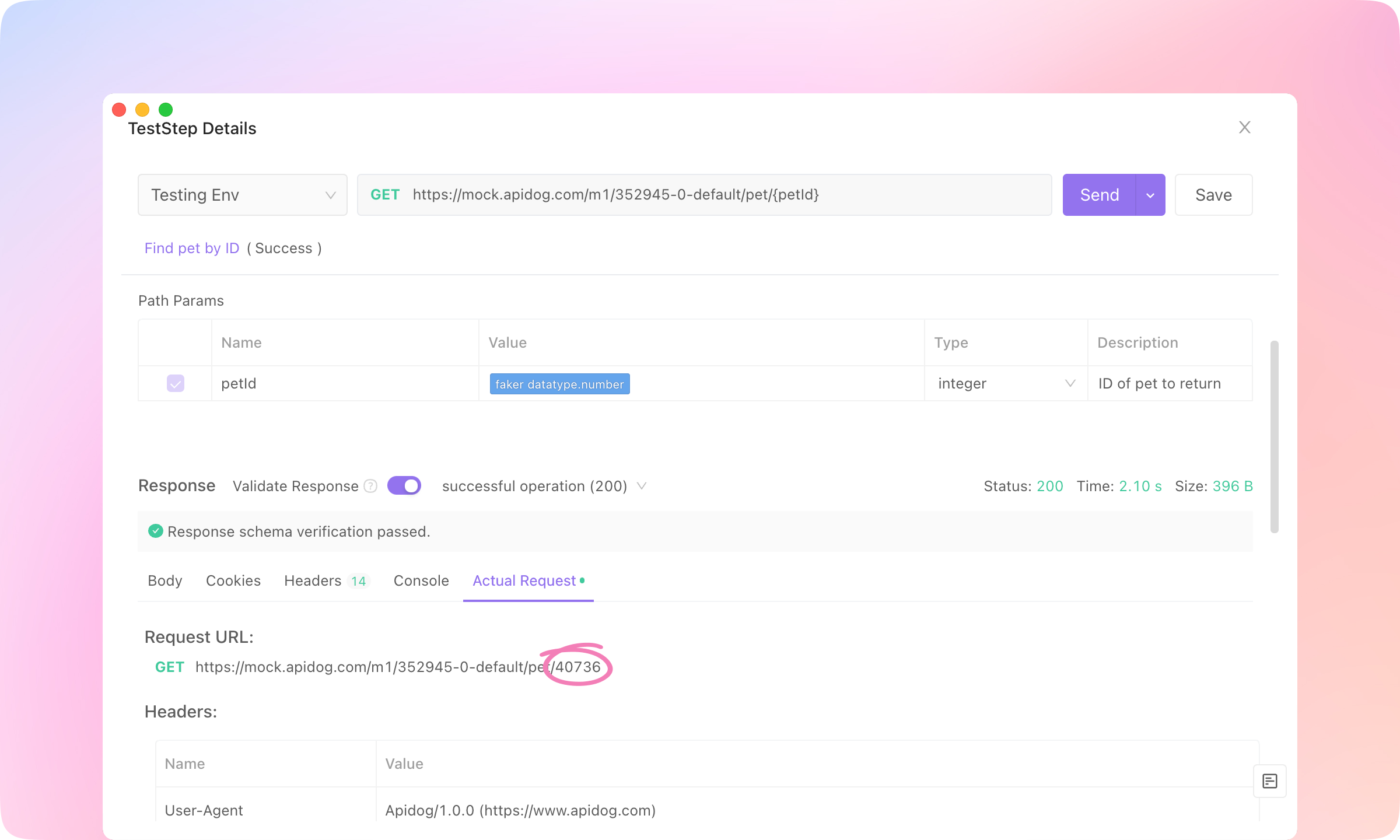
    Dynamic values will take effect in the actual sent request. You can see the actual values sent in the Actual Request. Each time the request is sent, the dynamic value will generate a new value.
    image-20230116154913168
    4.
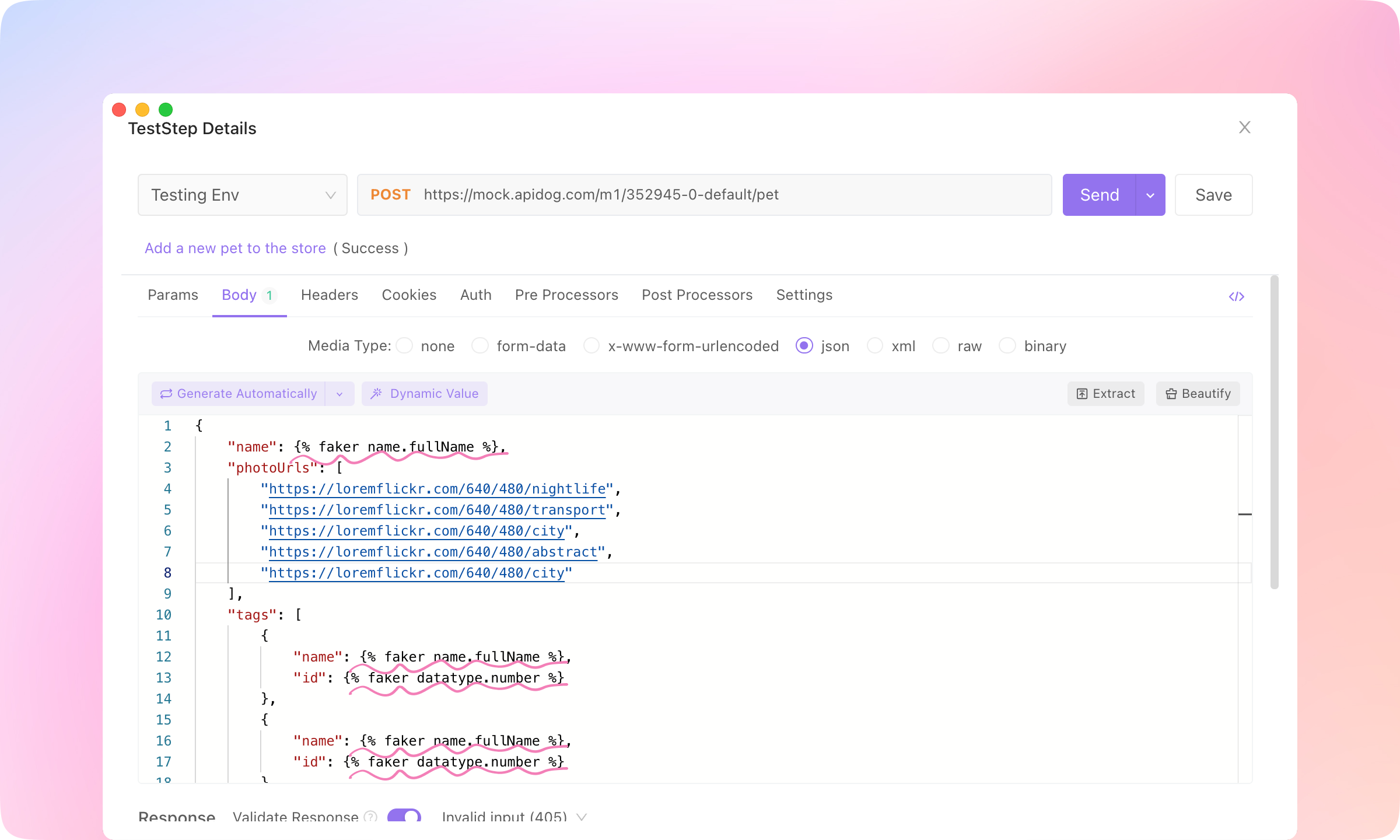
    Dynamic values can also be inserted into the request body in JSON or XML format and will also be processed as actual values when sent.
    image-20230116155616419
    TIP
    Learn more about Dynamic Value here.

    CI / CD#

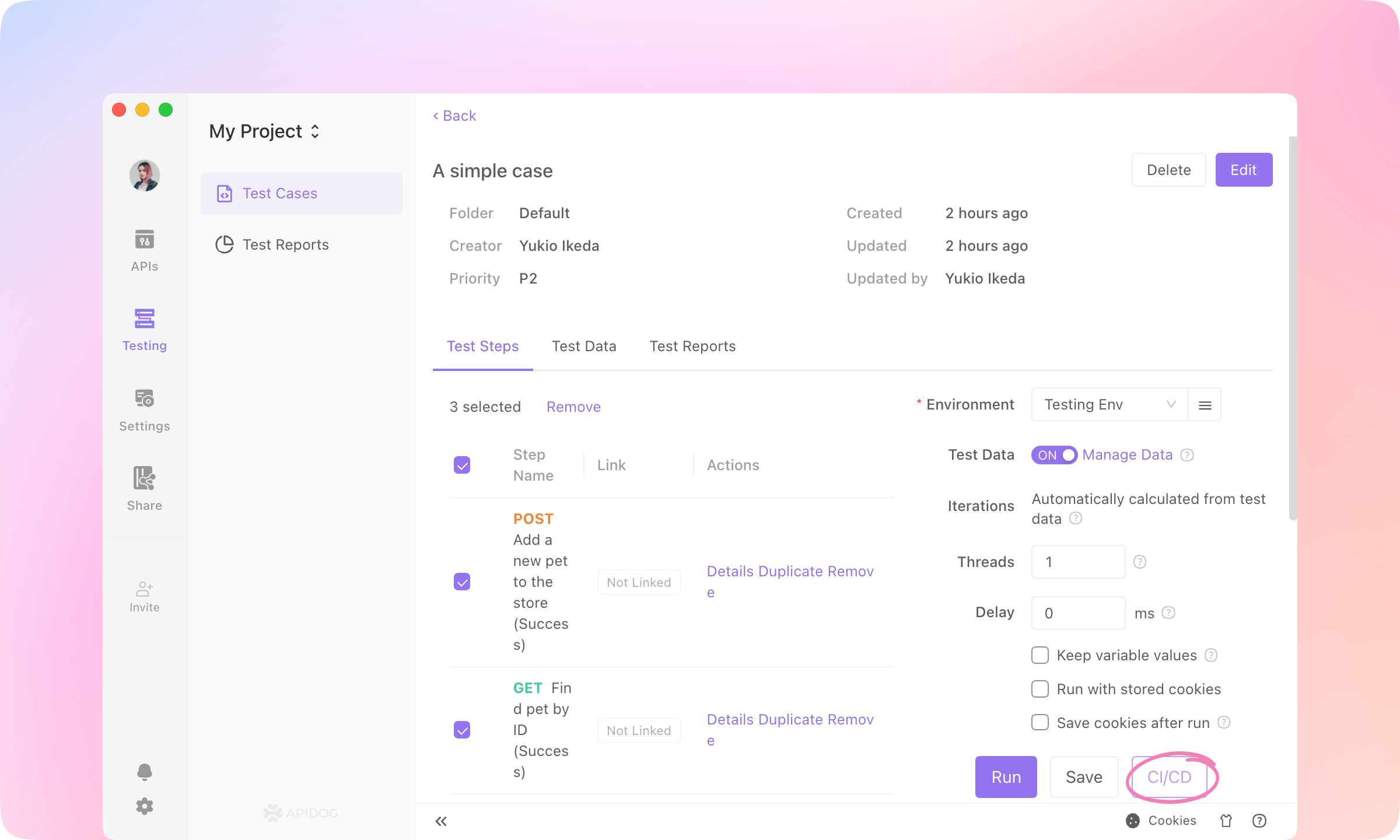
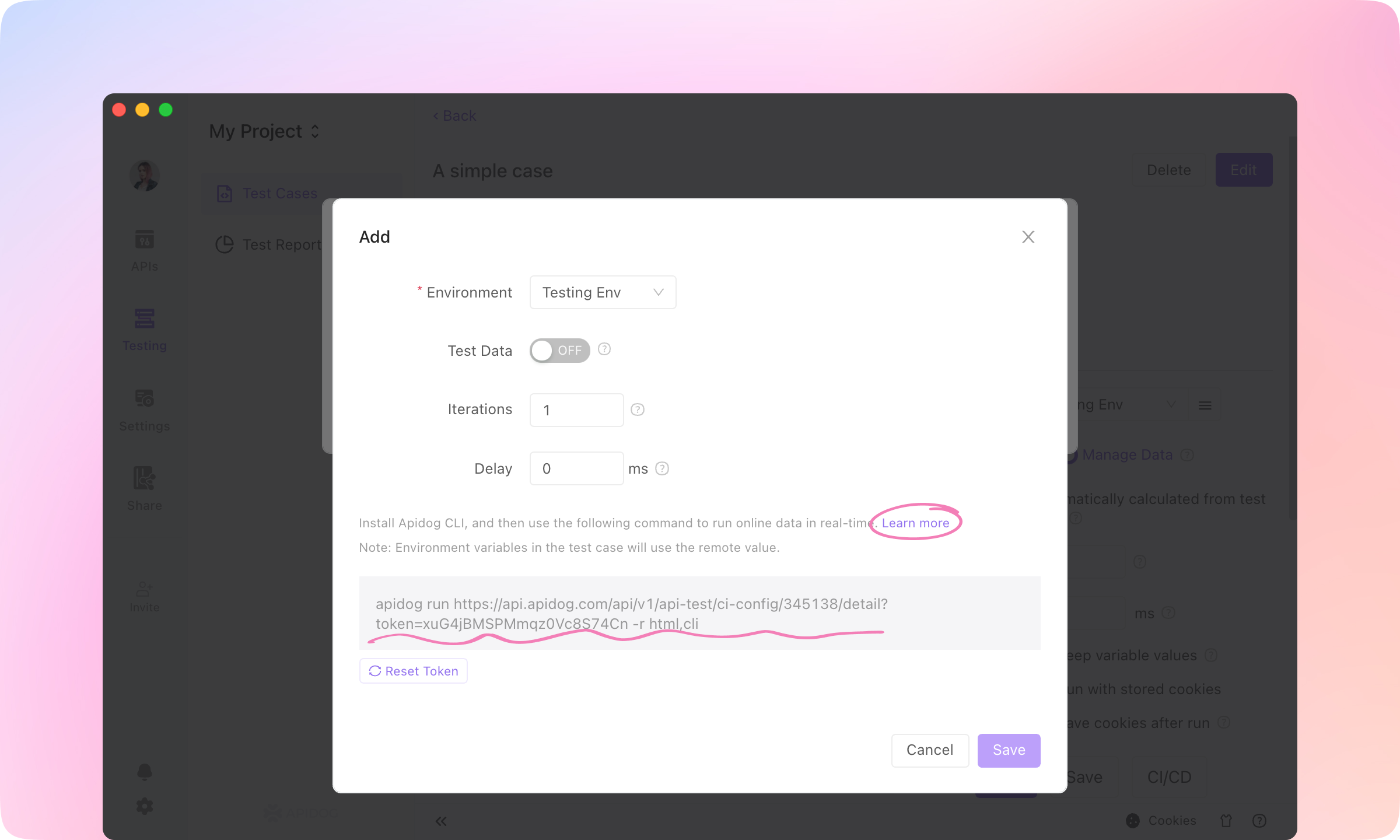
    Apidog supports running via command line. After installing the Apidog CLI, you can use the command apidog run to get a command line test report. This command can also be used in Jenkins for implementing CI/CD.
    1.
    Click CI/CD in a test case.
    image-20230116161222678
    2.
    Set the test parameters and click save, and you will get a command line statement. Click Learn More to install Apidog CLI.
    image-20230116161555283
    TIP
    Learn more about CI / CD here.

    API Designers & API Consumers: API Documentations#

    After the API is designed, developed, debugged, and tested, it becomes a product that can be called by other users. Apidog can generate beautiful API documentation, making it easy for the development team to publish the API outside of the team.
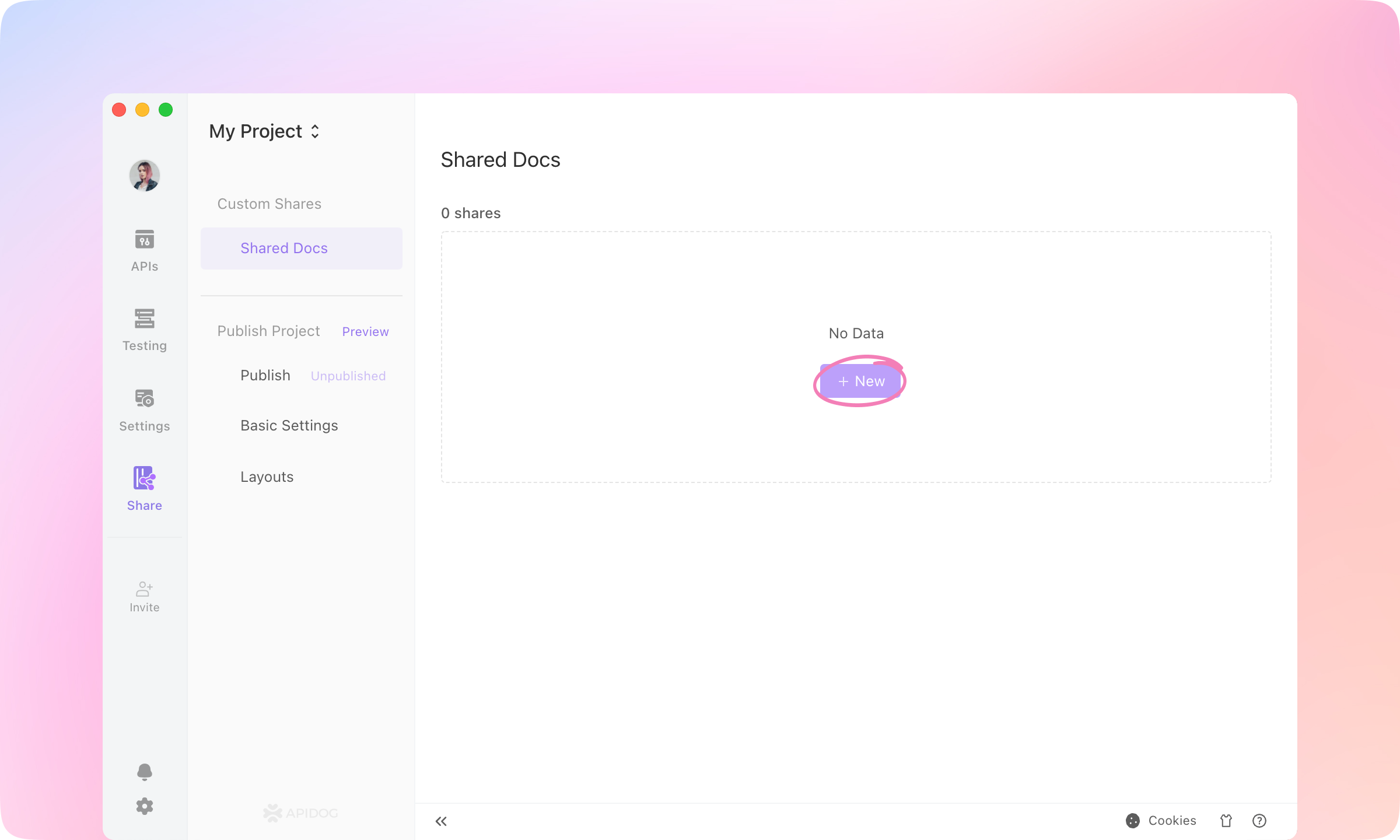
    1.
    Switch to the Share module, and +New a share.
    image-20230116170305115
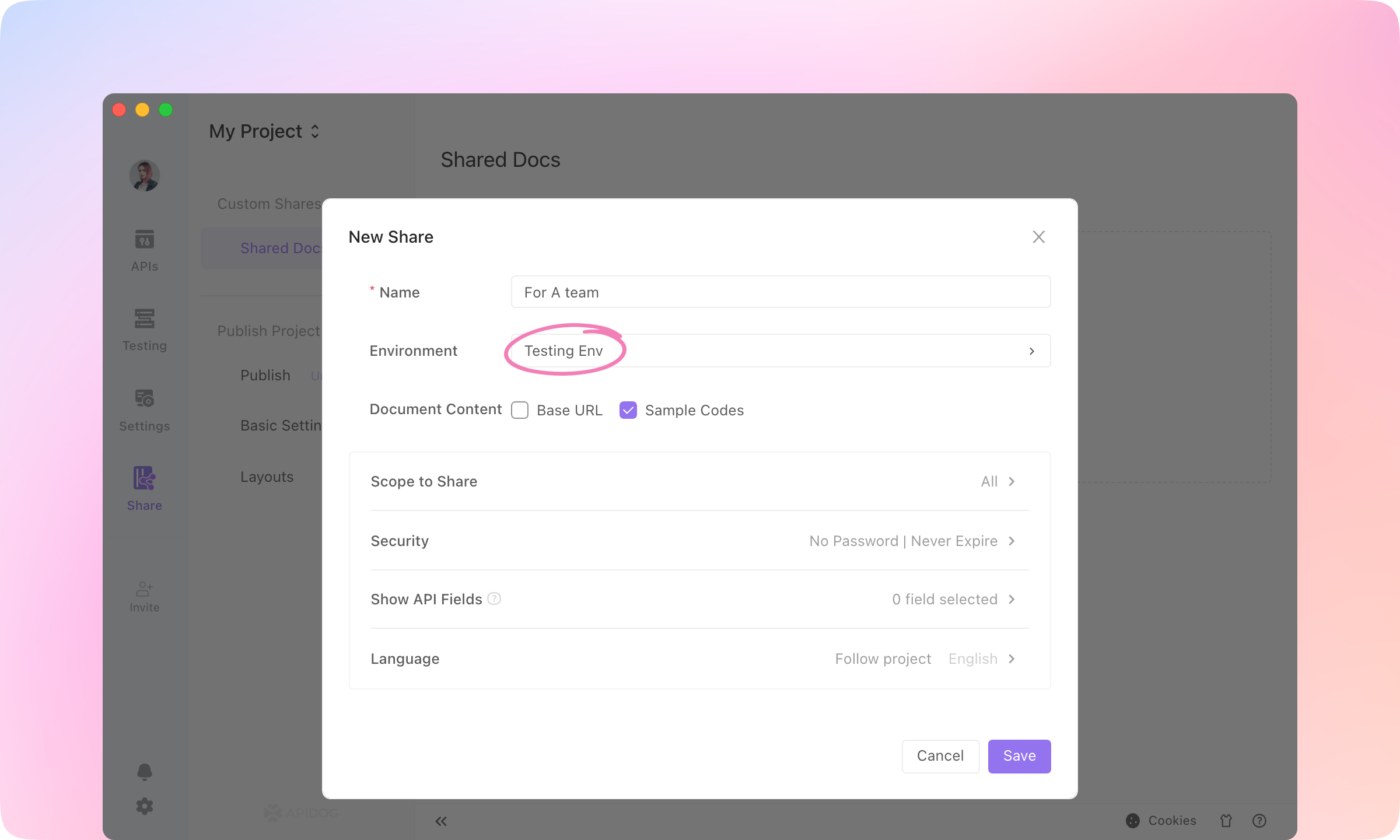
    2.
    Select the environment that will be effective in the API documentation. Readers of the API documentation will be able to use the environment configured here to run the API.
    image-20230116171015801
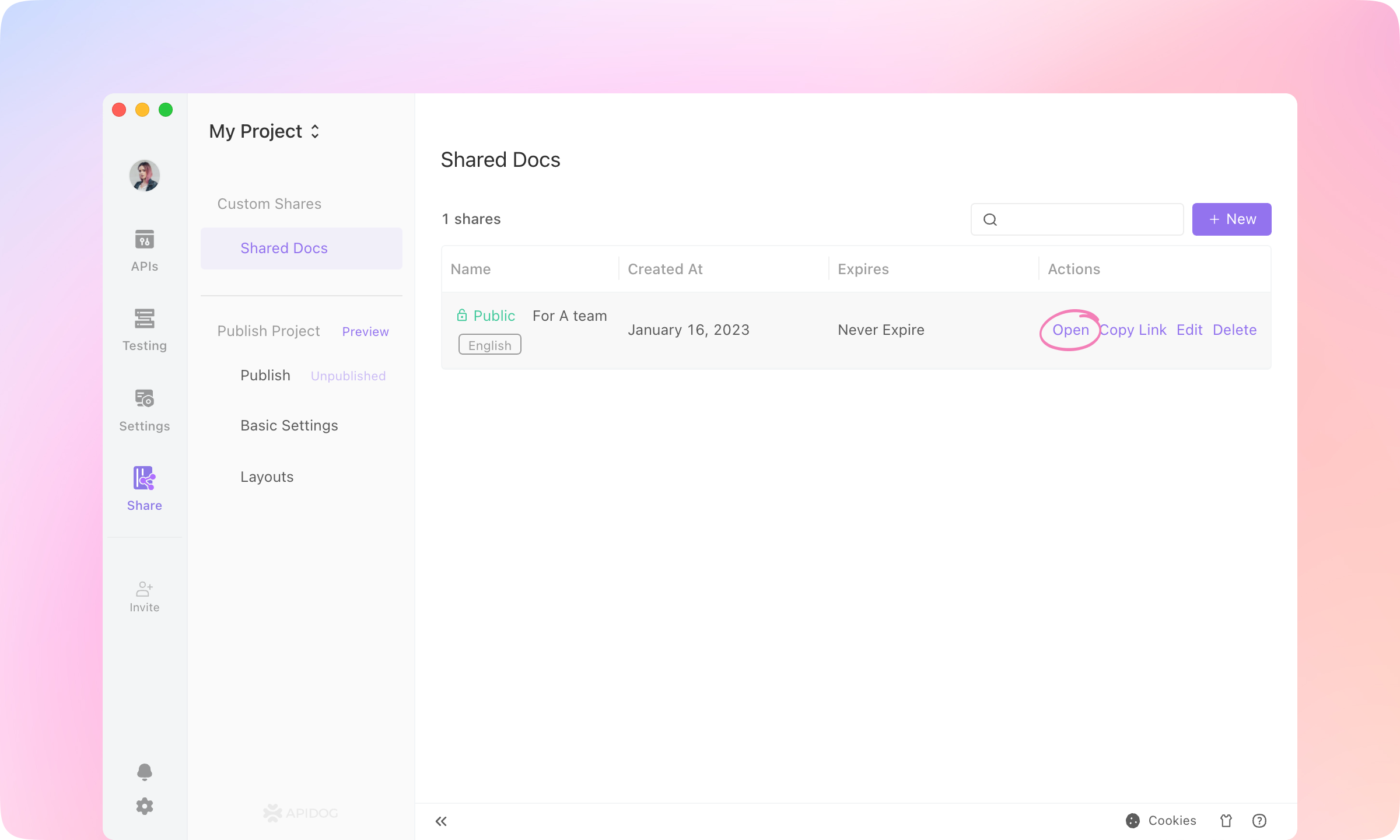
    3.
    Open the shared docs in a browser.
    image-20230116171644215
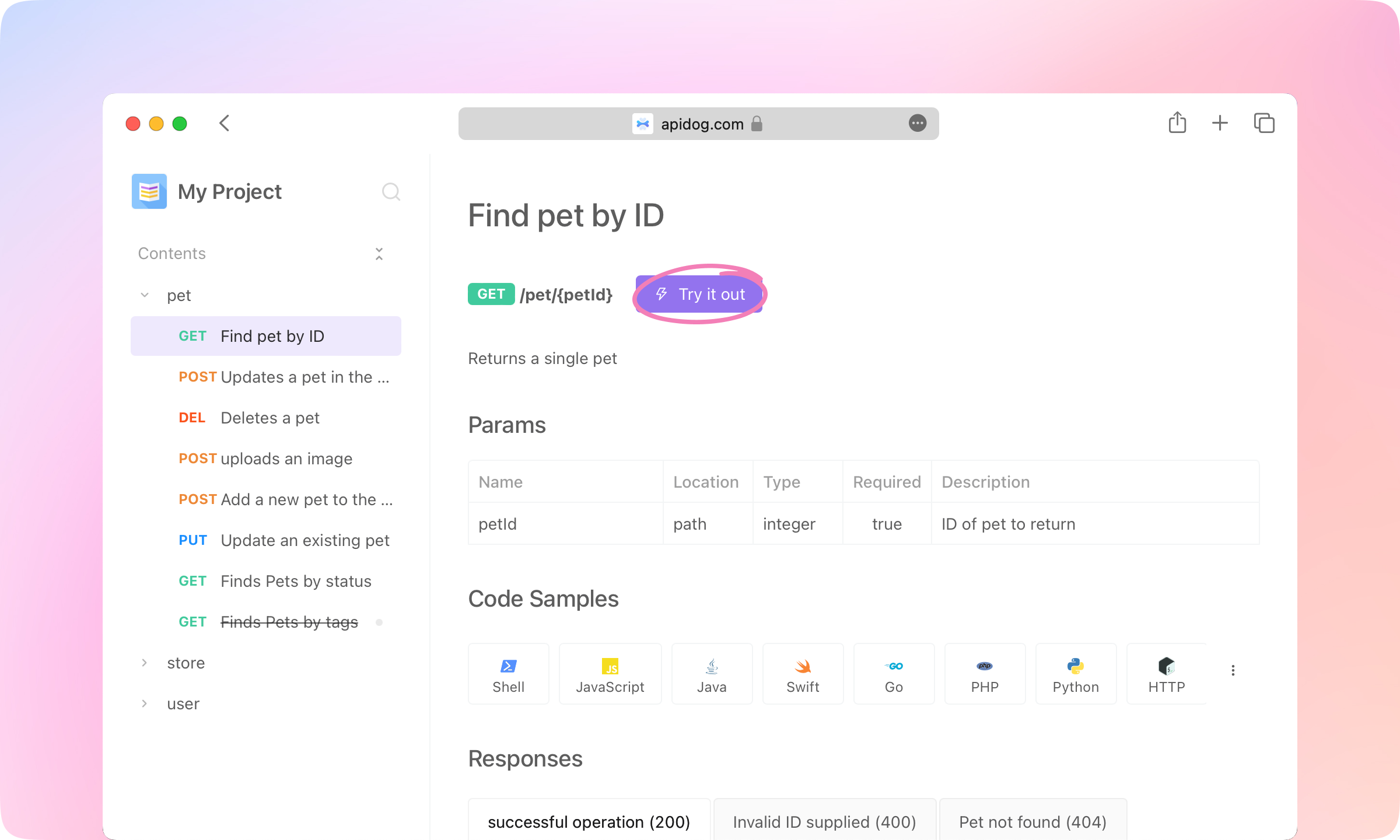
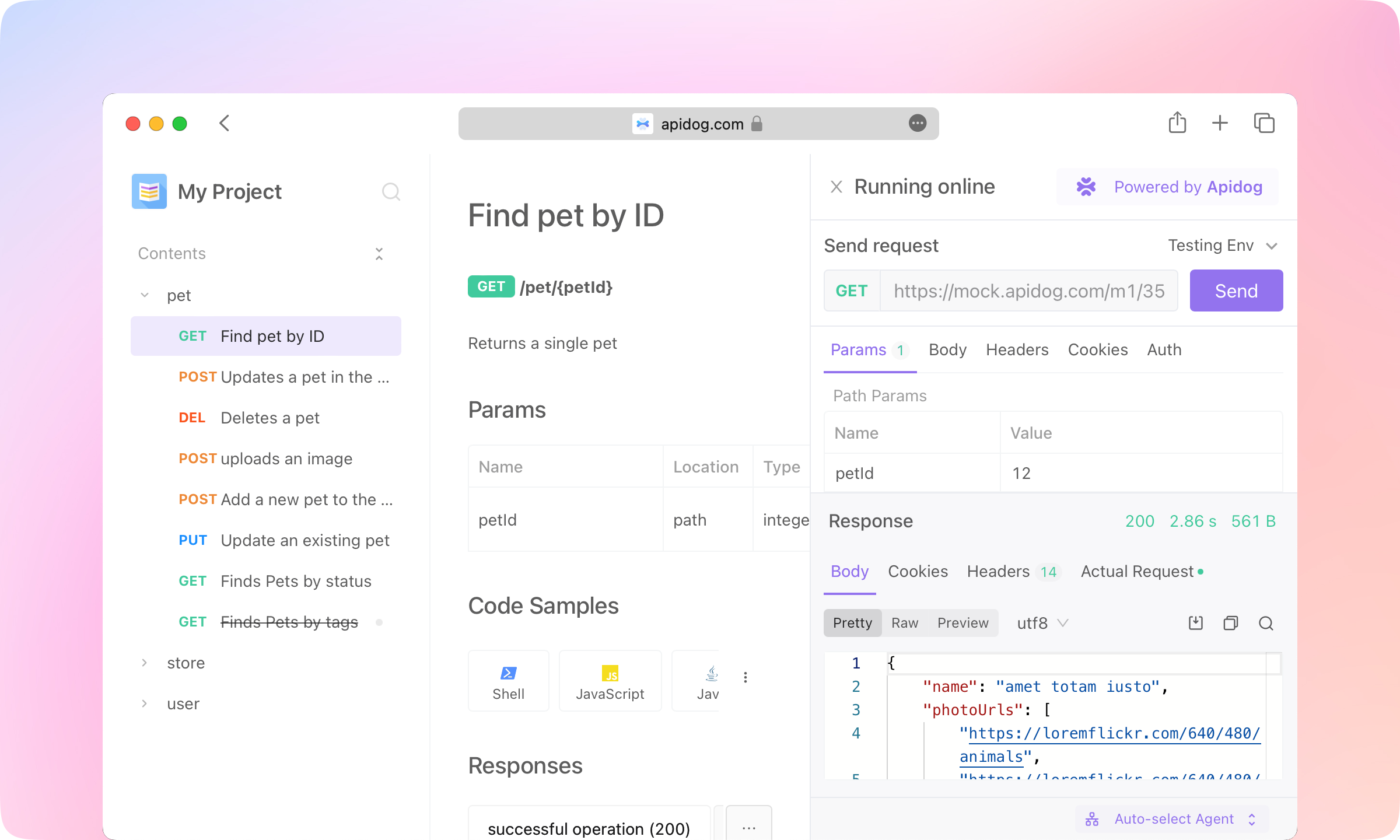
    4.
    The API documentation is generated and can be shared on the internet. It also can be Try it out on the shared website.
    image-20230116174457461
    image-20230116174515172
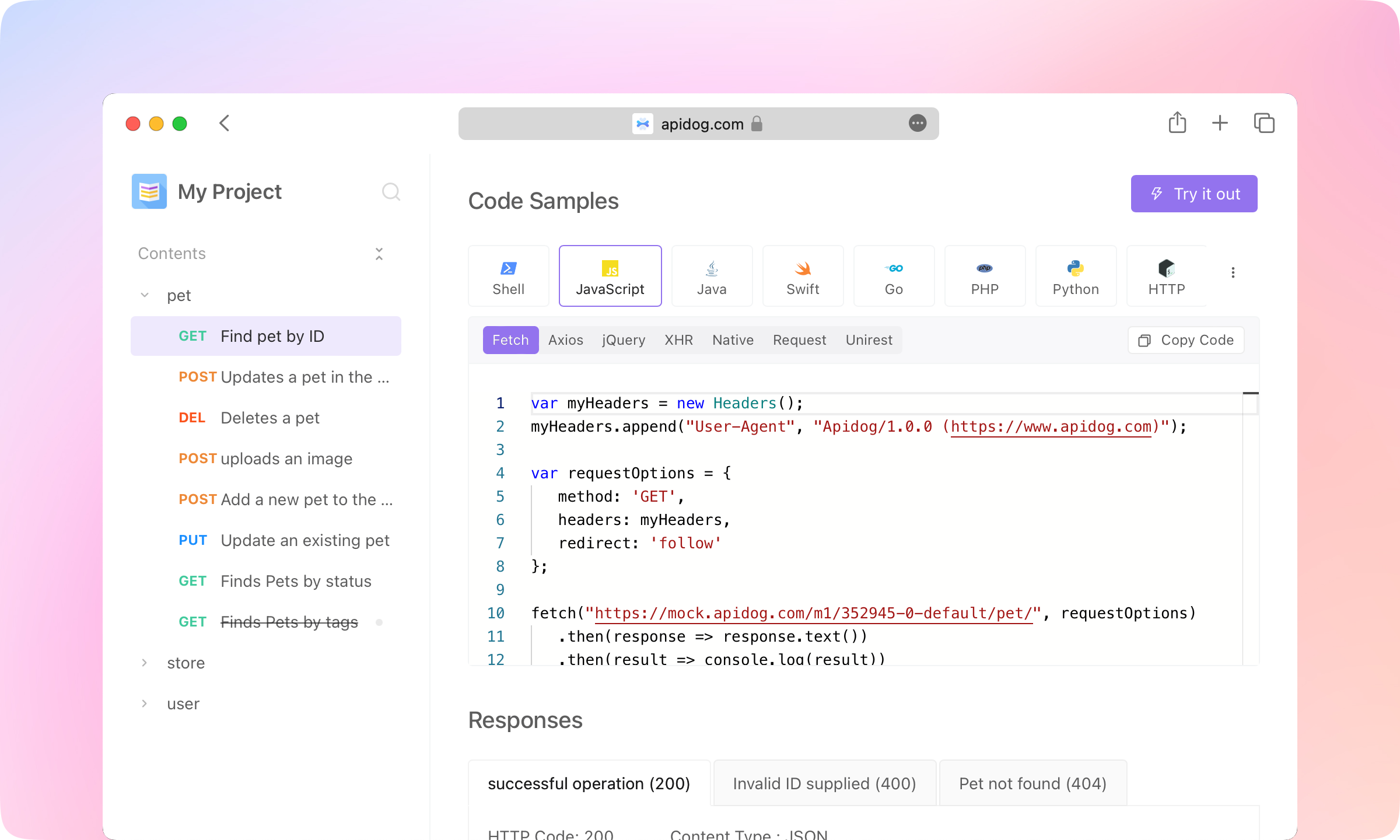
    5.
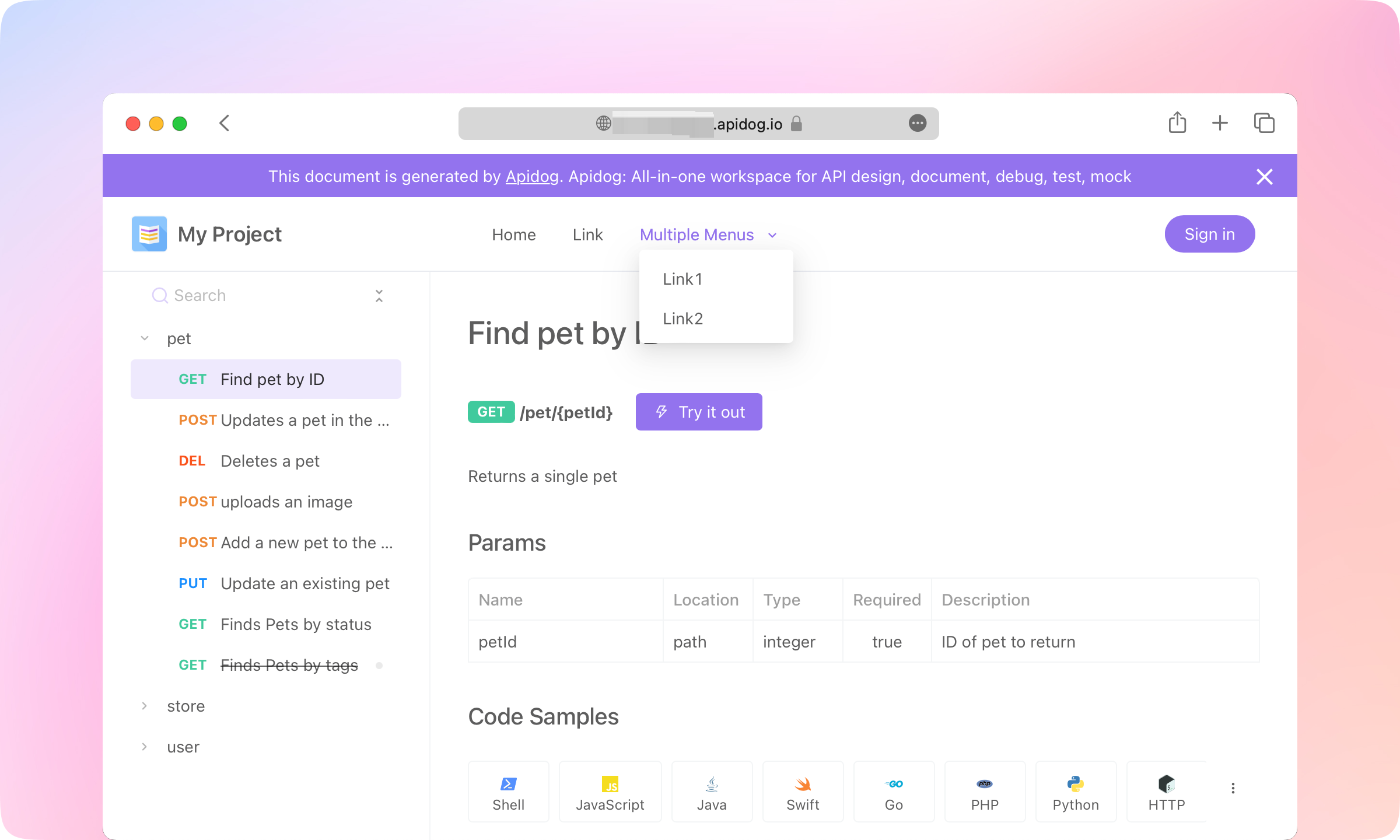
    Code Samples feature supports generating API request code in dozens of languages, allowing API readers to directly call the API with the generated code.
    image-20230116175126801
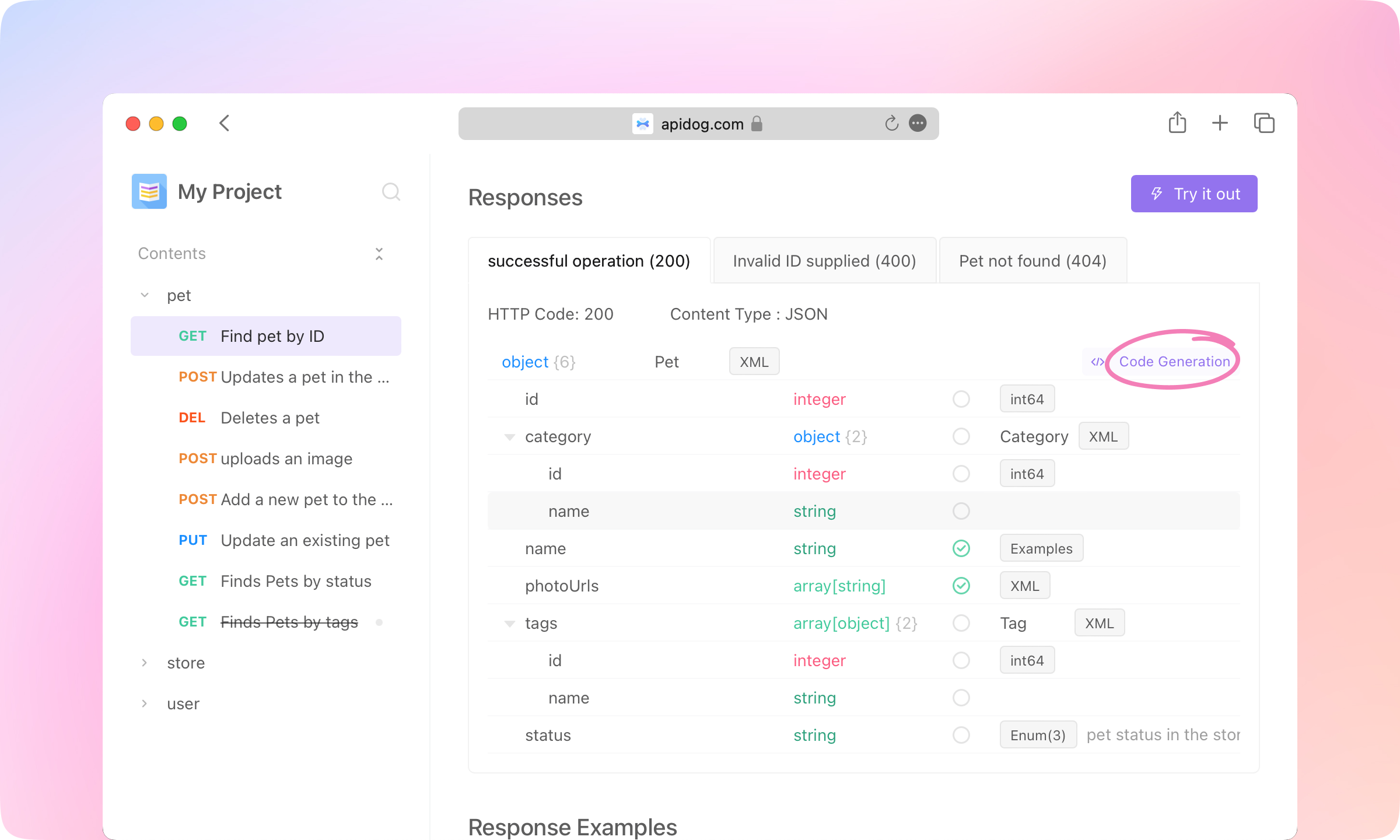
    6.
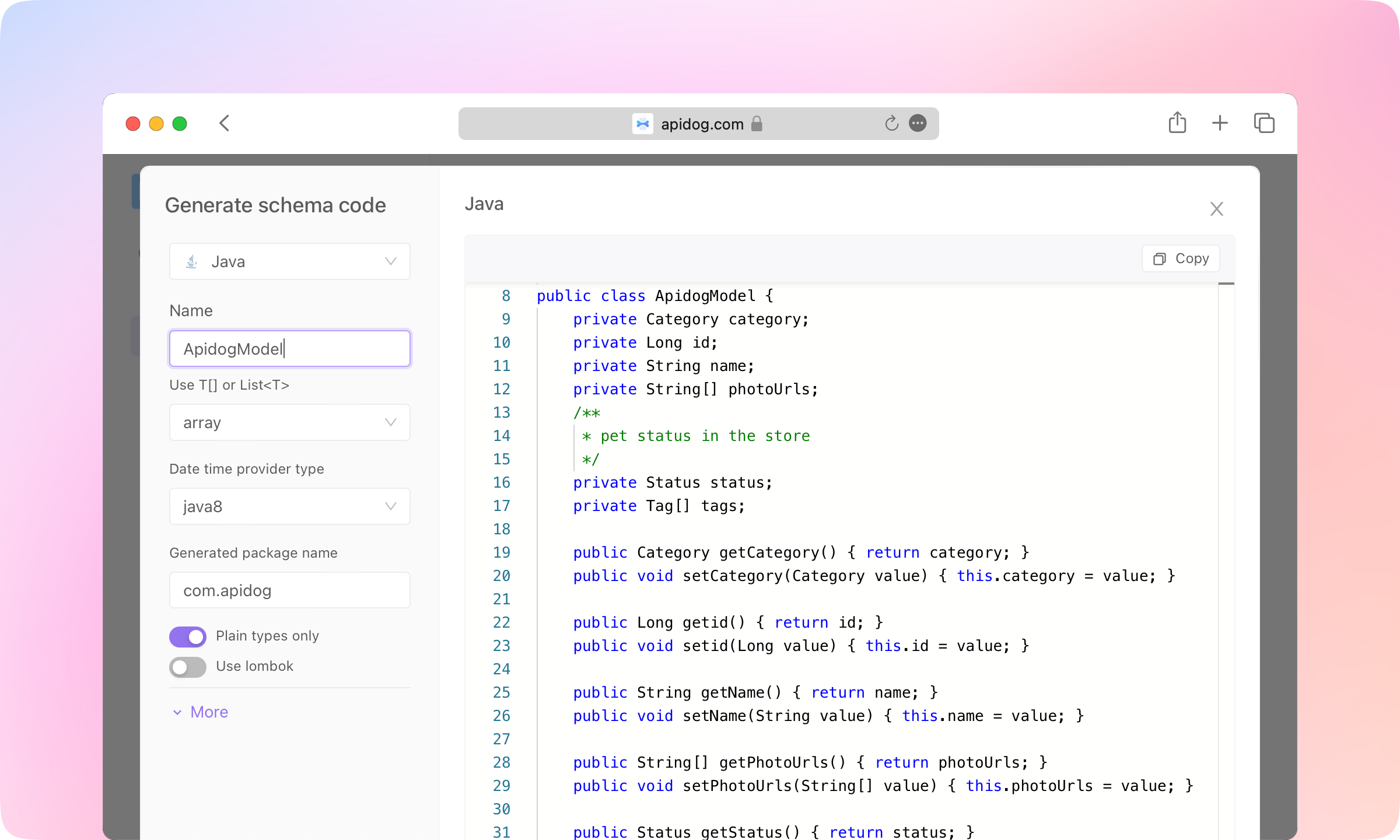
    Code Generation in the Responses also supports generating code for the structure of the response data, supporting several dozens of languages. API consumers can use the generated code in their implementation.
    image-20230116181338769
    image-20230116181353377
    7.
    Custom domain, Top Navigation, Catalog Style, Content Footer, and more custom features are also supported in the documentation.
    image-20230116182555891

    Best Practice#

    1.
    In Apidog, the API designer (or Back-end developer) defines the specifications for the API.
    2.
    The development team collaborates to review and improve the documentation, and to ensure consistency in the API use cases.
    3.
    Using Apidog, front-end developers can begin development with automatically generated mock data, eliminating the need for manual mock rule creation.
    4.
    Back-end developers can debug using the API use cases during development. If all API use cases pass during debugging, the API development is considered complete. If changes to the API occur during development, the API documentation is automatically updated during debugging, ensuring timely API maintenance with minimal effort.
    5.
    After debugging, back-end developers can easily save the function as an API use case.
    6.
    QA engineers can then test the API directly using the API use cases.
    7.
    Once all APIs have been developed, QA engineers (or back-end developers) can use the test case and test collection function to conduct comprehensive multi-API integration testing.
    8.
    Joint debugging between front-end and back-end development is typically seamless because both teams adhere to the API's specifications, allowing front-end developers to switch from mock data to real data.
    9.
    Once the API development is complete, Apidog generates a beautiful API documentation, making it easy for the development team to publish the API to external teams.
    The above is a summary of the core features and usage of Apidog. Apidog also has many other rich features that can help development teams efficiently develop and debug APIs.
    Modified atย 2023-11-19 18:25:01
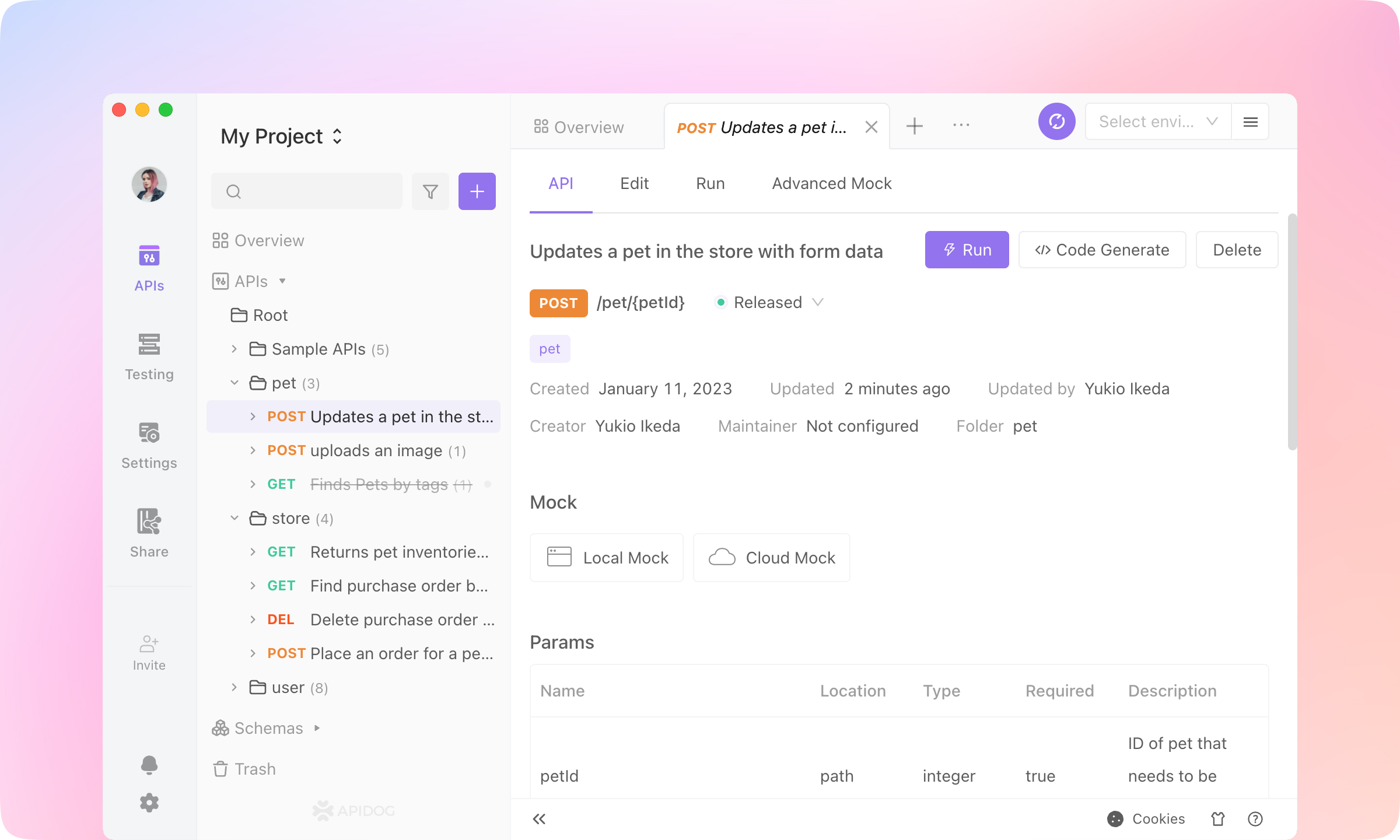
    Next
    login
    Built with